A business with two shops often moves stock between them: the main store sends Ramazan stock to the smaller branch, or one branch passes on slow items the other sells faster. In MartPOS the sending branch sends, MartPOS Cloud carries the document, and the receiving branch counts it in. Each branch's stock and books stay right while the goods are on the road.
Cannot find Send to branch? A branch set up as a Kiryana or a General store keeps sending stock between branches out of the menus. Choose Mini mart, or tick Show every feature, under Settings › Business type. See Choosing your business type.
What you need
- Both branches set up as branches of one business, each paired with MartPOS Cloud. See Joining a new branch to your business.
- Both store PCs syncing. A transfer travels only through the cloud; there is no direct link between the shops.
Until another branch has joined and this store has synced, the send window says: "No other branch is known here yet. Branches are listed after this store syncs with MartPOS Cloud and another branch of the business has joined."
How to send stock
- On the sending branch's store PC, open Stock or Transfers and choose Send to branch ("Send stock to another branch of the business").
- Choose To branch, and From which place (usually the shop floor).
- Find each item by its name, SKU or barcode and add it, with its Unit and Qty: cartons, pieces, or the weight of a loose item, such as 25.5 kg of sugar. Packed goods go in whole pieces.
- Add a Note, for example Eid stock for Cantt.
- Choose Send.
"MAIN-BT000002: Rs 38,400.00 sent to CANTT. It reaches the other branch at the next sync with MartPOS Cloud."
The goods leave the sending branch at once, at their average cost. While they travel, their value sits in an Inter-branch transfers account, so the sender's stock value drops but nothing is lost from its books.
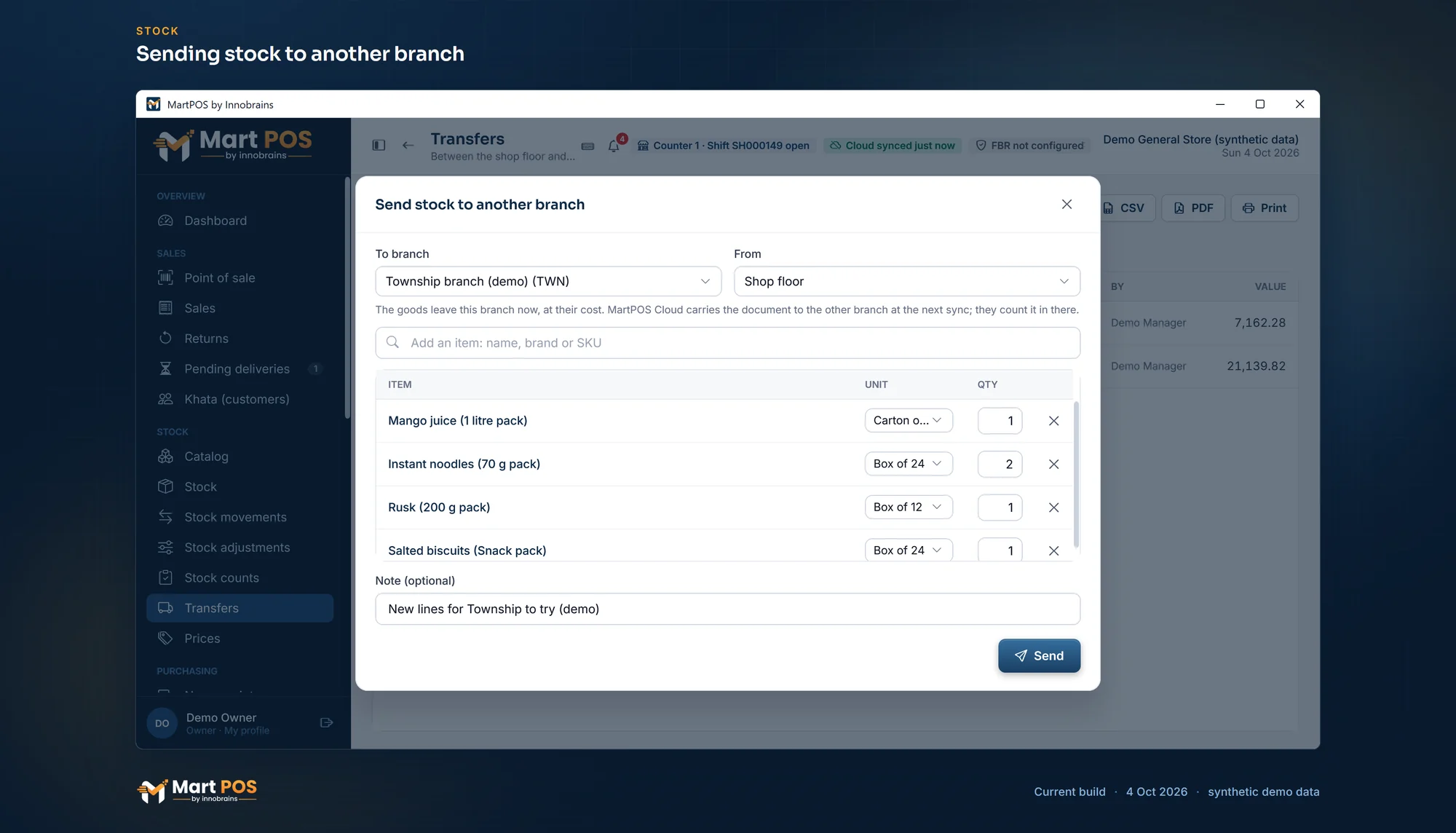
Sending stock to another branch. Goods for another branch of the business leave this one at their average cost; MartPOS Cloud carries the document, and the other branch counts it in. Screenshot of the current build (4 Oct 2026), synthetic demo data.
How to count it in at the other branch
- At the receiving branch, after its store PC has synced, Transfers in the menu shows how many transfers are waiting as a count beside it, the Dashboard lists them under Needs attention, and the From branches button on Stock shows the same count, for example From branches (1).
- On Transfers, choose Count in from branches (or open the waiting transfer and choose Count in). The Transfers between branches window lists what is Arriving, from which branch.
- Choose the transfer and count what actually arrived, line by line, in the base unit: pieces, or kg with decimals for loose goods.
- If anything is short, type what happened in Note (needed if anything is short), for example two packets missing from the carton.
- Choose Count in.
For an item that tracks expiry dates, the goods carry their lots (expiry date and batch) from the sending branch, shown in the EXPIRY column. A branch on a MartPOS from before 4 Oct 2026 sends no dates: where the item tracks expiry at the receiving branch, Enter dates on the line opens a window for the dates on the packs (a lot may be left without a date); without them the goods go into a lot with no date.
What arrived goes onto the receiving branch's shop floor at the sending branch's cost. Anything short is written off at the receiving branch as a loss in transit, with the note. You cannot count in more than was sent, and a transfer can be counted in only once.
The receiving branch's count goes back through the cloud, and the sender's window shows it under Sent from here, with Sent, Arrived and Status.
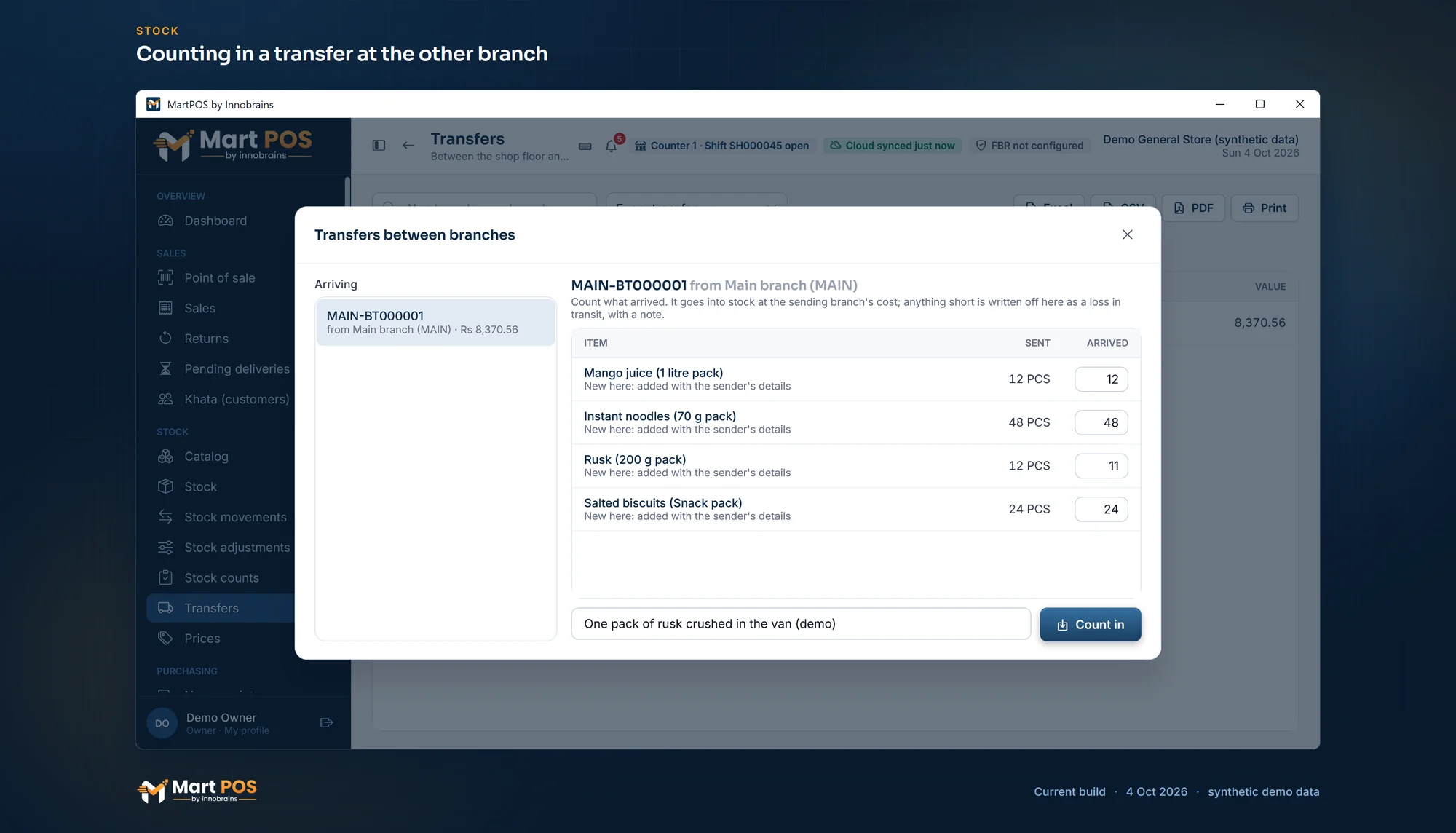
Counting in a transfer at the other branch. The receiving branch counts what arrived, line by line; anything short is written off there as a loss in transit with a note, and goods it does not keep yet are added with the sender's details. Screenshot of the current build (4 Oct 2026), synthetic demo data.
The shop's transfer rules
The owner or a manager sets two rules in Settings › Stock & buying › Transfers between branches, each for its own store PC:
- A manager approves every transfer sent. A warehouse user who chooses Send is then asked for a manager, who chooses their name and types their PIN on the same PC for exactly that transfer; their name is kept on it. Owners and managers send transfers themselves.
- Receiving short. As it comes, goods can be counted in short with a note, and what is missing is written off as a loss in transit. Turned off, a transfer is counted in only in full: count everything that was sent, then record anything missing as a stock adjustment, which needs someone who may adjust stock.
A transfer never takes stock below zero: MartPOS refuses any stock movement that would, so you cannot send more than the place has.
The Transfers page
Transfers (in the menu under Stock) lists every transfer of the branch together: moves between the shop floor and the godown, goods sent to other branches with what arrived there, and goods from other branches, waiting ones first. Each row shows when, the number, where the goods went, the status (Moved, On the way, To count in, Received or Received short), the lines and the value. Choose Every transfer, Between places, Sent to branches, From branches or Waiting to be counted in, or type a number, place or branch, to narrow it.
Choose a transfer to open its own page: where it went, when and by whom, its value, what the other side counted in and anything short, and each line with its quantity, value and what was received. Excel, CSV, PDF and Print save or print the list or a transfer.
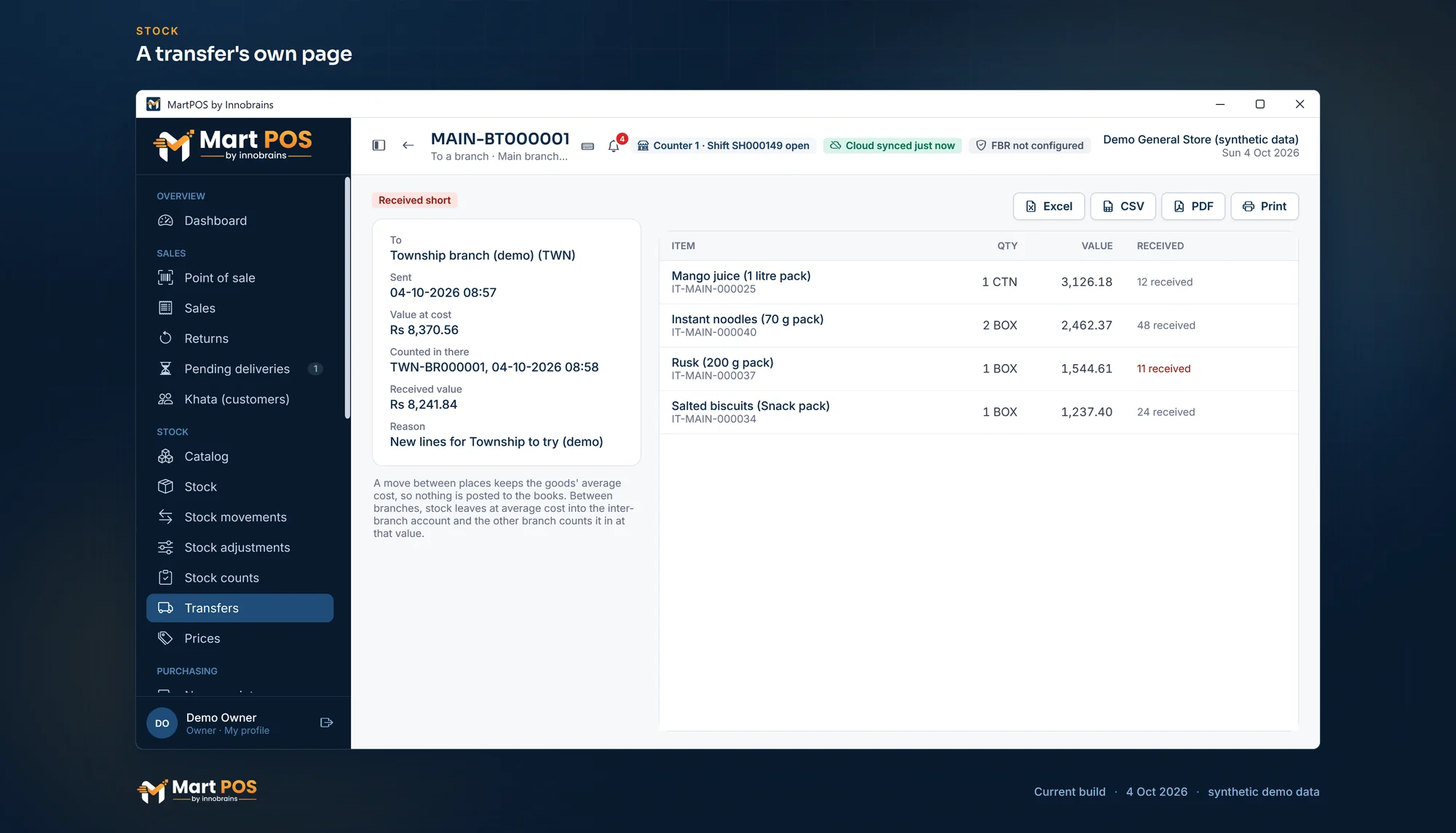
A transfer's own page. Where the goods went, their value at cost, when the other branch counted them in and what arrived, line by line. Screenshot of the current build (4 Oct 2026), synthetic demo data.
How the receiving branch finds each item
When the goods are counted in, each line is matched to an item at the receiving branch in this order:
- The same item. An item added from the owner portal to both branches, or one sent between them before, has the same identity at both ends, so it matches at once. See New items from the owner portal.
- The same barcode. If there is no such item, MartPOS looks for the one item here whose base unit carries the same pack barcode (EAN-13, UPC-A or EAN-8) as the sender's. A 500 g packet of tea added separately at both shops is found this way. If two items here carry that barcode, MartPOS does not guess between them.
- A new item. Otherwise counting in adds the item here with the sender's details: item name, variant, Urdu name, brand, category, whether it is sold loose, its base unit with its retail and wholesale prices and its barcode, and its tax rate, PCT code and Third Schedule setting (a transfer sent by an older version of MartPOS carries no tax, and the item starts at 0 %).
The counting window says for each line whether the item is In this branch's catalogue or New here: added with the sender's details. An item added this way has only its base unit: add its cartons or bags and check its prices at the receiving branch afterwards. See Units, packs, prices and barcodes.
In the owner portal
Branch transfers in MartPOS Cloud lists every transfer between your branches with when it was sent, from and to which branch, the document, its value and its status, with what was received. "Stock leaves the sending branch when it sends, at its average cost, into an inter-branch account. The receiving branch counts what arrived; anything short is written off there as a loss in transit. The two branches' inter-branch accounts cancel out."
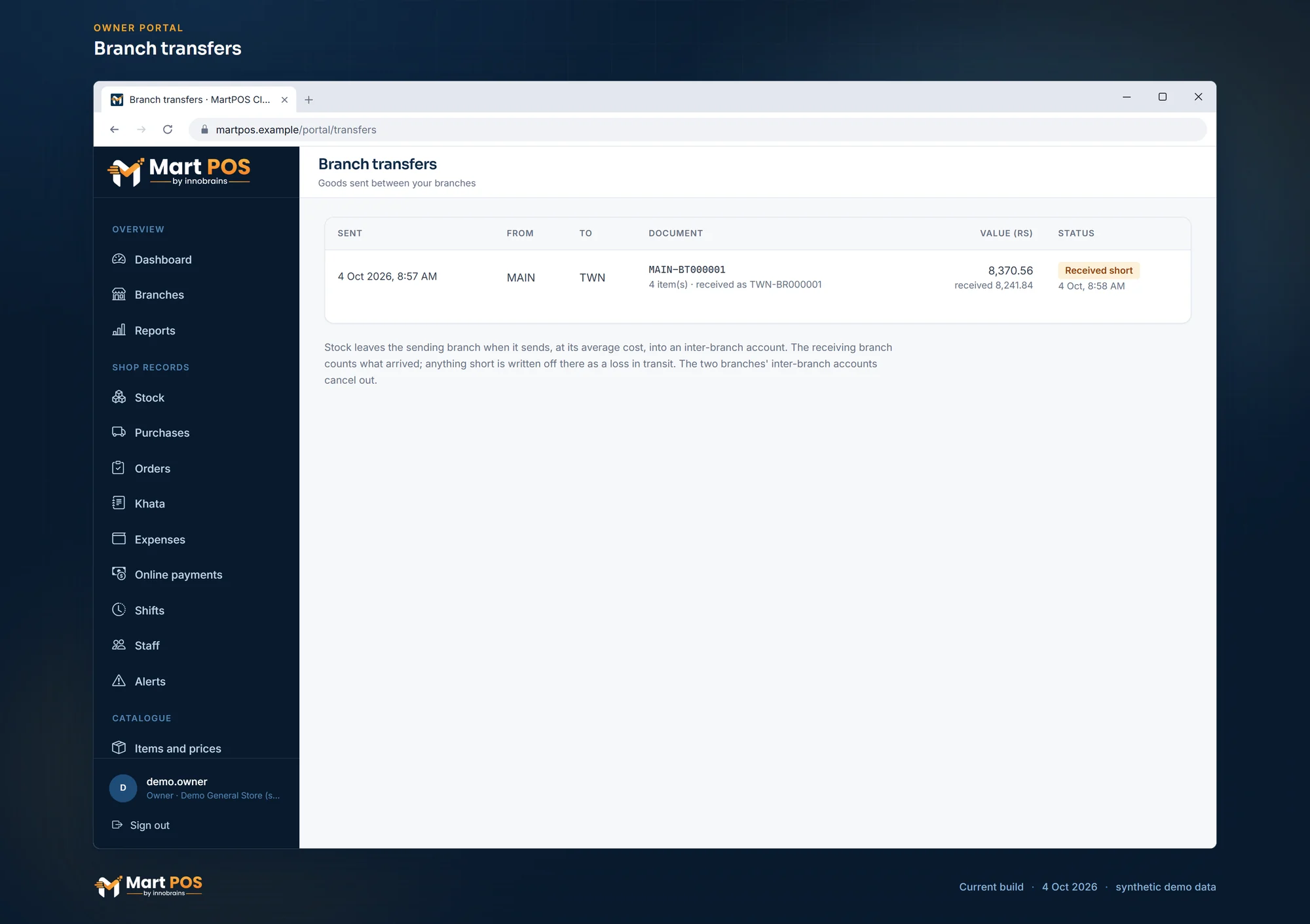
Branch transfers. Stock sent between branches with what arrived, as the two store PCs reported it. Screenshot of the current build (4 Oct 2026), synthetic demo data.
Rules worth knowing
- Transfers travel at sync time. If either store PC is offline, the transfer waits; nothing is lost.
- Stock moves in base units (pieces, or kg and litres for loose goods) and lands on the receiving branch's shop floor.
- A transfer cannot be recalled once sent. If goods went to the wrong branch, count them in there and send them back.
- Only sellable stock is sent; damaged goods stay at the branch that has them.
- Who can send and count in: owners, managers and warehouse staff (where the shop asks for a manager, warehouse staff send with a manager's PIN approval).
Common questions
Why can the other branch not see the transfer?
Both store PCs must have synced since it was sent: the sender to deliver it, the receiver to pull it. Check Sync & FBR on both. See Cloud sync problems.
Why does the transfer show at the sender's cost and not the receiver's?
The goods were bought by the sender. Keeping their cost means stock value is right across the business, and the two inter-branch balances cancel out.
What if some goods arrive damaged?
Count them in as arrived, then mark them damaged with Adjust › Mark as damaged at the receiving branch.
The same item now appears twice at the receiving branch. Why?
The receiving branch had the item already, but under a different identity and without the same barcode on its base unit, so MartPOS added a new one. Check that the pack barcode is on both items' base units before the next transfer. Mark the extra item Discontinued once its stock is sold or moved.
Can a branch receive a transfer from a different business?
No. Transfers go only between branches of the same business in MartPOS Cloud.
Related guides
Last updated 04 October 2026. Still stuck? Contact us.