Packed milk, yoghurt, bread, biscuits and cooking oil carry an expiry date; soap, matches and a steel glass do not. MartPOS keeps expiry dates only for the items you choose. For those, every delivery records the date printed on the goods (and the batch number, if you want it), the stock is kept in lots by date and batch, a sale takes the earliest date first, and Reports › Near expiry shows what is close to its date, so it can go to the front of the shelf, on offer or back to the supplier before it is too late. This guide explains how to turn it on, how dates are entered, how the lots are kept and how to read the report.
Turning it on for an item
- Open the item in Catalog and choose Edit, or add a new item.
- Tick Track expiry dates: "the date printed on the goods is asked for on every purchase, and Reports › Near expiry lists what is close to its date".
- Choose Save item.
It is off unless you tick it, so items that never expire never ask for a date. A service or charge has no expiry. You can also set it for many items at once in a CSV import, with the Track expiry column (yes or no). See Importing items, customers and suppliers from CSV.
When you tick it for an item that already has stock, that stock is put into lots at once: the part that dated deliveries account for gets their dates, and the rest goes into a lot with no date. Unticking it removes the item's lots; its stock stays as it is.
Entering the date on a delivery
On New receipt, a line of an item that tracks expiry has an EXPIRY box. Type the date printed on the goods, day first: 31-12-2026. Lines of other items show a dash instead. If a date is missing or wrong, the cursor goes back to that box, with a short word such as Needed or Expired under it.
- The date is required for an item that tracks expiry. Posting without it is refused: "Enter the expiry date printed on 'Fresh milk (1 litre)'."
- Expired goods are not received. A date before today is refused: "… expired on …: expired goods are not received into stock." Send them back to the supplier instead.
- Batch numbers and several dates on one line. The layers button beside the date opens Lots of …: enter each date on the packs with its batch number if the pack shows one, and how many of the line's base units carry it, for example 10 dated 14-11-2026 and 20 dated 30-06-2027, batch B-22. The lots must add up to what the line brings in ("The lots add up to 30 PCS, as the line brings in."). The line then shows 2 lots in place of the date. One lot goes back on the line as its date, with · batch B-22 under the item's name.
- The bill on Purchases shows the date on each line, for example · expires 31-12-2026.
A delivery against a purchase order asks for the date in the same way. See Receiving stock from suppliers.
How the lots are kept
Each delivery's date and batch becomes a stock lot of the item at the place it went into, with its own quantity. An item's stock is always its lots added up.
- A sale takes the earliest date first (first expiry, first out). Stock with no date is used last. The till does not ask which pack the customer picked, so if older packs are hidden at the back of the shelf, the lots and the shelf can drift apart: a count by lot puts them right (below).
- A return puts the goods back into the lot the sale took them from.
- Moving stock to the godown or back, an order delivered, goods sent back to a supplier, stock lost or written off and stock marked damaged all take the earliest date first too, and the lots move with the goods.
- Goods sent to another branch carry their lots. A branch on a MartPOS from before 4 Oct 2026 sends none: when the goods are counted in, Enter dates on the line opens the same lots window, where a lot may be left without a date.
- Opening stock and found stock on Stock adjustments have an EXPIRY · BATCH column for items that track expiry. Opening stock without a date goes into a lot with no date; found stock without one goes into the item's earliest lot.
- A count by lot. On a count sheet, the layers button beside COUNTED opens the item's lots at that place with what the records hold; type what is on the shelf for each, and add a lot found on the shelf that the records do not have. A lot left blank counts as none found. Posting puts each lot right, even when the total matches. See Stock counts while the shop stays open.
- Costing does not change. The item keeps one weighted-average cost; lots are about dates, not prices.
The item's page in Catalog lists its lots under Lots by expiry date: the date, the batch, the place, the quantity and the days left, soonest first.
A store PC that was on an earlier version builds its lots once when it is updated: for each item that tracks expiry, the newest dated deliveries are taken to be the stock still on hand (as the near-expiry report used to estimate), and whatever they do not account for goes into a lot with no date. From then on, every movement keeps the lots exactly.
The Near expiry report
Open Reports and choose Near expiry. It lists, for items that track expiry, each lot whose date is within the days you choose, or already past: 7 days, 30, 60 or 90. For each row:
| Column | What it shows |
|---|---|
| ITEM | The item, its variant and SKU, and the places holding the lot when there are more than one. |
| EXPIRY DATE | The date on the lot. |
| BATCH | The batch number, or a dash. |
| WHEN | Days left, or how long ago it expired. Expired rows are in red. |
| IN STOCK | How much of that lot is in stock. |
| RECEIVED ON | The document that first brought it in. |
Stock in a lot with no date is listed under the table, item by item. Choose a row to open the item's own page. Like every report, it can be saved as Excel, CSV or PDF, or printed.
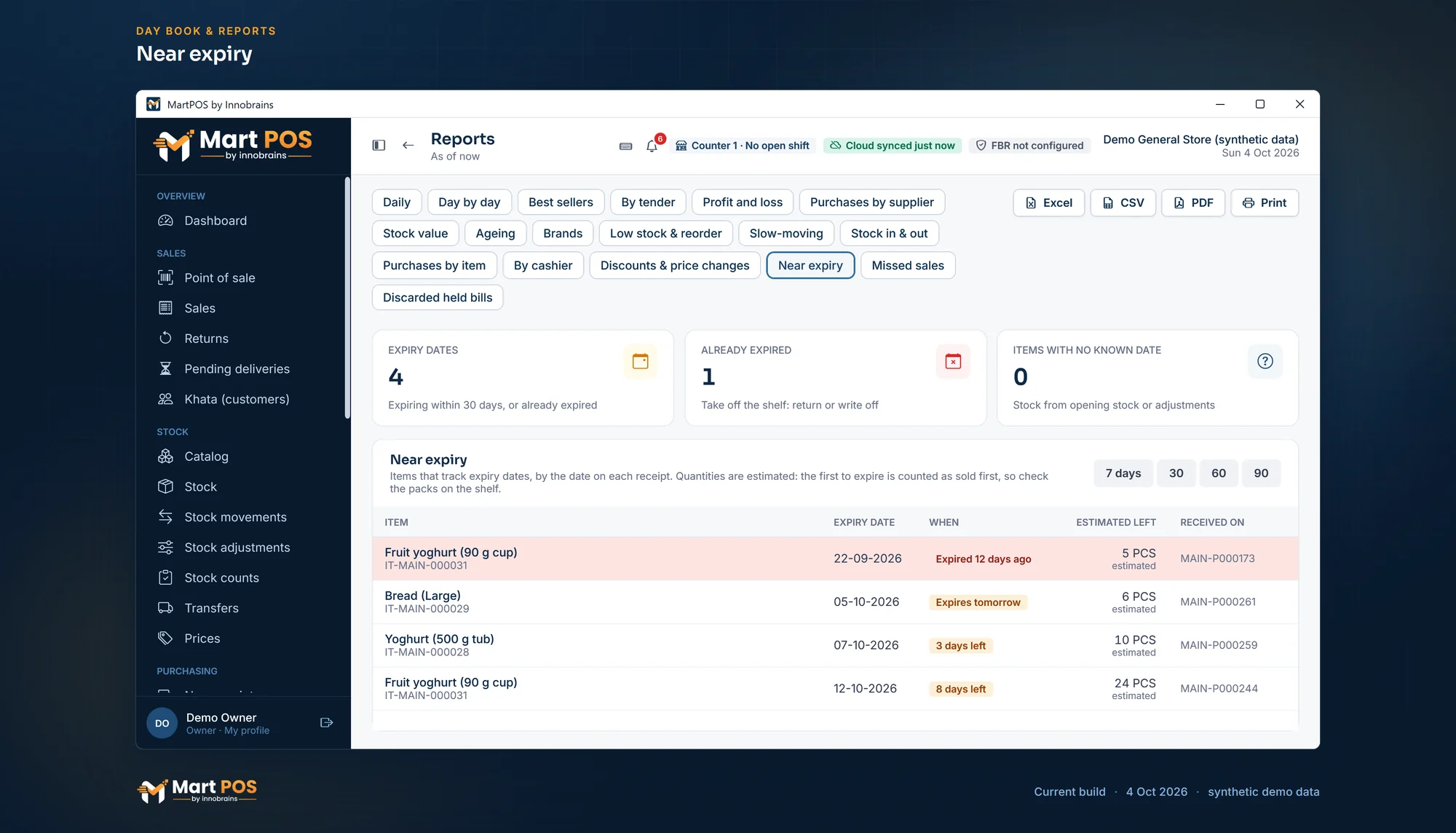
Near expiry. Dated goods by the date on each delivery, with the quantity estimated to be left (the first to expire counted as sold first). Screenshot of the current build (4 Oct 2026), synthetic demo data.
Alerts on the dashboard and the bell
The Dashboard and the bell count the lots of tracked items that have passed their expiry date, and those that expire within the near-expiry days. Each opens Reports › Near expiry. See The notifications bell.
What to do with goods near or past their date
- Near the date: move them to the front, sell them on a clearance promotion, or return them while the supplier's return window is open. See Price lists, quantity breaks and promotions and Supplier returns and credit notes.
- Past the date: take them off the shelf and post a Lost or written off stock adjustment with a reason such as expired, or send them back to the supplier. Both take the earliest lots first, which are the expired ones. See Stock adjustments.
Keep expired goods off the shelf: until the owner changes it (below), the till sells an item whose date has passed like any other.
Selling an item that has expired stock
The owner or a manager chooses what the till does in Settings › Products › Expiry, for every counter at once:
- Sell it as usual (the setting until someone changes it).
- Warn the cashier. When a bill has an item with stock past its date on the shop floor, Pay stops and shows the item, how much of it expired and on which date, for example Milk pack 1 L: 4 PCS in stock expired on 25-09-2026 (batch B-7). The cashier checks the pack in the customer's hand and chooses Sell it anyway, or takes the item off the bill. Selling it anyway is recorded with the cashier's name.
- Ask a manager. The same, but a manager approves that bill with their PIN on the same till. Owners and managers confirm it themselves, like the warning.
- Do not sell it. The bill is refused until the expired packs are marked damaged or written off with a stock adjustment, so the item has no expired stock left.
The same rule applies when an order is delivered. The amount is the item's expired lots, so a warning can still come when the pack in hand is from a newer delivery (the shelf was not rotated): that is why the cashier checks the pack. The card also shows the near-expiry days, which are set in Settings › Notifications.
Who can see it
Everyone who can see stock can open Near expiry and an item's lots, cashiers included. Turning Track expiry dates on or off needs catalogue editing: owners, managers and warehouse staff.
Common questions
Does MartPOS keep batch numbers?
Yes, for items that track expiry. A delivery line, opening stock or found stock can carry the maker's batch number with its date (up to 40 characters), and each date and batch is its own lot. The batch is optional.
I turned on expiry dates today. Why does my stock show no date?
Deliveries entered before today carry no date, so that stock went into a lot with no date. Count the item by lot to give the packs on the shelf their dates, or let it sell: sales use undated stock after the dated lots, and deliveries from now on carry their dates.
Can I enter dates for my opening stock?
Yes. On Stock adjustments, choose Opening stock; a line of an item that tracks expiry shows EXPIRY · BATCH. Opening stock imported from CSV comes in without a date: see Opening balances and opening stock.
Does the till warn when an expired item is sold?
Only if the owner turns it on in Settings › Products › Expiry: a warning the cashier confirms, a manager's approval, or no sale at all. As it comes, the till sells the item. Either way, use the report to take expired packs off the shelf.
Related guides
- Receiving stock from suppliers
- Stock adjustments
- Stock counts while the shop stays open
- Reports for the owner
- Adding items
- Grocery store POS: expiry dates with the rest of a grocery counter
Last updated 04 October 2026. Still stuck? Contact us.