Tills on the shop network
Other PCs join the store PC with a one-time code over an encrypted connection, and bill through it, so every till sells from the same stock.
When the shop has several tills, cashiers on shifts and perhaps a second branch, the owner needs control without standing at every counter.
A mini mart or departmental store is a general store with more of everything: more tills, more staff, more promotions, and often a godown and a second branch. MartPOS runs each branch from one store PC: other PCs join it as tills over the shop network, each counter has its own bill numbers and cash shifts, and every person signs in with their own name and role.
The owner sees each branch's daily sales online, always with the time the branch last reported, and can change items and prices in the portal for each branch to apply at its next sync.
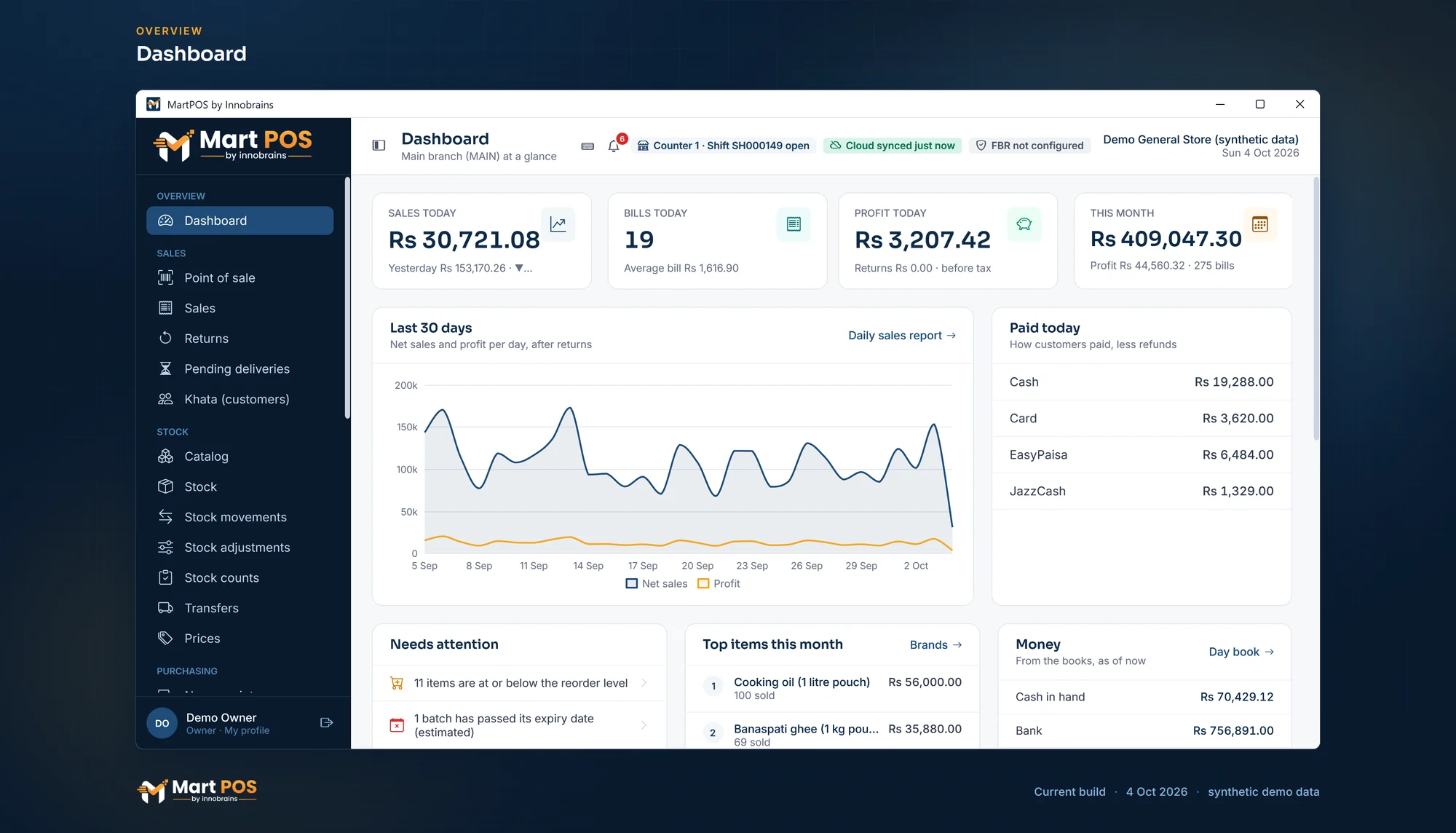 Open the full-size screenshot
 Other PCs join the store PC with a one-time code over an encrypted connection, and bill through it, so every till sells from the same stock.
Each counter opens and closes its own cash shift; the cashier counts first, then sees the difference. Expenses and cash taken to the bank show at the close.
Owners, managers, cashiers, accountants and warehouse staff, each with their own sign-in. A manager approves at the same till with a PIN. Cashiers see stock quantities, not what the stock cost.
The owner sets the password and PIN rules, how many wrong tries lock sign-in, and which PC is for the till or the back office, with which roles may sign in on each. The store PC checks it on every request.
Settings › For all branches in the owner portal: the receipt, the ways of paying, the sales and khata rules and more, shared from one branch with every branch that follows. Each store PC applies them with its own checks; a branch can keep its own.
Choose Mini mart as the business type and the menus show every screen: the godown, stock counts, purchase orders, price lists, promotions and branch transfers.
Ten percent off a brand for Ramazan, with a first and last day. Every bill line says where its price came from, and offers never stack.
A lower price from a set quantity, per unit. The till picks the lowest price that applies.
Set one counter to start every bill at wholesale prices, for trade buyers, while the others bill at retail. Who may switch a bill's prices is up to the owner.
Keep stock in a godown or back store and move it to the floor at its cost. The till sells from the floor; stock counts work while the shop is open.
Send stock to another branch at its cost; the other branch counts it in, and any shortage is written off there with a note.
Profit and loss, stock value by category, and customer and supplier ageing, on the store PC.
The owner portal shows each branch's daily sales with the time it last reported, marked STALE after 15 minutes without a report.
Change an item's prices, packs, barcodes or tax in the portal; each store PC applies it at its next sync unless the shop changed that item meanwhile.
Tell us what you sell, how many counters and branches you have, and how you keep records today.
We install MartPOS on your main PC with you. There is no public installer yet.
Items, opening stock, customers and suppliers from CSV, every row checked before saving.
Give your staff their own sign-ins and roles, and open the till.
The store PC is itself a till, and other PCs in the shop join it over the shop network with a one-time code. How many counters a branch may have depends on its plan.
Yes. Every person signs in with their own name, every bill and posting records who made it, and each counter has its own bill numbers and cash shifts.
Yes. A promotion has a first and last day and can be ended early only with a reason. The till takes the lowest of the normal price, a quantity break and one promotion; nothing stacks, and every bill line says where its price came from.
Yes. Stock leaves the sending branch at its cost; the receiving branch counts it in, and anything short is written off there with a note. The sender sees what arrived.
Yes, read-only: each branch's stock on hand in each item's own unit, its value at cost and low stock, as the store PC last sent it, with the time the branch last reported. Purchases, khata, shifts and a sales report are there too. Stock is counted and adjusted only on the store PC.
For a departmental store that works like a large general store, the parts are built: several counters, staff roles, a godown, promotions, purchase orders and branches. Tell us how many counters you run and we will say plainly whether it fits.
Tell us about your shop and we will show you the till and the owner portal, and set MartPOS up on your shop PC with you.