The store PC holds the shop's records. MartPOS backs them up by itself every day, encrypted with the owner's backup password, while the tills keep selling. This guide covers setting that up, checking it works, and what happens when a store PC breaks or is replaced.
Set a backup password first
- On the store PC, sign in as the owner (or a manager) and open Settings › Backups (the same card is also on Sync & FBR, under Administration).
- In the Backups card, choose Set backup password.
- Type a password of at least 10 characters, and type it Again.
- Choose Set password. "Backup password set: new backups are encrypted. Keep the password written down away from the shop."
"New backups are encrypted with this password. A backup can be restored on another PC only with it: write it down and keep it away from the shop. Older backups keep the password they were made with."
Without the password, an encrypted backup cannot be restored, not even by Innobrains. Without a password set, backups are plain copies and the card says Not encrypted.
What is backed up, and when
- Every day: by default every 24 hours from the last backup, taken while the shop keeps working. You can choose up to four set times a day instead (below).
- When a shift closes, if you switch that on (below).
- Before every database upgrade, when a new MartPOS version starts for the first time.
- Whenever you choose Back up now, for example before moving the store PC. "Backup … saved, encrypted."
Every backup is read back as soon as it is made: MartPOS opens it (with the PC's key, if it is encrypted) and checks that the database inside is sound. A backup that fails the check is not kept and counts as a failed backup.
The Backups card shows the last backup's time and file, when backups run, where they are kept, and whether they are Encrypted. Under it, Settings › Backups lists the latest backup files with when each was made and whether it is encrypted.
Choose when backups run and how many are kept
Owners and managers set this on the store PC, in Settings › Backups › Backup schedule:
- Back up at a set time every day (Pakistan time), for example 21:00 after closing. Left off, the store PC backs up every 24 hours from the last backup, as before. A PC that was switched off at that time backs up as soon as it is on again.
- Up to four times a day: next to the first time, add a second, third and fourth (for example 13:00 and 21:00), at least half an hour apart. A PC that was off through several of them makes one backup when it is on again, not one for each.
- Also back up when a shift closes: a fresh backup right after each shift's cash count. Shifts that close together share one backup.
- Keep the newest … automatic backups (14 unless you change it), and none older than … days if you tick it. Only the automatic ones (at the set times and after a shift, all counted together) are removed this way; backups taken with Back up now or before an upgrade, and copies downloaded from MartPOS Cloud, are kept.
- Warn when there is no backup for (2 days unless you change it): after that, the dashboard and the bell of owners and managers say so, with a link to Settings › Backups.
Choose Save backup schedule. The change is recorded in Settings › Settings history.
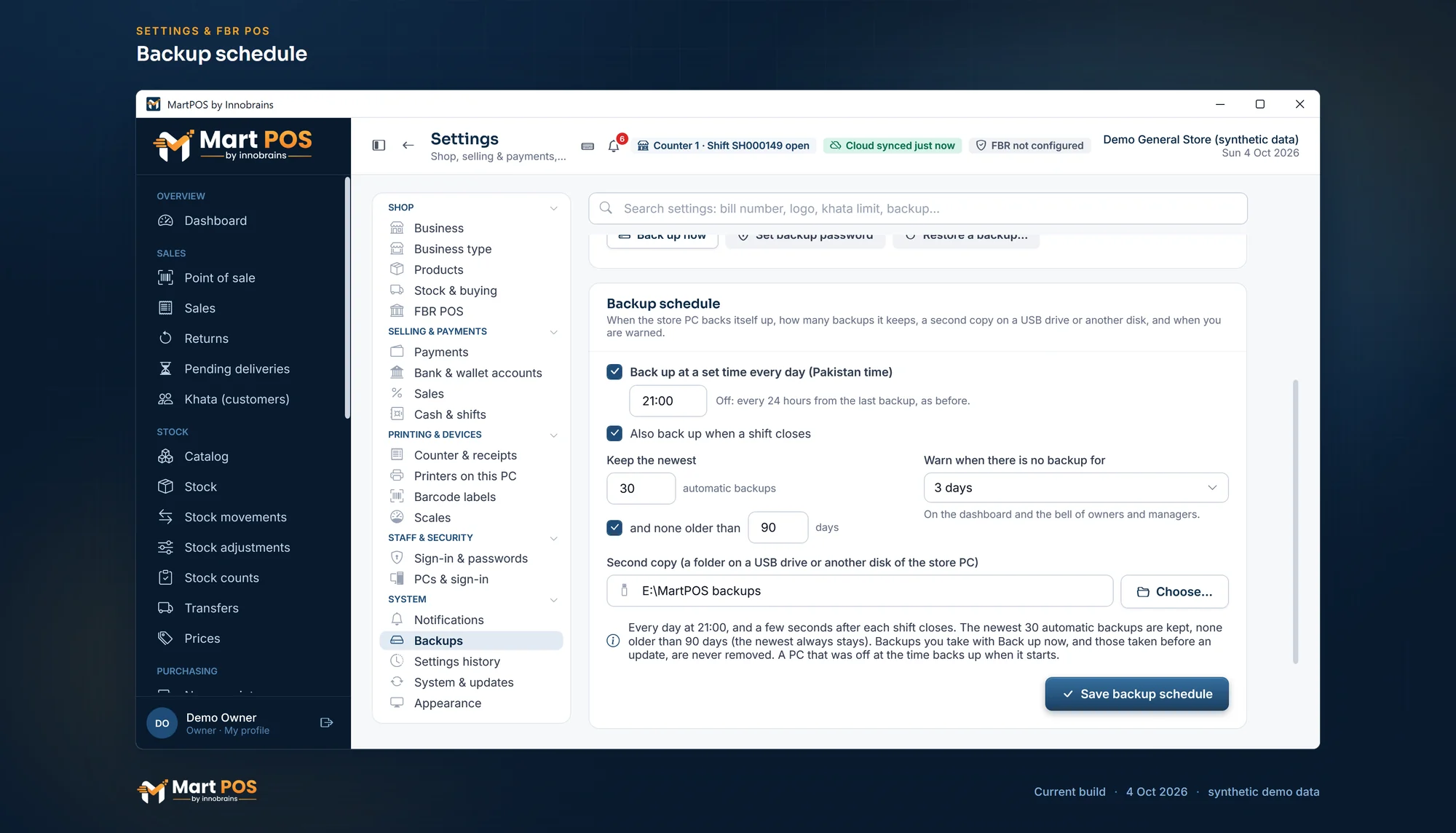
Backup schedule. When the store PC backs itself up, how many backups it keeps, the second copy on a USB drive or another disk, and when owners and managers are warned. Screenshot of the current build (4 Oct 2026), synthetic demo data.
Keep a copy off the PC
A backup on the same disk is lost if the disk fails. Under Second copy, choose a folder on a USB drive or another disk of the store PC (Choose…) and save the schedule: every backup is then copied there as well, checked, and old automatic copies are removed by the same rule.
The Backups card says how the second copy is doing:
- Checked: the last successful backup, its size, and that it was read back and found sound.
- Second folder missing: "… is not there: plug in the USB drive or connect the disk. Backups are still kept on this PC."
- Cannot write there: MartPOS could not write to the folder; choose another folder or check its permissions.
When a copy fails, the dashboard and the bell say so too. The backup itself is still kept on the store PC. Also copy the newest backup somewhere away from the shop from time to time.
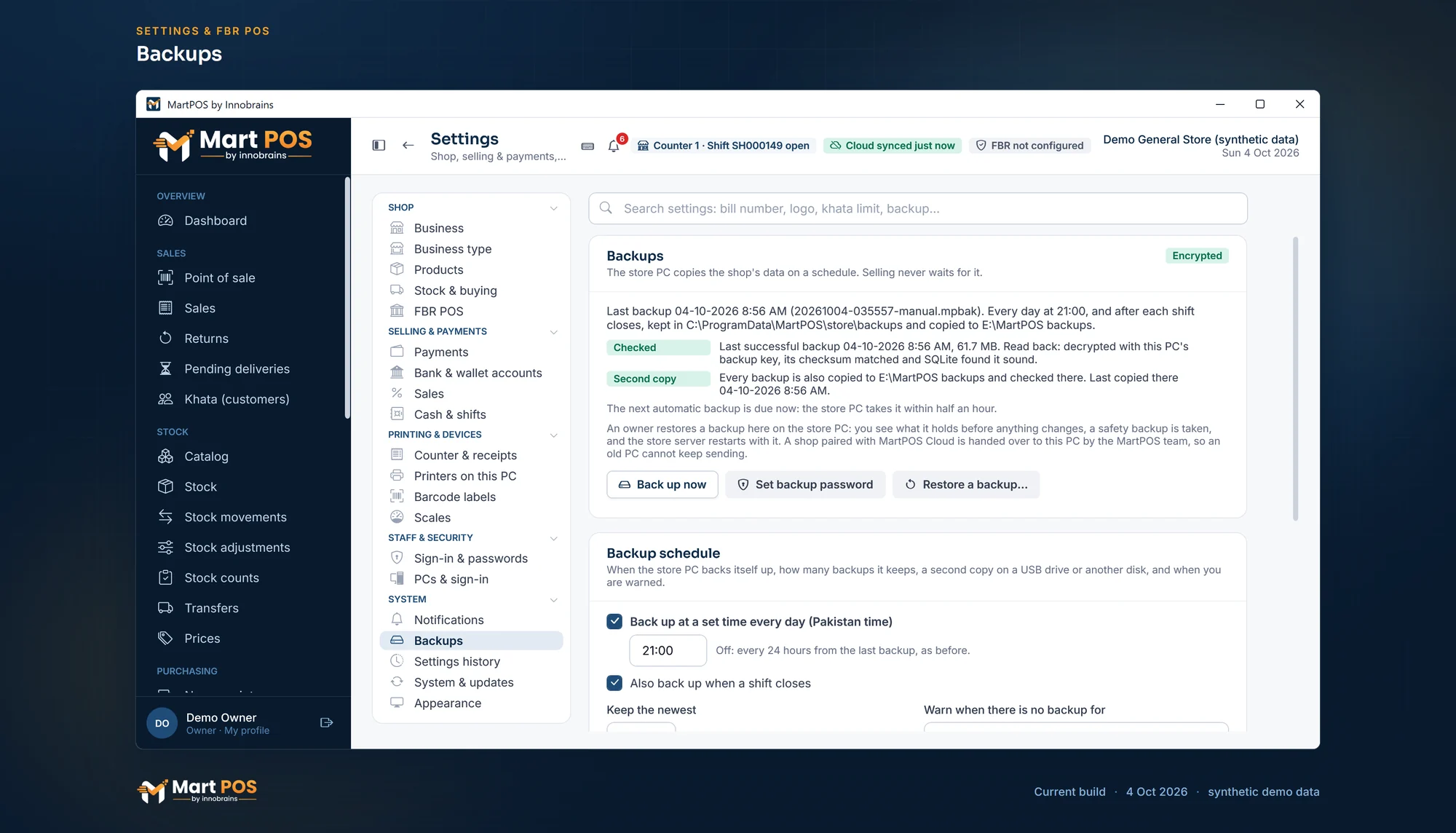
Backups. The last backup, read back and checked, its second copy on another disk, and when the next one is due; new backups are encrypted with the shop's backup password. Screenshot of the current build (4 Oct 2026), synthetic demo data.
Keep a copy on MartPOS Cloud
If your plan includes the cloud add-on (every Cloud plan, or a desktop licence with the cloud add-on), the owner can have every backup copied to MartPOS Cloud as well. It is off until the owner switches it on.
- Set the backup password first (above), and pair the store PC with MartPOS Cloud.
- In Settings › Backups, under Copy to MartPOS Cloud, choose Copy each backup to MartPOS Cloud.
- Tick The backup password is written down and kept away from the shop, and choose Copy each backup.
From then on every backup (at the set times, after a shift and Back up now) is sent to MartPOS Cloud in pieces. If the internet drops or the PC restarts, it carries on where it stopped. The card shows the last copy and its size, a copy being sent, or why a copy failed (for example the business's space on MartPOS Cloud is full), with Try again now. Stop copying switches it off; copies already there stay.
- MartPOS Cloud cannot open your copies. They are sent already locked with your backup password, and the password never leaves the store PC. Only someone with the password can restore them: not the MartPOS team, not Innobrains.
- How many are kept: the newest 7 unless you choose otherwise (1 to 30), and none older than so many days if you tick it; choose Save copies kept. The newest copy always stays.
- Copies on MartPOS Cloud lists them, each with Download: the copy is saved in the backups folder as …-from-cloud.mpbak and checked, ready for Restore a backup…. The owner portal's Backups page lists the same copies, so a copy can be downloaded on any PC when the store PC is lost.
- After you change the backup password, older copies still need the old password; the list says which.
When a store PC breaks or is replaced
An owner restores a backup on screen, on the store PC: Settings › Backups › Restore a backup…, or, on a new PC, Restore the shop from a backup instead on the first screen. MartPOS shows what the backup holds before anything changes and takes a safety backup first. The steps are in Restoring a backup on screen. The MartPOS team can also still restore from the command line.
What you need:
- the newest backup file (named like …-daily.mpbak or …-manual.mpbak), or a copy downloaded from MartPOS Cloud (Backups in the owner portal);
- its backup password;
- access to MartPOS Cloud, if the shop is paired.
What happens:
- In the cloud, the MartPOS team hands the branch over to the new PC and gives you two numbers and a pairing code. From then on the old PC can no longer send anything, even if it comes back, so there is never a second store PC writing for the branch. The old PC shows in Devices as revoked.
- On the new PC, MartPOS is installed without setting up a new store, and the backup is restored on screen with the two numbers typed in. It is checked before anything replaces the database; a database already there is kept beside it, not deleted.
- The new store PC is paired again with a new pairing code. New bill numbers carry on after any the old PC may have used, so no number is used twice.
- Set the backup password again on the new PC: its key is kept per PC.
- Pair the tills again, because the new store PC has a new certificate.
What a restore does not bring back
Anything recorded on the old PC after the backup was made is not in the restored store: bills, payments and stock changes of those hours. If the shop was paired, those records are in the cloud and the portal's daily sales include them; re-enter them in the store if they matter for stock or khata.
The fresher the backup, the less there is to re-enter. That is why the daily backup and a copy off the PC matter.
Who can do this
Setting the backup password, the backup schedule and Back up now need the store-settings permission: owners and managers. Switching the copy on MartPOS Cloud on or off, downloading a copy (on the store PC or in the owner portal) and restoring a backup are for owners only; a restore is confirmed with their own password.
Common questions
Can I restore a backup myself?
Yes, as the owner, on the store PC: Settings › Backups › Restore a backup… (see Restoring a backup on screen). If the shop is paired with MartPOS Cloud, the MartPOS team hands the branch over first and gives you the numbers to type in.
Where are the backups?
In a backups folder next to the store's database on the store PC (by default under C:\ProgramData\MartPOS\store), and in the second-copy folder if you chose one. The Backups card shows both.
What if I forget the backup password?
Set a new one: new backups use it. Backups made with the old password still need the old one, and so do copies of them on MartPOS Cloud: nobody can recover a lost backup password.
Can MartPOS Cloud read my backups?
No. A copy is sent already encrypted with your backup password, which never leaves the store PC. MartPOS Cloud sees only what is written on the outside of the file (which business and branch, when it was made, its size), none of the records inside. A long password that is not used elsewhere keeps it that way.
Can I copy the database file instead of backing up?
Do not copy the live database file while MartPOS runs, and never put it on a shared or synced folder. Use Back up now: it takes a consistent, checked copy while tills keep working.
Related guides
Last updated 05 October 2026. Still stuck? Contact us.