Each branch's store PC keeps its own settings: what receipts print, the business details, and the FBR POS settings. Tills read them from the store PC, even without internet. The owner portal shows what each store PC last reported, and lets the owner send changes, which each store PC applies at its next sync through its own checks. Nothing a shop changed meanwhile is ever overwritten.
Settings has two pages. Branch by branch, described here, is one branch's receipt, business and FBR POS settings. For all branches sets a section once for every branch that follows the business (the receipt's words, bill numbers, khata rules, ways of paying and more): see Settings for all branches.
Opening a branch's settings
- In the portal, open Settings (under Store PCs), then Branch by branch.
- Choose the branch at the top. Each branch card shows when it last reported its settings ("Settings reported 27 Sep, 6:40 PM"), and how many changes are on the way or in conflict.
Owners change settings. A manager can open both Settings pages to read them, for the branches the manager may see: the forms are greyed out and nothing can be sent.
If a branch has not reported its settings yet, the page says so: its store PC sends them at its next sync. Until then they are changed on the store PC, under Settings.
"A change is sent to the store PC and applied at its next sync, through the same checks as on the store PC. If those settings were changed in the shop after this report, nothing is overwritten: the store PC shows both under Sync & FBR and someone there chooses."
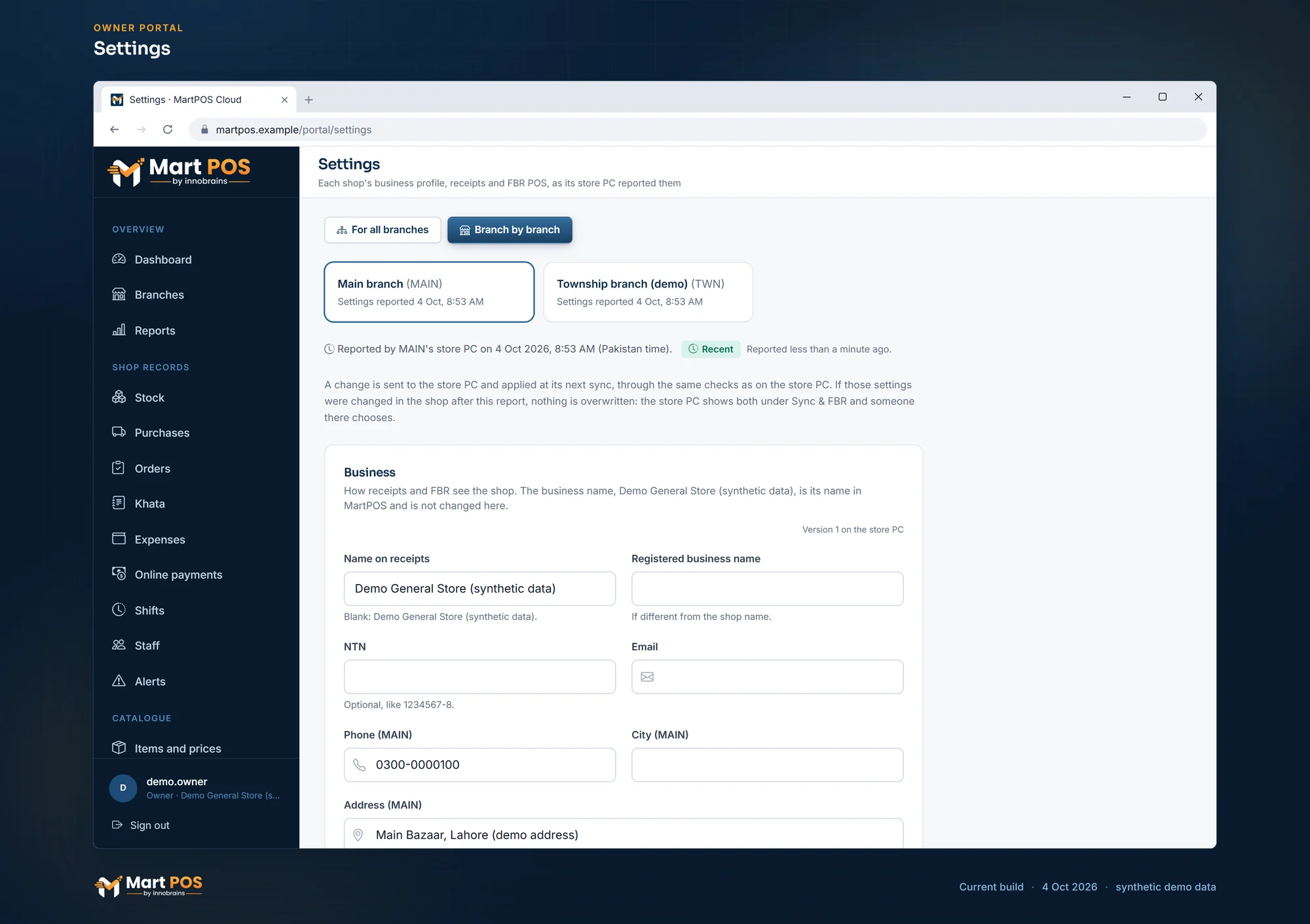
Settings. A branch's settings as its store PC last reported them; changes go down at its next sync. Screenshot of the current build (4 Oct 2026), synthetic demo data.
Business
How receipts and FBR see the shop: Name on receipts, Registered business name, NTN, Email, and the branch's own Phone, City and Address. The business name itself is its identity in MartPOS and is not changed here.
Tick Also send the name on receipts, registered name, NTN and email to … to change them for the other branches too. "Phone, address and city stay each branch's own." Then Send business profile.
When the business shares its details under For all branches and this branch follows them, the card says so. Change them there for every branch that follows; a change made here, for this branch only, makes the branch keep its own details from then on. The same goes for the receipt's words on Counter & receipts.
Under the business profile, a store PC updated on or after 30 September 2026 also shows the branch's Opening hours and the time The business day changes at, as it last reported them. They are shown only: they are set on the store PC, in Settings › Business.
Counter & receipts
"The same on every till of" the branch. Which printer a till prints to is chosen on that PC.
- Paper width and Characters per line
- Copies of each receipt: 1 copy, 2 copies (customer + shop) or 3 copies. "A reprint is always one copy, marked DUPLICATE."
- Blank lines before the cut
- Cash rounding: No rounding, To the nearest rupee, To the nearest Rs 5 or To the nearest Rs 10, before the FBR fee. A branch whose store PC does not round bills yet shows it greyed out: update MartPOS there first.
- Print the receipt as soon as the sale is saved, Cut the paper after each receipt, Open the cash drawer on cash sales
- Line under the shop's details and Receipt footer
- What the receipt shows: Cashier's name and counter, Customer's name, "You saved Rs. …" on discounted bills, Bill barcode and Your NTN
- Language, size and logo: The receipt's words (English, Urdu (اردو) or English and Urdu), Item lines print (the English name, the Urdu name or both) and Text size (Normal or Large (taller text)), for a store PC new enough to know them. The shop's logo is different: the page says whether the branch's store PC has one and prints it, but the picture stays on the store PC and is not sent through MartPOS Cloud, so it is chosen in MartPOS on a PC of the shop.
The Preview beside the form is "a sample bill with the settings on this form, laid out with the till's own rules": the same wrapping and widths as the store PC. Barcodes show as [barcode] and the logo as [logo]. Also send to … makes the same change for the other branches, "each branch's change … based on its own version". Then Send receipt settings. Each setting is explained in Receipt and printer settings.
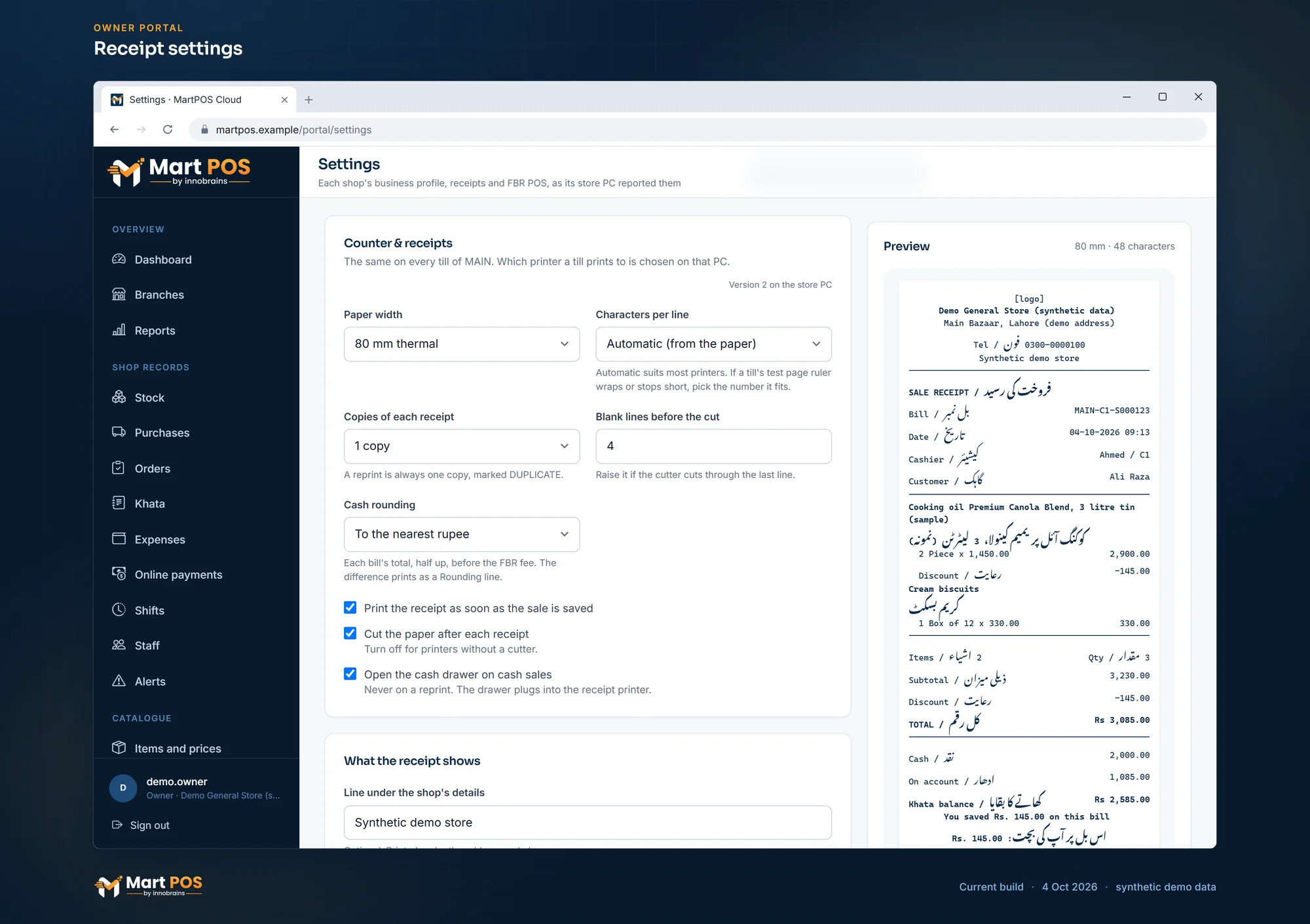
Receipt settings. A branch's receipt settings beside a preview laid out with the till's own rules, sent to its store PC at the next sync. Screenshot of the current build (4 Oct 2026), synthetic demo data.
FBR POS
The branch's FBR POS settings and what its store PC reports: whether an access token is saved there, whether reporting is on and in which environment, and the invoices not with FBR yet (waiting, to check with FBR, refused).
You can change Report invoices to FBR, How the store PC reaches FBR (FBR's online API or FBR's Fiscal Component), the FBR environment (Sandbox or Production), the branch's FBR POS ID, the default PCT code, the NTN on FBR invoices, the STRN and Add FBR's Re 1 POS service fee to each bill. Also send to … copies them to the other branches, "except the POS ID, which is each branch's own". Then Send FBR POS settings.
The access token is never entered in the portal. "The FBR access token is entered on (the branch)'s store PC, under Settings → FBR POS. It is never sent to or through MartPOS Cloud." Switching on the online API for a branch whose store PC has no token saved is refused; every other choice is yours. See FBR POS integration.
Following your changes
Each section shows its Version on the store PC and the Last change with its outcome. Changes to these settings lists every settings change for the branch, newest first, with the store PC's answer: applied, on the way, in conflict, or refused with the reason (for example "Print 1 to 3 copies of each receipt."). The same changes appear under Changes sent.
When the shop changed the same settings
The store PC applies a change only to the version it was made on. If someone changed that section in the shop since, the change waits on the store PC under Sync & FBR › Changes from MartPOS Cloud, with the cloud's values and the PC's in words. Someone with the settings permission there (owner or manager) chooses Use the cloud's change or Keep this PC's, and the choice comes back to the portal.
What the portal cannot do
- Choose a till's printer, detect printers or print a test page: a till's printer is not reachable from the cloud. Do these on each PC.
- Enter or read the FBR access token.
- Change one branch's own rules on this page: barcode rules, new items' tax and reorder level, the expiry rule, supplier and purchase rules, purchase numbers, transfers and printed documents are set on each store PC, or once for every branch that follows the business under For all branches.
- Change the business day or the opening hours: they are always each branch's own, set on its store PC.
- Change settings of a store PC that is not paired.
Common questions
Why do receipts still show the old footer after I changed it in the portal?
The store PC applies changes at its next sync. Check the branch's Last change: Waiting for the store PC to sync means it has not collected it yet (it may be offline).
Can the shop undo a change I sent?
Yes. The shop can change its settings on the store PC at any time; the new values are reported back to the portal.
Which wins if the shop and I both change the paper width?
Neither, silently. If the shop changed it after the version your change was based on, your change waits as a conflict on the store PC and someone there chooses. A change the shop makes after yours was applied simply replaces it, and the portal shows the new value at the next report.
Related guides
Last updated 04 October 2026. Still stuck? Contact us.