A business with several branches can set most shop rules once in the owner portal and have every branch follow them: the receipt's words, bill numbers, khata rules, the ways of paying and more. Each branch follows the business or keeps its own value. Each branch's store PC still keeps and checks its own settings, so a shop keeps working with no internet, and nothing set in a shop is ever overwritten from the portal.
Nothing is shared until you share it. A business that never opens this page works exactly as before, and so does a store PC that is not paired with MartPOS Cloud.
What can be shared
Open Settings (under Store PCs) and choose For all branches. Each section lists what it covers and where it sits on the store PC:
| Section | What it covers |
|---|---|
| Receipt look and words | The line under the shop's details, the footer, what the receipt shows, cash rounding, the return policy, the khata balance, the receipt's language, item names and text size |
| Business details | Name on receipts, registered name, NTN and email |
| Ways of paying | Which ways of paying the tills offer, and which need a transaction ID or slip number |
| Discount limit, Walk-in customers, Retail and wholesale, Held bills, Bill numbers | The rules on Settings › Sales |
| Cash & shifts | Blind closing, counting by notes and coins, and the amount from which moving cash needs a manager |
| Khata rules, Statements, Notifications | Bills on khata, statement layout, and which alerts show |
| Barcode rules, New items, Expiry | How item codes are made, what a new item starts with, and selling expired stock |
| Suppliers and purchases, Purchase numbers, Transfers between branches | The rules on Settings › Stock & buying |
| Printed documents, Sign-in & passwords, Sign-out after inactivity | A4 documents, password and PIN rules, and how long a PC stays signed in |
Some parts always stay each branch's own, and each section says which: a receipt's paper, copies and printing (they depend on that branch's printers), the branch's phone and address, its bank and wallet accounts and online gateway, each counter's starting prices, the usual opening cash, and the in-store barcode prefix. Opening hours, the business day, FBR POS, printers, PCs, backups and sync are never shared.
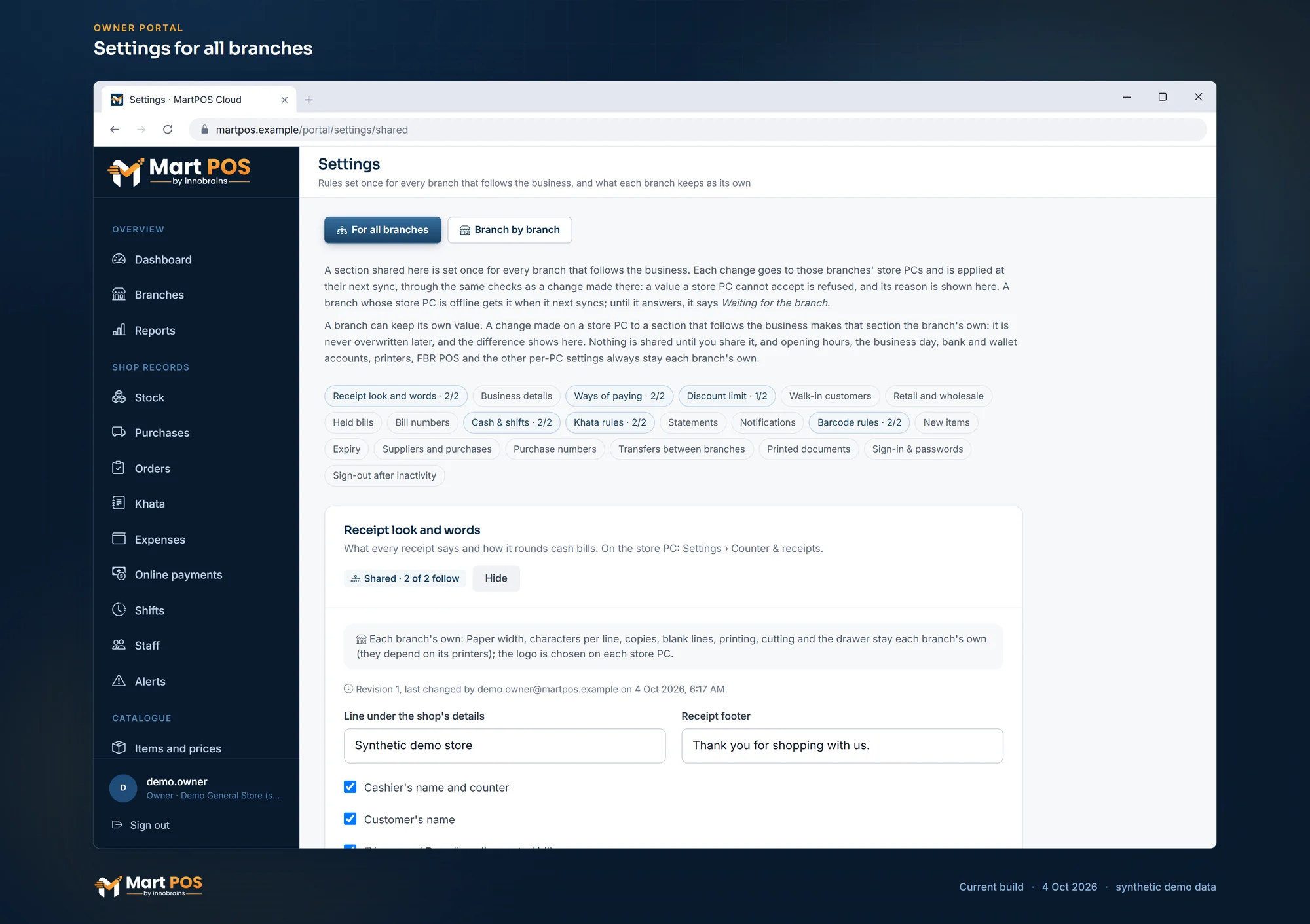
Settings for all branches. Sections of settings shared from one branch with every branch that follows; each store PC applies them with its own checks, and a branch can keep its own. Screenshot of the current build (4 Oct 2026), synthetic demo data.
Sharing a section
- Under the section, choose Share….
- Start from the values of a branch: the business's value starts as that branch's, as its store PC last reported it.
- Tick the Branches that follow the business. A branch left unticked keeps its own value; its store PC is told that the section is shared, so it says "This branch only".
- Choose Share with the branches.
Each branch that follows gets the business's value at its next sync. Its store PC applies it through the same checks as a change made there, and answers. A branch whose store PC runs an older MartPOS says Needs a MartPOS update: it follows once MartPOS is updated there.
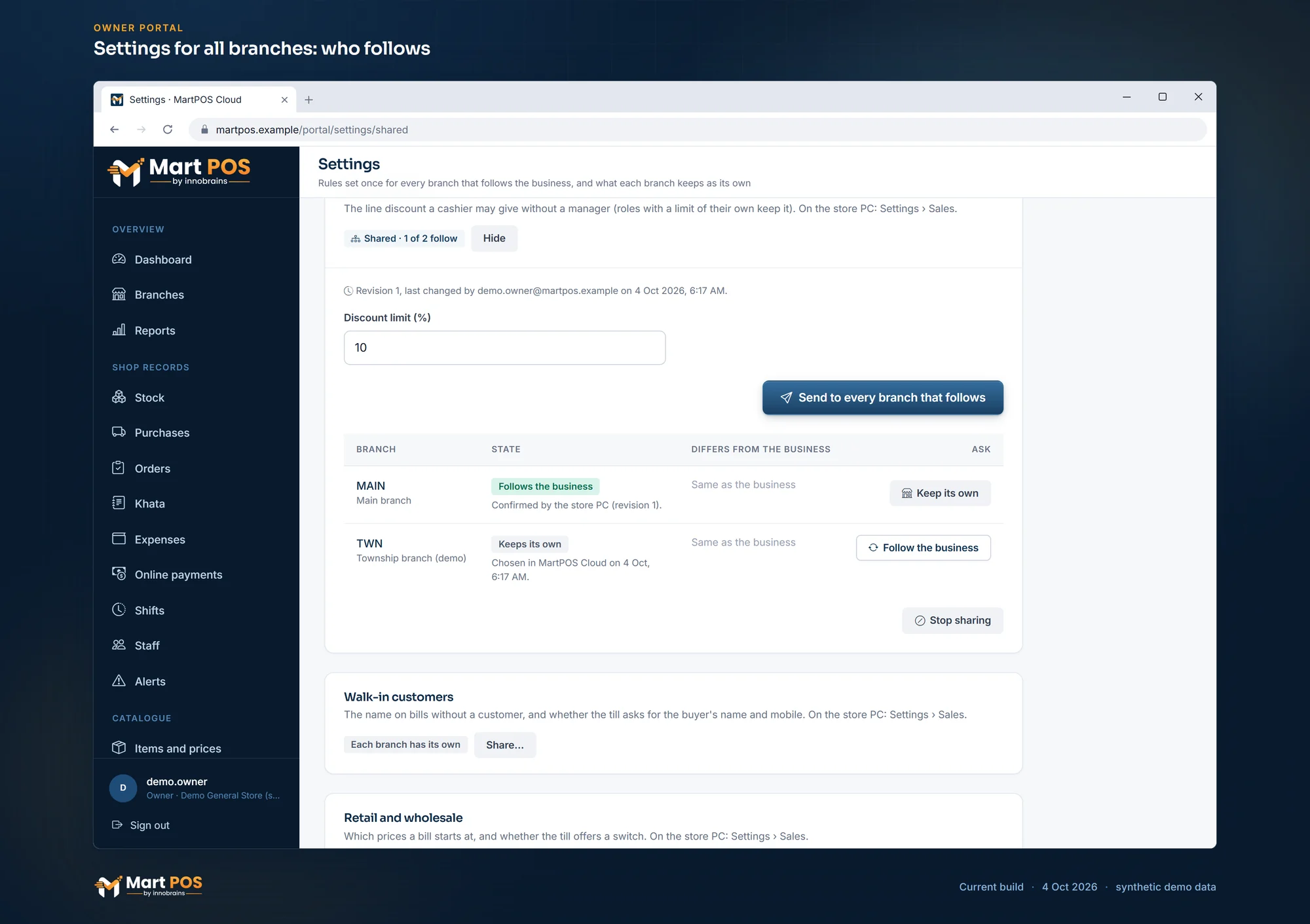
Settings for all branches: who follows. For each shared section, which branches follow the business and which keep their own, as each store PC confirmed it. Screenshot of the current build (4 Oct 2026), synthetic demo data.
Changing a shared section
Change the settings in the section's form and choose Send to every branch that follows. The change goes only to the branches that follow; a branch that keeps its own is not touched. Each change has a revision number, and the page says who changed it and when.
Each branch's row says where it stands:
- Waiting for the branch: the change is on its way, or delivered with no answer yet. A store PC that is off or has no internet gets it when it next syncs.
- Follows the business: its store PC confirmed it, with the revision it applied.
- Refused by the store PC (or Refused the latest change): the store PC could not accept it, and its reason is shown, for example a bill-number pattern too long once that branch's code is put in. Correct it and send again.
- Waiting for the shop to choose: the section was changed on the store PC after you asked; someone there chooses under Sync & FBR.
- Keeps its own, with the settings in which it differs from the business, shown beside the business's value.
When a shop changes a shared section
A change made on a store PC to a section that follows the business is allowed. The section becomes that branch's own from then on: the store PC tells MartPOS Cloud at its next sync, the row says Keeps its own with who changed it and when, and later changes of the business no longer go there. The owner can also choose Keep for this branch only on the store PC, under Settings, where each shared section says "Follows the business (set on MartPOS Cloud)" or "This branch only".
To bring a branch back, choose Follow the business on its row: its store PC applies the business's value with its own checks. Keep its own does the opposite, and Stop sharing ends sharing for every branch: each keeps what it has, as its own.
Common questions
Will sharing change my shops' settings by itself?
No. Nothing is shared until you share a section, and then only the branches you tick follow it. Each store PC applies the business's value at its next sync, through its own checks, and a branch that kept its own is never changed.
What happens to a branch I add later?
A branch that joins the business after a section was shared follows it: its store PC applies the business's value once it has reported its settings. You can let it keep its own from its row.
Can a manager change these settings?
No. A manager can open the page to read it, for the branches the manager may see; only an owner shares, changes or asks a branch to follow.
Why does a branch say "Waiting for the branch" for hours?
Its store PC has not synced since: it may be off, or without internet. The change waits for it in order and is applied when it next syncs. Check the branch's freshness on Branches.
Related guides
Last updated 04 October 2026. Still stuck? Contact us.