Everyone who works on MartPOS signs in with their own name, and every bill, payment and stock change records who made it. What each person may do comes from their role. Counters are the tills of the branch: each has its own bill numbers and its own cash shifts. Both are managed on Staff & counters (under Administration), by the owner.
The roles
| Role | What it may do |
|---|---|
| Owner | Everything, including staff accounts, closing the books, the audit log, restoring a backup and the plan and billing (Account). "Keep owners few." |
| Manager | Everything except managing staff, closing the books, reading the audit log, restoring a backup, changing the tills' certificate and the Account pages: billing, returns, customer orders, voiding a bill (or a supplier bill, stock adjustment or expense) the same day, discounts beyond the limit, prices and promotions, purchasing, stock, supplier returns, khata, expenses, reports, the dashboard, settings. |
| Cashier | "Bills, customer recoveries, own shift, reprints. No price overrides, returns or reports." Cashiers can bill on khata, take customer orders and hand them over, take khata payments and advances, and note missed sales. They see how much stock there is, but not what it cost. |
| Accountant | "Reports, day book, khata, recoveries and supplier payments." Also opening balances, refunds of advances, credit notes and expenses. No billing. |
| Warehouse | "Purchases, catalogue and stock adjustments." Also stock counts, transfers and returns to suppliers. No billing. |
| Auditor | "Read-only reports and books." Also the dashboard and the audit log. |
Adding an item at the till when a scanned barcode matches nothing (Settings › Products › Adding items at the till) is for owners and managers; where the owner chooses Cashiers add it too, cashiers hold it as well. It is off until the owner turns it on, whatever the role. See Adding items.
Every screen checks the role on the store server, not only on the screen: a button a role may not use is refused with "This action needs the '…' permission."
The Roles page
Roles (under Administration) lists the six roles with how many active staff hold each. Choose one to see everything it may do, grouped as Selling, Money, Stock and purchasing, Customers and suppliers, Reports, Administration, Your account and Support, each permission in words with its code. Permissions marked Sensitive move money or stock, or change who may do what, without another person's check: for example changing a price beyond the till's limit, selling below cost, voiding a bill the same day, refunding an advance, adjusting stock, closing the books, managing staff and changing the store's settings.
Roles are fixed in MartPOS and nobody can add a new one (the owner of MartPOS decided on 27 September 2026 to keep the six roles). Owners and auditors can open the page; give each person the role that fits them under Staff & counters. The owner can change two things on it: each role's discount limit, and whether cashiers may switch a bill between retail and wholesale prices (tick it on the Cashier role and choose Save; off unless given). Owners and managers may always switch a bill's prices; a cashier without it needs a manager's PIN approval for that bill. A cashier already signed in gets the change at their next sign-in; the store PC checks every bill at once.
Who sees what stock cost
What stock cost is the owner's business. The permission "See what stock cost: average and last costs, stock value, purchase orders, adjustments, counts and transfers" belongs to owners, managers, accountants, warehouse staff and auditors, not to cashiers. For a cashier:
- Catalog, Stock, Stock movements, an item's own page and Low stock & reorder show quantities, with no costs or values.
- Stock value and Slow-moving in Reports are not shown.
- Stock adjustments, Stock counts, Transfers, Supplier returns and purchase orders are not in the menu, because they are mostly about cost. Cashiers could not post them anyway.
The store server applies the rule, not only the screen: a cashier's request for a cost figure comes back without it.
How to add a staff member
- Sign in as the owner and open Staff & counters.
- Under Staff, choose Add staff.
- Type the Full name and a Username (3 to 32 lower-case letters, digits, dot, dash or underscore), for example bilal.
- Choose the Role. The window explains it as you choose.
- Type a starting Password of at least 8 characters and tell it to the person privately.
- Keep Active (can sign in) ticked and choose Save. "Bilal can now sign in as 'bilal'."
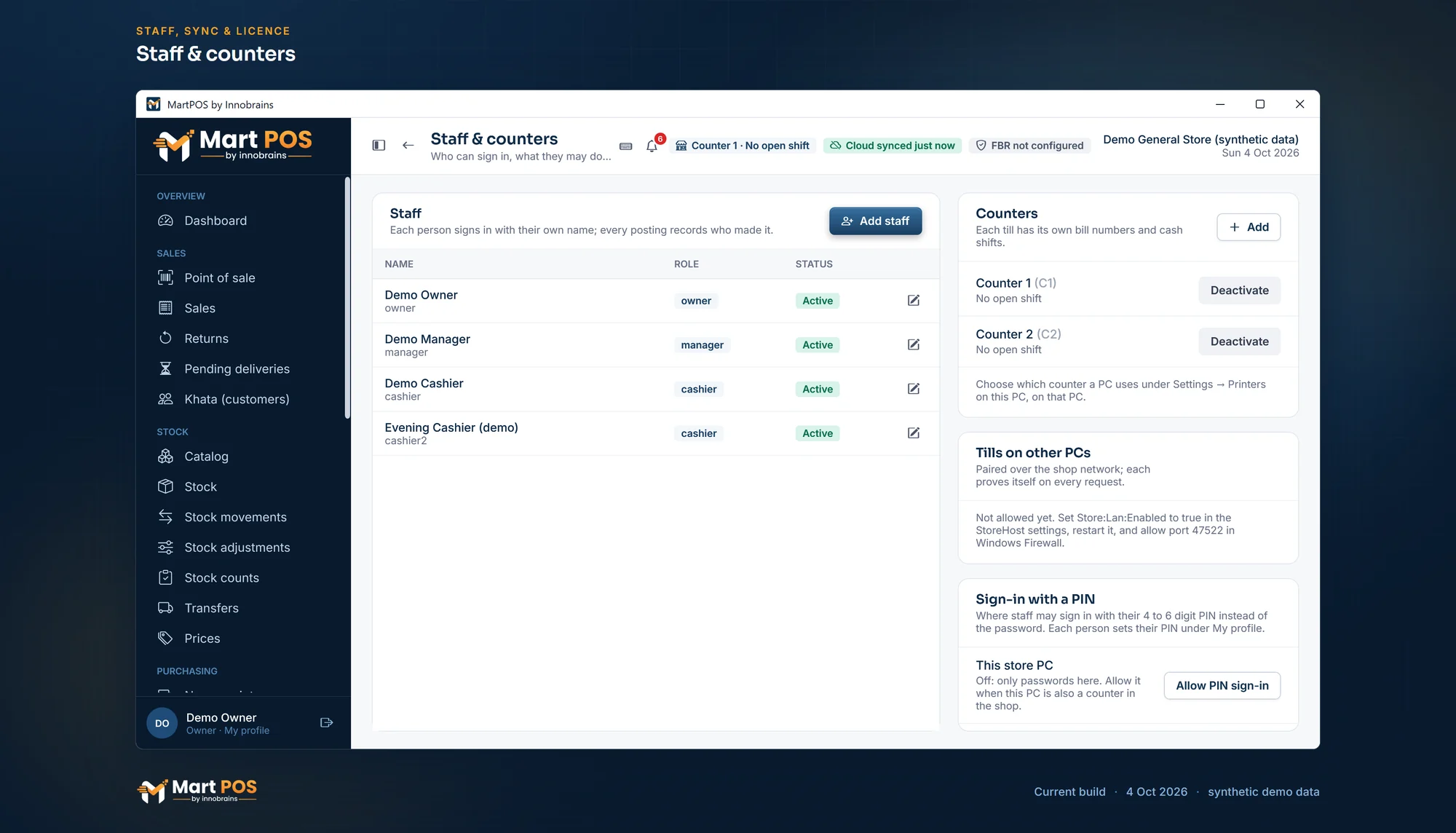
Staff & counters. Everyone who signs in, with their role, and each counter with its own bill numbers and cash shifts. Screenshot of the current build (4 Oct 2026), synthetic demo data.
Changing a role or resetting a password
Choose Edit, change role or reset password on the person's row. Change the role, or type a new password, and save. After a password reset: "…saved; the new password works now and old sign-ins were ended." The person is signed out everywhere and signs in with the new password.
When you reset someone else's password, Ask … to choose their own password at the next sign-in is ticked: they sign in once with the password you gave them and then choose their own, before anything else ("Your password was reset. Choose a new password of your own to sign in."). Until then their PIN asks them to sign in with the password once. Untick it to let them keep the password you typed. The Staff list says Chooses a new password at the next sign-in for them.
Changing your own password
Anyone can change their own password. Choose your name at the bottom of the menu (My profile): it shows your name, role and username. Type your Current password, then the New password (following the shop's rules below, and different from the current one) twice, and choose Change password. "Your password is changed. This PC stays signed in." Your sign-ins on other PCs end, and the change is recorded in the audit log. Wrong current passwords count towards the same lock as signing in.
The shop's password and PIN rules
The owner sets them on the store PC, under Settings › Sign-in & passwords › Passwords and PINs, and the store PC checks them at every sign-in, on every PC:
- A new password has at least 8 characters (as before), or 10, 12, 14 or 16, and, if you tick it, letters and digits together (e.g. bazaar2026).
- A new PIN has 4 to 6 digits (as before), 5 or 6, or 6, and Refuse obvious PINs (1234, 0000) is on unless you switch it off.
- Lock the sign-in after 3 to 10 wrong tries (5 as before), for 1 minute to an hour (5 minutes as before). A PIN's later lockouts in a row last twice as long each time, up to a day.
- Reusing an old password and Reusing an old PIN: off (as before), not the current one, or not the last 2 to 10. Checked on every change, also when the owner resets someone's password. MartPOS keeps only scrambled (hashed) copies of earlier passwords and PINs, and only while this is on; switching it off forgets them.
- Passwords expire never (as before), or after 30, 60, 90 or 180 days or a year. A person whose password has expired chooses a new one at their next sign-in, before anything else: "Your password has expired. Choose a new one to sign in." The days count from when the password was set, or from when expiry was switched on if that is later. Until then, their PIN asks them to sign in with the password once.
Passwords and PINs already set keep working until they are changed: the rules apply to new ones. No password or PIN is ever written down, logged or sent to MartPOS Cloud. Changes are recorded in Settings › Settings history.
Who signs in on which PC
Under Settings › PCs & sign-in the owner chooses, for the store PC and each paired till:
- What the PC is for: Till and back office (as before), Till only (billing, returns, payments, shifts and the stock list, nothing from the back office) or Back office only (no billing and no till shift).
- Who may sign in here: tick the roles, for example only owners, managers and cashiers on a counter, or no cashiers on the back-office PC.
The store PC checks this at every sign-in, with a password or a PIN, and on every request from that PC, so changing a PC's own files changes nothing. Someone signed in where they no longer may is signed out there. A refused sign-in says why: "Cashiers do not sign in on Office PC (back office only). Sign in on another PC, or ask the owner to change it under Settings › PCs & sign-in." The owner always signs in on the store PC with everything they may do, so nobody is locked out. A till paired later starts with every role allowed.
One person on particular PCs
On top of the roles, the owner can set rules for one person: under People on particular PCs on the same page (Set their PCs), or with PCs… in their Edit window on Staff & counters. For each PC choose As their role allows, Allowed here or Blocked here, and tick Only on the PCs allowed here to keep them off every other PC. For example, Bilal only on Counter 2: tick the box and allow Counter 2. Save their PCs.
The rules are checked like the PC's: at every sign-in, with a password or a PIN, and on every request. Someone refused is told: "Bilal does not sign in on Counter 1: the owner chose this for them under Settings › PCs & sign-in." The Staff list shows each person's rules in a few words (Only on Counter 2). An owner can never be blocked on the store PC.
Signing out after inactivity
A PC left alone signs itself out, so nobody bills or opens the books under someone else's name. The owner sets the times under Settings › Sign-out: one for Back-office PCs (2 hours unless changed) and one for Counters (8 hours unless changed), from 15 minutes to 24 hours. The counters' time applies to a till on another PC and to anyone who only bills, such as a cashier, on any PC. The section says which time this PC follows. After signing out, the sign-in screen says why; a bill being made on the till is kept on that PC and comes back after signing in.
When someone leaves
Edit them and untick Active (can sign in). They cannot sign in any more and any open sign-in ends. Their name stays on everything they posted; accounts are never deleted.
Two rules protect the shop:
- "The store must keep at least one active owner."
- "You cannot deactivate your own account or change your own role."
Counters
"Each till has its own bill numbers and cash shifts." The first counter, Counter 1 (code C1), is made at setup.
- On Staff & counters, under Counters, choose Add.
- Type the Counter name, for example Front counter. "The code (C2, C3…) is given automatically and appears in its bill numbers."
- Choose Add counter. "Front counter added as C2. Choose it on that PC under Settings → Printers on this PC."
Bills from C2 are numbered MAIN-C2-S000001 and up. Each counter opens and closes its own shift with its own drawer. A counter can start every bill at wholesale prices, for example a wholesale counter in a mini mart: tick it under Settings › Sales › Retail and wholesale. See Billing at the till.
Which counter a PC bills on is chosen on that PC: Settings › Printers on this PC › Counter. A second counter on the store PC itself is possible, but usually each PC in the shop is one counter.
To stop using a counter, deactivate it. Its shift must be closed first ("Close this counter's shift before deactivating it."), and the branch keeps at least one active counter.
Tills on other PCs
The same page lists the other PCs that bill through this store PC, under Tills on other PCs, with Add a till and Remove. See Tills on other PCs.
Staff and the cloud
Staff accounts belong to each store PC. The owner's MartPOS Cloud account is separate: it signs in to the owner portal, not to the till. See Your MartPOS Cloud account and two-step sign-in.
A store PC paired with MartPOS Cloud sends its staff list when it changes: each person's name, username, role, whether the account is on, and when they last signed in. The owner portal's Staff page shows it read-only, per branch. Passwords, PINs and sign-in tokens never leave the store PC, and staff are added, changed and switched off only here, on the store PC.
Common questions
A cashier needs to take a return. What do I do?
The cashier starts the return; before it is saved, a manager approves it with their PIN on the same till. Nobody signs out. See PIN sign-in and manager approval.
Can a cashier see the day's sales?
Only their own. Sales shows a cashier the bills they made (to reprint one); every counter's bills need the reports permission, which owners, managers, accountants and auditors have. Cashiers cannot open the daily report, profit and loss or ageing either. They can open the stock reports that show quantities: Low stock & reorder, Stock in & out and Near expiry, never with costs. Stock value and Slow-moving are not shown to them.
What if someone forgets their password?
The owner resets it under Edit, change role or reset password. There is no self-service reset for a forgotten password; someone who knows theirs can change it under My profile.
Why was I signed out while I was away?
The PC reached the sign-out time under Settings › Sign-out without a key or a click. Sign in again; the owner can make the time longer or shorter.
Why is someone locked out after wrong passwords?
Too many wrong tries in a row lock that account for a while (5 tries and 5 minutes unless the owner changed them under Settings › Sign-in & passwords), then they can try again. The owner can also reset the password.
Why can a cashier not sign in on this PC?
The owner's PC rules do not let cashiers sign in there, or the owner set rules for that person (Settings › PCs & sign-in, People on particular PCs). Sign in on a PC they are allowed on, or ask the owner to change the rule.
Why must I choose a new password right after the owner reset mine?
The owner left Ask … to choose their own password at the next sign-in ticked, so only you know your password. Choose one that follows the shop's rules (and, if the shop asks, not one of your recent ones).
Related guides
Last updated 04 October 2026. Still stuck? Contact us.