Receipts in MartPOS are set up in two places. Counter & receipts holds the shop's settings, kept by the store PC and used by every till: paper, copies, cutting, the drawer, the language, the text size, the logo and what the receipt shows. Printers on this PC holds each PC's own printers and how they sit on their paper. Both are under Settings (under Administration). This guide covers both, the preview and the test prints.
Business details
Settings › Business: "What receipts say about the shop. Phone, address and city are this branch's."
- Name on receipts (blank: the business name), Registered business name
- Phone, Email, Address, City
- NTN (optional)
Choose Save business details. Only an owner or manager can change these.
Counter & receipts: the shop's settings
Settings › Counter & receipts: "How every till prints receipts. Which printer each till uses is set on that PC."
| Setting | Choices and advice |
|---|---|
| Paper width | 80 mm thermal, 58 mm thermal or 76 mm (dot-matrix). |
| Characters per line | Automatic (from the paper), or 32 (58 mm), 40 (76 mm), 42 (some 80 mm printers), 48 (80 mm). "Automatic suits most printers. If the test page's ruler wraps or stops short, choose the number that fits." |
| Copies of each receipt | 1 to 3, each cut on its own. "A reprint is always one copy, marked DUPLICATE." |
| Blank lines before the cut | 0 to 10. "Raise the blank lines if the cutter cuts through the last line." |
| Cash rounding | No rounding, To the nearest rupee (a new shop's setting), To the nearest Rs 5 or To the nearest Rs 10. "Each bill's total, half up, before the FBR fee." A bill of Rs 836.30 is Rs 836.00 to the nearest rupee; the difference prints as a Rounding line on the till, the receipt and the A4 invoice, and goes to the Rounding account in the books. A return of part of a bill refunds its own items' price; the return that brings the whole bill back gives the rounding back too. |
| Print the receipt as soon as the sale is saved | Off: receipts show on screen and print on request. |
| Cut the paper after each receipt | Turn it off for printers without a cutter. |
| Open the cash drawer on cash sales | Only for an original receipt with cash, with the first copy. "The drawer never opens for a reprint." |
| Line under your shop's details | For example Open 9 to 9, closed on Sunday. |
| Receipt footer | Your closing line, for example your return policy. |
| Show on the receipt | Cashier's name, Customer's name, "You saved Rs. …" on discounted bills, Bill number as a barcode, for returns, Your NTN. |
"FBR invoices always show the NTN, STRN and FBR POS ID recorded with the sale." Choose Save receipt settings: "Receipt settings saved. Every till uses them for its next receipt." Only an owner or manager can change these. The owner can also change most of them from the portal: Shop settings from the owner portal.
The Preview beside the form is a sample bill laid out by the same code that lays out real receipts, so it wraps exactly as the printer will, with the logo, the blank lines and the cut. It stays beside the form while you scroll.
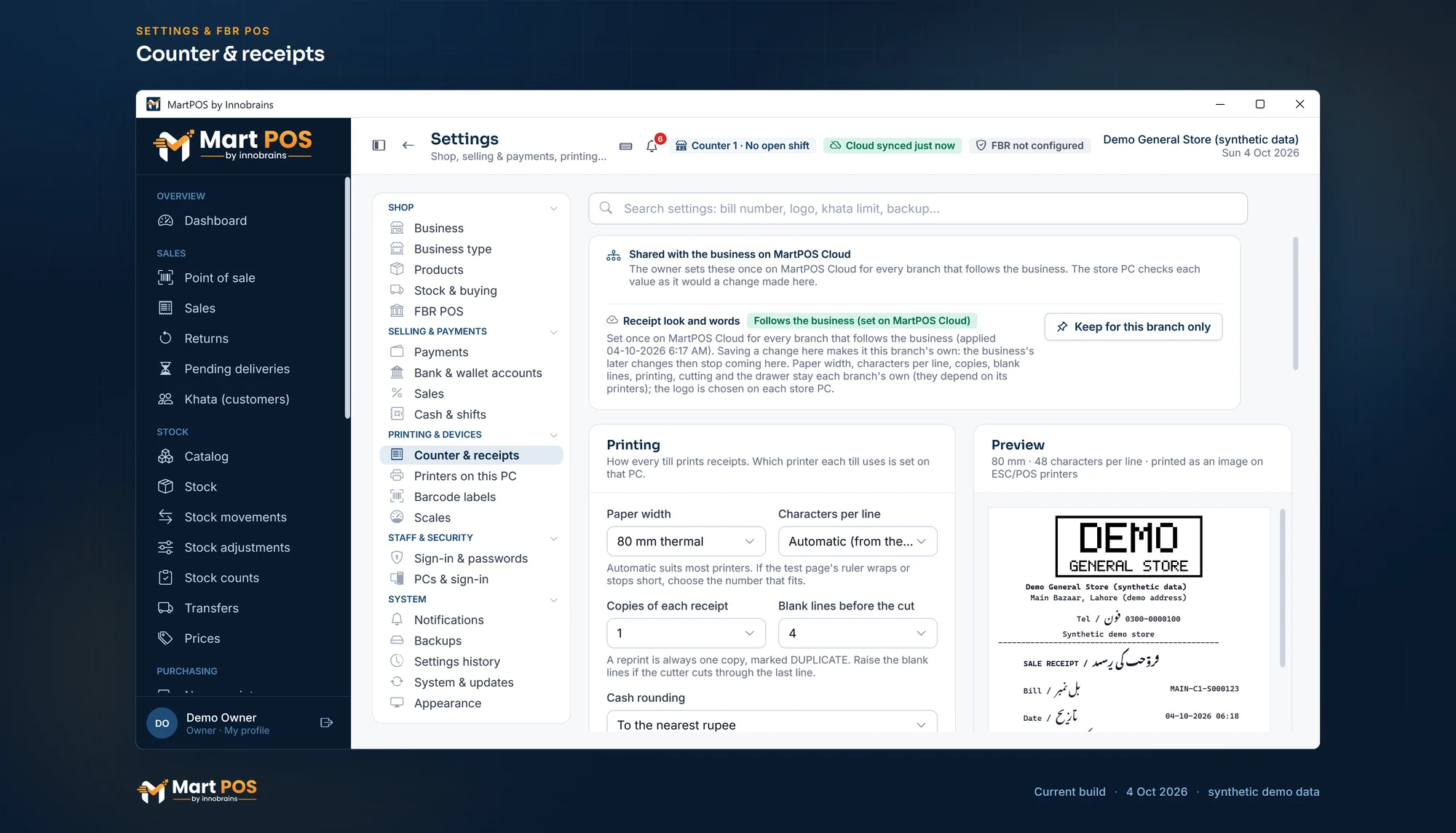
Counter & receipts. The receipt's logo, its words in English, Urdu or both, what it shows and cash rounding, with a preview of an 80 mm receipt; here the words follow the business. Screenshot of the current build (4 Oct 2026), synthetic demo data.
Language, size and logo
The card Language, size and logo on the same page: "The receipt's own words in English, Urdu or both; which name each item prints; the text size; and your logo at the top."
- The receipt's words: English, Urdu (اردو) or English and Urdu. These are the fixed words: Bill, Date, Cashier, Total, Cash, Change and the like. "Amounts, numbers, names and FBR's own lines print as they are." With Urdu the whole receipt is laid out right to left; with English and Urdu each word prints as Bill / بل نمبر.
- Item lines print: The English name, The Urdu name, where the item has one or Both names. "An item without an Urdu name prints its English name." Type an item's Urdu name in Catalog › Edit. A bill keeps the names it was made with, so bills from before you typed an Urdu name reprint in English.
- Text size: Normal or Large (taller text). "Large prints every line taller (double height on ESC/POS printers), with the same characters per line, so the receipt is longer." Nothing wraps differently.
- Logo: choose Choose image… and pick a PNG or JPG of up to 5 MB. An SVG is not accepted. MartPOS makes the picture fit 576 × 384 pixels and keeps it on the store PC; every till fetches it from there. Thermal printers print it in black and white at the top of the receipt; the A4 invoice carries it beside the shop's name. "A dark mark on a white background prints best." Untick Print the logo at the top of receipts and A4 invoices to keep the logo without printing it, or choose Remove.
A receipt with Urdu cannot be printed in an ESC/POS printer's own letters, so MartPOS sends it as an image, drawn in the Noto Nastaliq Urdu font that comes with MartPOS. It prints a little slower and is longer, because Urdu lines are taller. A shop that leaves all four as they were (English, the English name, Normal, no logo) prints exactly the receipts it printed before.
The logo is never sent to MartPOS Cloud, so it cannot be changed from the owner portal; the language, the item names and the text size can.
Printers on this PC
Settings › Printers on this PC: "This PC's own receipt, label and A4 printers. They are kept on this PC: the shop's settings and MartPOS Cloud never change them."
- Choose Detect printers. MartPOS lists Windows' printers, marks the Windows default, and recognises likely receipt printers and their paper from the name and driver. It only reads the list; nothing in Windows is changed. If exactly one looks like a receipt printer, it is offered: "Found … it looks like your receipt printer. Print a test page, then save."
- Under Receipt printer, choose the Printer, or Use for receipts beside one in the list. For a printer on the network, choose Network printer (IP address)… and type its Printer IP address, for example 192.168.1.50. "Port 9100 is used unless you add another, e.g. 192.168.1.50:9100. Network printers get ESC/POS directly." To print nothing and show receipts on screen, choose No printer: show receipts on screen.
- Choose How to print: ESC/POS (fast; Urdu goes as an image) or The printer's Windows driver. "ESC/POS is fastest and can open the cash drawer; receipts with Urdu go to it as an image. The Windows driver path prints through the printer's own driver."
- Under This PC's paper and copies, leave Paper, Characters per line and Copies of a receipt on As the shop has it, unless this PC's printer differs from the shop's: a 58 mm printer at one counter of an 80 mm shop, for example. The line below says what receipts on this PC come out as.
- Left margin (mm) and Right margin (mm), 0 to 15: use them when print starts too close to an edge of the paper. The receipt is laid out in the characters that still fit.
- Under Label printer on this PC, choose the Label printer if this PC has one. See Printing barcode labels.
- Under A4 printer, choose the printer for reports, statements and A4 invoices. Move right (mm) and Move down (mm) shift the page by up to 10 mm if the printer puts it off centre. Without an A4 printer, Print hands the PDF to Windows' default printer.
- Choose Save printers. "Printers saved for this PC."
Choose this PC's Counter in the card Counter on this PC below, and Save counter.
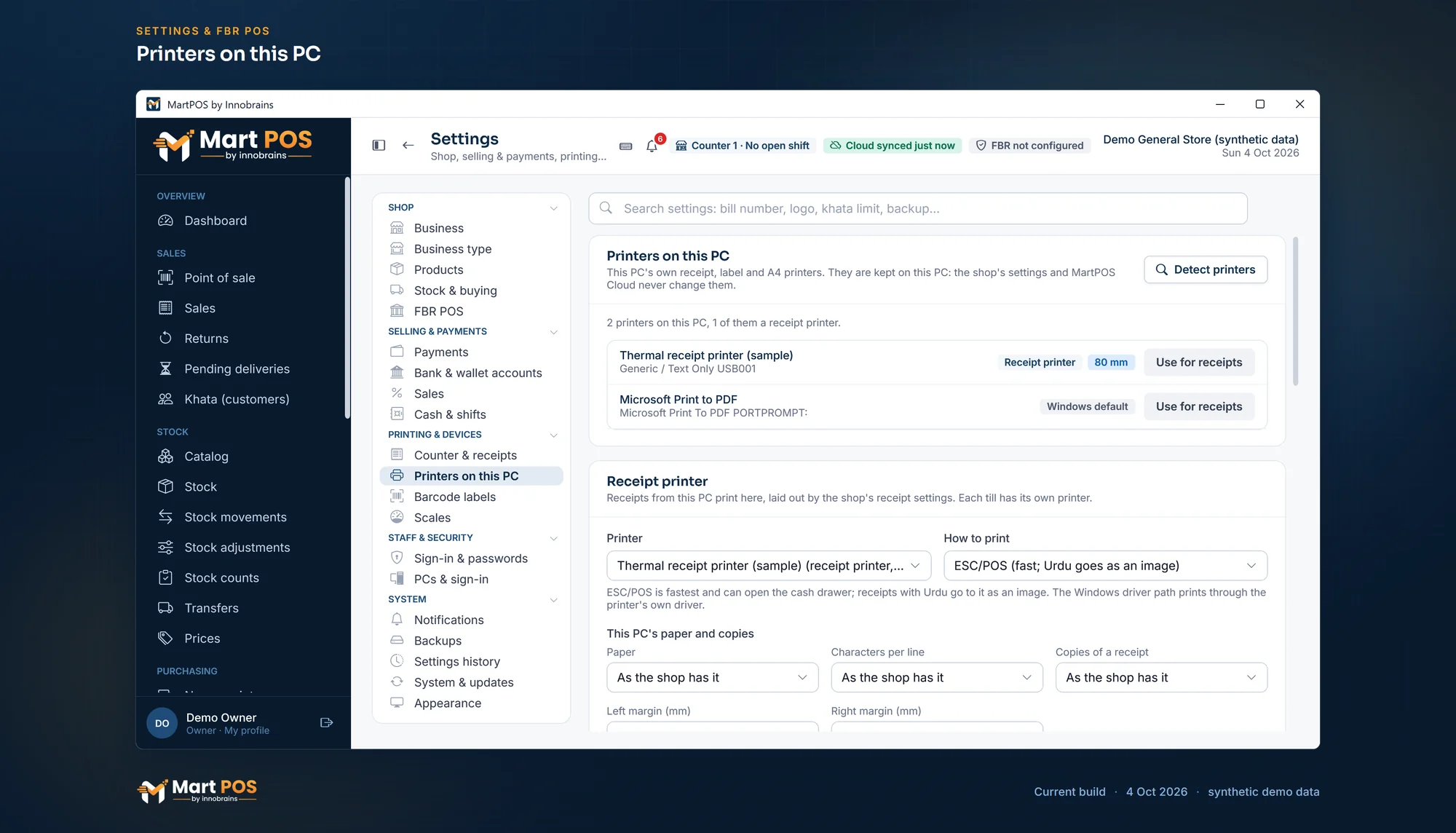
Printers on this PC. Each PC's own receipt, label and A4 printers, a test print for each, and its paper and margins. Screenshot of the current build (4 Oct 2026), synthetic demo data.
The test prints
Each printer has its own test, which uses the settings on the screen, saved or not. Under each button MartPOS says what happened: that the job was sent, or that it was not sent and why, in plain words (Windows has no such printer any more, the print spooler is not running, the printer did not answer). "Sent" means Windows or the printer's network port took the job. MartPOS cannot see whether paper came out.
- Print test page (receipt printer): "every part of a receipt: the shop's logo when it prints one, a ruler as wide as one line, a bold total, a barcode and a QR code". "It is not a sale." Tick Open the cash drawer with the test page to test the drawer too. The ruler should fill exactly one line: if it wraps, choose fewer characters per line; if it stops short, more. Check the cut, and that the barcode and QR code look sharp.
- Urdu test adds an Urdu line, sent as an image on ESC/POS printers. Check that it reads correctly.
- Print test label (label printer) draws each label's edge and a cross in its middle, to set the label offsets.
- Print A4 test page prints a frame 10 mm from every edge of the sheet with a cross in the middle. If the frame is off, change the A4 offsets and print it again.
Rules worth knowing
- Printing never creates or changes a sale. The sale is saved first; if the printer fails, print again.
- Reprints print one copy marked DUPLICATE COPY, never open the drawer, and are recorded.
- Each item line prints the item's name with its variant, then the quantity, the unit and the price. A loose item shows its weight with decimals, for example 1.25 Kilogram x 180.00, and a pack shows the pack's own name and price, for example 1 Carton of 24.
- Tax prints as its own Tax line when the bill has any.
- FBR lines (the NTN, STRN and FBR POS ID, each item's tax rate, the POS Service Fee, the FBR invoice number and its QR code) print only when FBR POS integration is on, and stay in English whatever the receipt's language. See FBR POS integration.
- The A4 invoice (from a bill's page in Sales) is saved with A4 PDF, or sent to this PC's A4 printer with Print A4 when one is chosen. It carries the logo; it does not use the receipt's paper settings. Its words follow Settings › Business › Printed documents, not the receipt's: in Urdu the A4 page is laid out right to left (the shop's name and the title at the right, the amounts at the left), in English and Urdu it stays left to right with each word in both languages.
- The Z report printed on the receipt printer follows Printed documents too: in Urdu it is laid out right to left and goes to the printer as an image, like an Urdu receipt. Statements on the receipt printer and the test pages are staff documents and stay in English.
- A business with several branches can set the receipt's words, what it shows and cash rounding once in MartPOS Cloud for every branch that follows the business. Counter & receipts then says "Follows the business (set on MartPOS Cloud)" above its cards. Paper, characters per line, copies, cutting, the drawer and the logo stay this branch's own. Saving a change to the receipt's words here makes the receipt this branch's own from then on, and the owner sees the difference in the portal. See Settings for all branches.
Common questions
Which printers work?
Most ESC/POS thermal receipt printers (58 mm and 80 mm), through the Windows driver or on the network, and dot-matrix printers on 76 mm paper as text. Print the test page first: it shows at once whether the characters per line, the cut and the drawer are set right.
Can the receipt be in Urdu?
Yes: choose Urdu or English and Urdu under The receipt's words, and the Urdu name or both names under Item lines print. On an ESC/POS printer the receipt then goes as an image. Print the Urdu test and one receipt and read them before the first customer. On a 76 mm dot-matrix printer use the Windows driver.
Can A4 invoices, statements and reports be in Urdu?
Yes: choose Urdu or English and Urdu under Settings › Business › Printed documents. In Urdu the A4 invoice, the customer's and the supplier's statements and the main reports (daily sales, profit and loss, stock, khata and ageing, expenses, best sellers, the Z report) are laid out right to left; names, bill numbers, dates and amounts still read left to right. The screens of the app stay in English. Print one and read it before you hand it to a customer.
Why does my logo look speckled or too dark?
A thermal printer has only black dots, so MartPOS turns colours and greys into patterns of dots. A logo with a dark mark on a plain white background prints cleanest; photographs and pale colours do not. Try another version of the logo and print the test page again.
Which paper width suits a small kiryana counter?
Either works. 58 mm printers are cheaper and take less space; 80 mm receipts fit longer item names on one line and are easier to read. Set Paper width to the roll you buy, and print a test page after changing it. If one counter has a different printer from the rest, set its paper under Printers on this PC on that PC.
Why is the last line cut off?
Raise Blank lines before the cut.
Where is the receipt branding line?
Receipts end with the fixed line MartPOS by Innobrains. It cannot be changed from Settings.
Related guides
Last updated 05 October 2026. Still stuck? Contact us.