The owner portal at martpos.pk shows the owner, and the managers the owner invites, what each branch's store PC has reported, from anywhere, on a laptop or a phone browser. It never replaces the store PC: the store PC is the record, and the portal always says when a branch last reported. This guide goes through each page.
The menu
| Section | Pages |
|---|---|
| Overview | Dashboard, Branches, Reports |
| Shop records | Stock, Purchases, Orders, Khata, Expenses, Online payments, Shifts, Staff, Alerts (read-only) |
| Catalogue | Items and prices, Changes sent, Branch transfers |
| Store PCs | Settings, Devices, Pairing codes, Backups |
| Account | Plan & billing, Licence, Members, Security, Notifications, Support |
A manager's menu is shorter: it shows only the pages a manager can open (see Members below).
Dashboard
The dashboard shows each branch's daily sales as reported by its store PC: Net sales today, Net sales, last 7 days, and a table per business date with Bills, Net sales, Returns and the amount Returned. "Today" is the branch's own business date: for a shop whose business day changes after midnight (for example at 02:00, set on its store PC in Settings › Business), sales made at 01:30 still count on the day before, as they do on the store PC, and the card says which business date it shows.
"These figures come from what each store PC has sent. The store PC is the record; the cloud only shows what it received, and when." Each branch shows when it last reported. A branch that has not reported for 15 minutes is marked STALE: its shop may be selling right now without the internet. STALE does not mean anything is lost; the figures catch up when the store PC syncs.
"Stock (per branch and per place), purchases, customer and purchase orders, khata (with customers' advances and advances paid to suppliers), expenses, shifts, staff, alerts and a sales report with expenses are under Shop records and Reports, read-only, as each store PC last sent them; alert emails and texts are under Notifications."
For a branch with FBR POS integration switched on, the dashboard also shows how many of its invoices are not with FBR yet, as the branch last reported. See FBR POS integration.
The dashboard also warns when two-step sign-in is off, and when the account's licence is suspended ("No data has been deleted"). Messages from the MartPOS team appear at the top; Dismiss hides one.
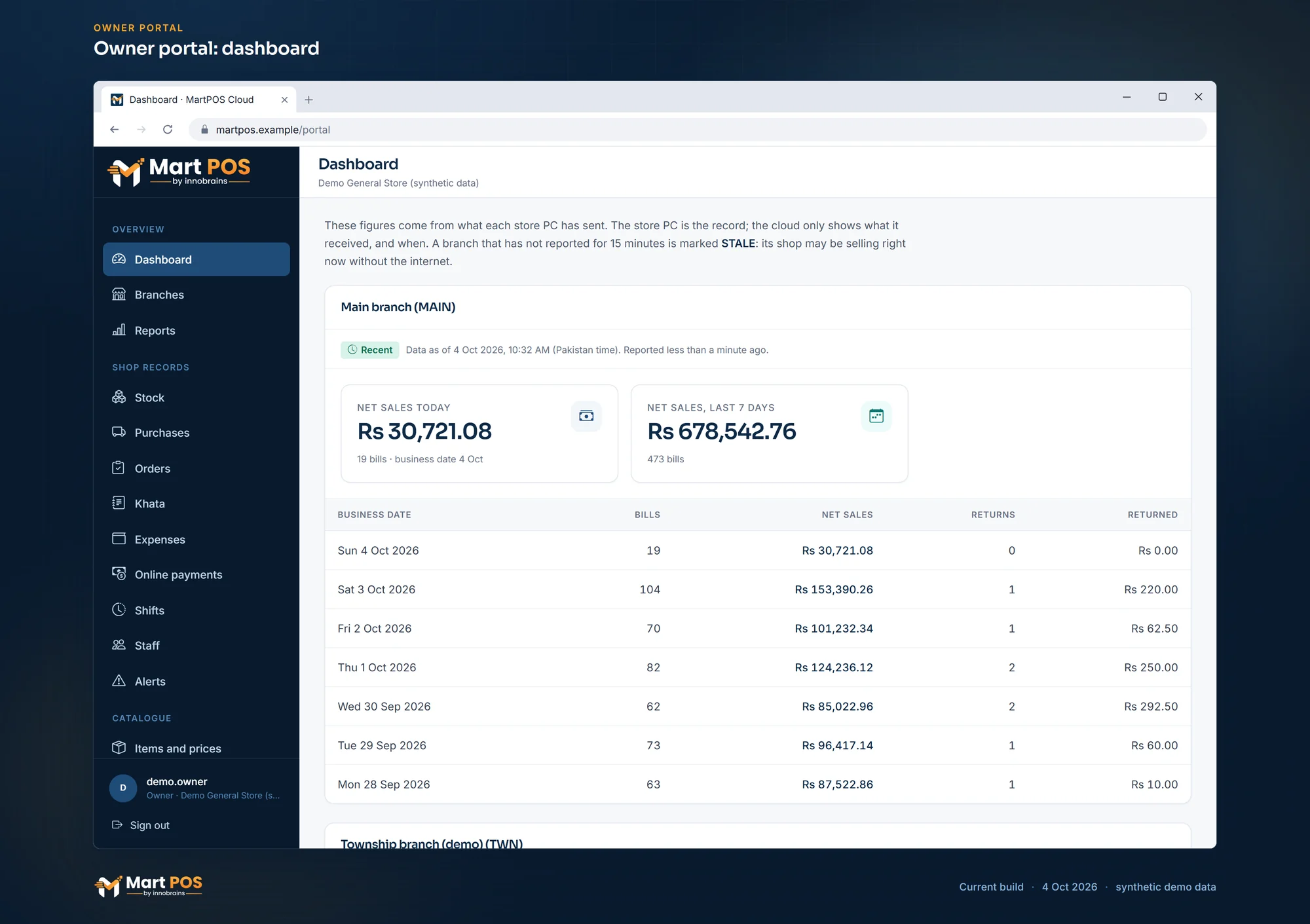
Owner portal: dashboard. Each branch's sales today and over 7 days with the time it last reported; a branch silent for 15 minutes is marked STALE. Screenshot of the current build (4 Oct 2026), synthetic demo data.
Branches
Each branch with its code, its Last report, Events received (the store's changes that arrived without gaps), how many Store PCs are paired and its Authority epoch. The epoch changes only when a branch is handed over to a replacement PC. "Each branch's own store PC owns its stock and money; the cloud keeps what it sends, in order."
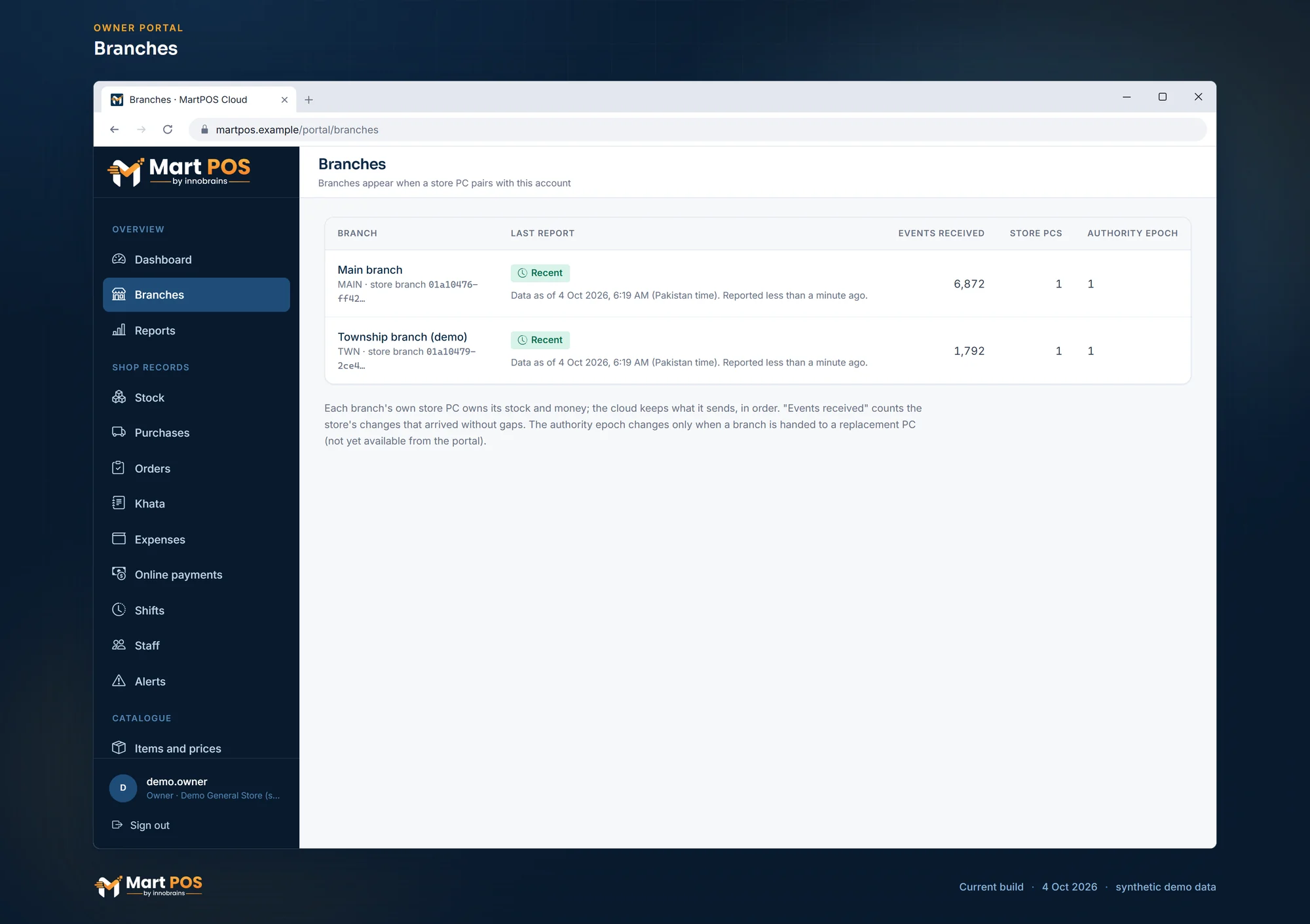
Branches. Each branch with its last report, the changes received from its store PC and how many store PCs it has. Screenshot of the current build (4 Oct 2026), synthetic demo data.
Devices
Every paired store PC with its Branch, when it was Paired, when it was Last seen, and its Licence grant ("works offline until …").
Revoke stops a PC's cloud access at once: "It stops syncing at once and needs a new pairing code to come back. Billing on that PC continues offline until its licence grant runs out." Revoking deletes nothing, on the PC or in the cloud. A PC that is offline cannot hear about it until it next connects. Use it when a store PC is stolen, sold or replaced.
Tills on other PCs are not listed here: they are paired with the store PC, not the cloud, and removed on the store PC under Staff & counters.
Pairing codes
Create a pairing code makes a one-time code for a store PC, shown once and valid for 30 minutes. Recent codes shows the last 20. See Pairing with MartPOS Cloud and sync status.
Reports and shop records (read-only)
These pages show what each store PC has sent, and nothing can be changed on them: the store PC is the record. Each one opens with every branch it covers and when that branch last reported ("Data as of …"); a branch that has not reported for 15 minutes is marked STALE, and may be offline and selling without the internet, so its figures can be behind.
- Reports: sales By branch and By day for the dates you choose (bills, net sales before tax, returns, cost of goods, gross profit and margin), the Expenses of the same dates and what is Left after expenses (gross profit less expenses, before income tax), and a branch's Best sellers, each item's quantity in its own unit. Stock bought is not an expense and is not taken off. The store PC has many more reports.
- Stock: each branch's stock on hand per item in the item's base unit, stock Not for sale (damaged, or held after a return), the reorder level, the value at cost, and Low or Out of stock. The cards add up the value in rupees and the quantity on hand per unit ("175.875 KG · 59 PCS"): kilograms are never added to pieces. It is all places of the branch together (shop floor and godown) until you choose one under Place: the Stock by place table lists each place with its value at cost, and Show narrows the list to it. A store PC says which place each movement used since its update of 30 September 2026. Movements it sent before that carry no place: they stay under Place not reported and are not shared out between the places, so a place can show less than it really holds (even below zero) while the branch total is always every movement together. Services and other items that hold no stock are left out.
- Purchases: Supplier bills with their lines, what was paid with each bill, a bill voided the same day, and Later charges (a freight or other bill added after the purchase was posted: its amounts, how much went into the stock still on hand and how much to cost of goods sold, and a charge voided the same day); Supplier returns with the claim and what the supplier has credited or was written off.
- Orders: Customer orders with what is still to deliver (each open line's quantity in the item's base unit, how much was delivered, how much is held in stock, the date the hold ends) and its value as the store PC worked it out, which is what is still to collect on delivery; and Purchase orders with what is still to come from the supplier, the expected date (marked overdue once it has passed) and its value at the ordered cost. Show switches between what is still open and All orders. A delivery voided the same day is still to deliver, or still to come, again. An order from a store PC older than 30 September 2026 shows its quantities but no value, and a purchase order from one shows as ordered until the store PC closes it, because such a store PC does not say how much of it came; the page says so.
- Khata: what each branch's Customers owe (bills on account, less payments received and returns to their account) and what the branch owes its Suppliers (bills, less what was paid and credit notes), with each account's postings and the balance after each (Ledger). The Advances tab lists each customer's advance: money paid ahead and held for them, up with each advance taken and each return refunded to it, down with each bill paid from it and each refund. An advance is never part of what a customer owes; the customer's Ledger shows it in its own table. On the Suppliers tab, Advance with the supplier is the money the shop paid that supplier ahead, in its own column and with its own history on the supplier's Ledger: up with each advance paid, down with each supplier bill paid from it and each amount the supplier gave back. It is never taken off what the shop owes. Each branch keeps its own customers and suppliers.
- Khata › Across branches: the same customer at two or more branches, with what they owe and the advance held at each branch, and the totals. Two accounts are shown together only when both store PCs have the same mobile number for them; names alone are never merged, because two branches can each have an "Aslam" who are different people. The store PC sends a match code made from the number, not the number itself, and the portal shows the number with its middle digits hidden. A customer with no mobile number on the store PC, or last saved before the store PC's update, is not matched until their details are saved again there. Nothing is joined or changed: each branch's account stays its own.
- Expenses: each branch's expenses for the dates you choose: the date, what it was for, the amount, how it was paid (and from which bank or wallet account, when the store PC says), the payee and note, and who recorded it, with totals By category. An expense voided the same day stays in the list, marked Voided, and is out of every total. Cash taken to the bank or drawn from it, and money moved between bank and wallet accounts, is money moved, not spent: it has its own tab, Cash to and from the bank, and is never added to the expenses.
- Online payments: what the payment gateways still owe each branch (payments not paid out yet, refunds still to come off, and how long the oldest has waited), the settlements each store PC posted with their fees (those that differ from what was booked marked With differences, reversed ones out of the totals), and the gateway notices received through the webhook relay. Owners also see Webhook relay there: the address a gateway sends its notices to, and the secret, shown in full only once when it is created or rotated. These pages work with the test gateway, which moves no real money. See Online payment gateways and settlements.
- Shifts: each counter's shifts, open or closed, with the opening float, the bills posted on the shift, and at closing the cash expected, the cash counted and the difference (Short or Over). The full Z report prints on the store PC.
- Staff: each branch's staff list as its store PC last sent it: name, username, role, whether the account is Active or Switched off, and when each person last signed in. Staff are added and changed only on the store PC (Staff & counters); the portal never changes them, and passwords and PINs never leave the store PC.
- Alerts: each branch's current alerts as its store PC worked them out with its own rules and alert settings: items at or below their reorder level, stock lots past or near their expiry date (with the batch, from the store PC's lots; a store PC on a version before 4 Oct 2026 estimates them, shown as about) and customers who owe more than their credit limit, with up to 25 of each listed.
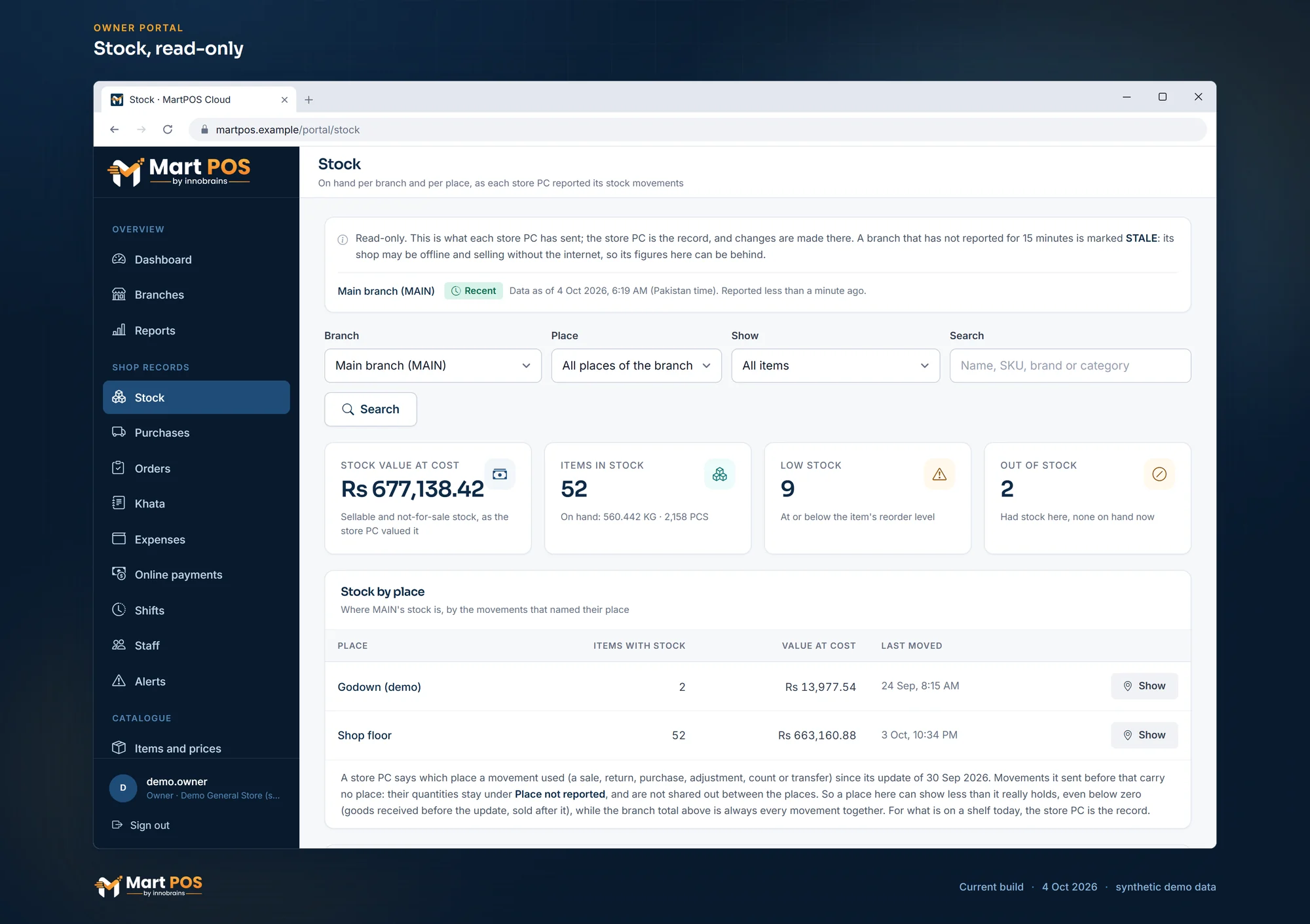
Stock, read-only. Each branch's stock on hand in its own units (kg and pieces), its value at cost and low stock, as the store PC last reported it. Screenshot of the current build (4 Oct 2026), synthetic demo data.
Notifications: alerts by email and SMS
Each member of the business, owner or manager, chooses their own alert emails and texts under Notifications. Everything is off until you turn it on. A manager limited to chosen branches gets alerts for those branches only, and the page names them.
- Under Which alerts, tick the alerts you want: low stock, near expiry, customers over their credit limit.
- Under How, tick By email. For texts, add your mobile number under Mobile number, choose Send a code, type the code from the text and choose Confirm number; then tick By SMS and agree to alert texts.
- Under When, choose As soon as a new alert comes in or One message a day at the hour you pick, and optionally Quiet from and Quiet until (Pakistan time): an alert that comes in during quiet hours waits until they end.
- Under Language, choose English or Roman Urdu (Urdu in English letters, for example "3 items reorder level par ya us se kam hain"). Item and customer names stay as the shop typed them.
- Choose Save.
A new alert is sent once: the same alert reported again the same day is not sent twice. Each message names the shop and branch, says when the store PC reported it, and links to Alerts. Every alert email has a Stop alert emails link that turns them off at once. A business gets a limited number of alert emails and texts a day. Texts are sent through SendPK with approved message templates. Which alerts a shop works out, and the near-expiry days, are set on each store PC under Settings › Notifications.
Members: managers in the portal
An owner can let other people into the portal, under Members (owners only).
- Under Invite a member, type the person's Email and, if you like, their name.
- Choose the Role: Manager or Owner.
- For a manager, choose Every branch or Only these branches and tick the branches.
- Choose Send the invitation.
The person gets an email with a link to set their own password; nobody else sets or sees it. The link works once and for seven days. Send again makes a new link (the earlier one stops working) and Cancel ends it. An email address that already has a MartPOS Cloud account cannot join a second business: invite another address. If the portal says "This server does not send email yet", the invitation cannot reach the person until the MartPOS team has set up email.
| Role | Can do |
|---|---|
| Owner | Everything: the records, plan & billing, the licence, store PCs, shop settings, items and prices, and the members. |
| Manager | The dashboard, Branches, Reports, every page under Shop records, Branch transfers, Settings to read, and their own Security and Notifications. Nothing else. |
A manager cannot open Plan & billing, Licence, Devices, Pairing codes, Items and prices, Changes sent, Support or Members, and cannot send anything to a store PC. Since 4 October 2026 a manager can open Settings (both For all branches and Branch by branch) to read them: the forms are greyed out and there is no button to send. A manager limited to chosen branches sees only those branches on every page, Settings included, and gets alerts only for them.
On the Members list an owner can change another member's role or branches (it takes effect at their next page) and Remove them: they are signed out at once and cannot sign in again, and what they did stays in the security log under their name. Nobody can change or remove their own membership, so a business always has at least one owner. Every invitation, change and removal is in the Security log.
These are portal members only. The people who work the tills are added on each store PC under Staff & counters; the two are separate sign-ins.
Items and prices, Changes sent, Branch transfers
- Items and prices: each branch's catalogue as last reported; edit an item's details, packs, barcodes, tax and pricing, or add a New item for one or several branches, and send it to the store PC. See Items and prices from the owner portal and New items from the owner portal.
- Changes sent: every change sent to a store PC and what it did with it: applied, on the way, or in conflict.
- Branch transfers: stock sent between your branches. See Transfers between branches.
Settings
Each branch's receipt settings, business profile and FBR POS settings as its store PC last reported them, with changes you can send. See Shop settings from the owner portal.
Backups
For owners only: the copies of each branch's store PC backups kept on MartPOS Cloud, if the owner switched Copy to MartPOS Cloud on at the store PC (with the cloud add-on), with when each backup was made, its size, and the space the business uses. Download saves a copy to restore it with the restore wizard on a store PC, for example on a new PC when the old one is lost. Every download is recorded in the business's security log.
MartPOS Cloud cannot open these copies: they are locked with the shop's backup password, which never leaves the store PC. See Backups and restoring a store PC.
Plan & billing
Your plan, the current paid period, what the business uses against the plan's limits, your invoices, and add-ons where they are on sale. Pay an invoice by bank transfer, JazzCash or EasyPaisa and upload the payment proof here; the MartPOS team checks it. See Changing your plan or edition and Add-ons.
Licence
What the account may use and what each store PC holds: the Status (active or suspended), the grant's length ("30 days, then 14 days' grace" by default), the features in the grant, and per PC the grant's Expires and Works offline until dates. See Your MartPOS licence.
Security
Two-step sign-in and recovery codes for your own sign-in, and for owners the business's security log. See Your MartPOS Cloud account and two-step sign-in.
Support
Ask the MartPOS team for help without leaving the portal.
- Open Support and choose New ticket.
- Type a Subject, for example The store PC stopped syncing.
- Choose the Topic: Technical problem, Cloud sync & store PCs, Licence & pairing, Data & import, Something is wrong or Idea or request.
- Choose How urgent: Low, Normal, High or Urgent (the till cannot bill).
- Describe What happened?: what you were doing, what you expected, and what happened instead, with any error message.
- Optionally attach a Screenshot or file: a picture, PDF, text, log, CSV or Excel file up to 5 MB.
- Choose Send ticket.
Each ticket has a number and a status: Open, In progress, Waiting for you, Resolved or Closed. Replies from the team appear on the ticket; answer with Send reply. When it is fixed, choose It is solved.
Common questions
Why does my branch say STALE while the shop is open?
The store PC has not reported for 15 minutes, usually because the shop's internet is down or the store PC is off. The shop can still be billing. Check Sync & FBR on the store PC. See Cloud sync problems.
Can I see stock or khata in the portal?
Yes, read-only, under Shop records: each branch's stock (also per place), purchases, orders, khata and advances, expenses, shifts, staff and alerts as its store PC last sent them, with when the branch last reported. To count stock, take a payment or correct an account, use the store PC.
Can my manager see the portal?
Yes. An owner invites them by email under Members, as a manager, for every branch or only the ones you choose. A manager sees the records and alerts, and can read the shop settings, but changes nothing: not the plan, the licence, store PCs, settings, items or members.
Why does a place show less stock than is on its shelves?
Because the store PC said which place a movement used only since its update of 30 September 2026. Stock received before that is under Place not reported, so a place that has sold since can show less than it holds, even below zero. The branch total is always right, and the store PC is the record for what is on a shelf today.
Can I add or switch off a staff member from the portal?
No. The Staff page only shows the list each store PC sent. Add people, change their role or switch them off on the store PC under Staff & counters; the portal shows the change after the store PC's next sync.
Can MartPOS text me when stock runs low?
Yes. Under Notifications, confirm your mobile number with the code sent to it, tick low stock under Which alerts and By SMS under How, and choose Save. The text goes through SendPK with an approved message template, at once or in one message a day, as you chose. Email works the same way.
Can I bill from the portal?
No. Billing is on the store PC and the tills, which work without internet.
Is there a mobile app?
No. The portal works in a phone's browser.
Related guides
- Pairing with MartPOS Cloud and sync status
- Items and prices from the owner portal
- Shop settings from the owner portal
- Your MartPOS licence
- Offline and cloud, explained: what works without internet and what the cloud shows
Last updated 05 October 2026. Still stuck? Contact us.