Moving a shop onto MartPOS starts with its lists: the items with the stock on the shelf, the customers with what they owe, the suppliers with what the shop owes them. Import data brings each list in from a spreadsheet, checks every row before anything is saved, and keeps a record of every file imported. A general store's list of a few thousand items, from sugar and daal to soap and soft drinks, goes in as one file.
Before you start
- Order of work: items first, then customers, then suppliers. No order is required, but it is the easiest to check.
- One closing date: the stock count and the balances should be as of the same day, for example the night before MartPOS starts. Opening balances are dated with it.
- Keep a copy of every file you import.
- Who can import:
| Import | Needs | Roles |
|---|---|---|
| Items | catalogue editing | owners, managers, warehouse staff |
| Items with opening stock | catalogue editing and stock adjustment | owners, managers, warehouse staff |
| Customers or suppliers | party editing | owners, managers, accountants |
| … with opening balances | party editing and opening balances | owners, managers, accountants |
Saving the file from Excel
Choose File › Save As and CSV UTF-8 (Comma delimited).
- Keep Urdu intact by choosing CSV UTF-8. Plain CSV loses Urdu; MartPOS reads it for English text and warns you.
- Excel files (.xlsx) are refused, with instructions to save as CSV: open the workbook in Excel, save it as CSV UTF-8 (Comma delimited) as above, and choose that file instead.
- Files MartPOS saved itself (the Stock page's or the Khata list's CSV) read back in: their headings, in English, Urdu or both, are matched for you, figures are plain and Urdu names come with them.
- Keep the heading row. Columns can be in any order and have any names: you match them on screen, and common headings (Item name, Brand, Size, Price, Qty, Mobile, Balance…) are matched for you, and so are some Urdu ones such as نام and قیمت.
- Commas, semicolons or tabs as separators all work. Rs, PKR and thousands commas are fine in amounts. Dates are day-month-year: 30-06-2026, 30/06/2026, or 2026-06-30.
- Up to 100,000 rows per file.
What each list can hold
Items, one row per item, and each size or pack is its own row (sugar 1 kg and sugar 5 kg are two rows):
- Item name (required), Urdu name, Other names (separated by commas, such as cheeni, shakar), Brand / company (created if new), Variant / size, Category, Shelf / rack;
- Unit: the unit stock is kept in, such as pc, kg, g, litre, ml, dozen or your own word. Empty means a piece;
- Sold loose: yes or no. Empty is yes for kg, g, litre, ml and metre, and no for everything else;
- Item type: goods, or service (charge works too) for something billed with no stock, such as home delivery or a carry bag. Empty is goods. A service row cannot have opening stock, packs, Sold loose or Track expiry. See Services and charges;
- Track expiry: yes or no. Every purchase of the item then needs the expiry date on the goods, and Reports › Near expiry lists it. Empty is no. See Expiry dates and the near-expiry report;
- Barcode / old item code: EAN-13, UPC-A and EAN-8 barcodes have their check digit verified; any other code is kept as it is, so your old labels keep working;
- Retail price and Wholesale price per unit (a piece, a kg…);
- Opening stock in the unit above (pieces or kg, never cartons) with its Unit cost, and a Reorder level. Opening stock of an item not sold loose is a whole number; a loose item can have decimals, such as 37.5 kg;
- one pack: its Pack name (Carton, Bag, Dozen), Units per pack (24 packets, 50 kg), Pack retail price and Pack barcode;
- its tax, as you set it: Tax rate (%) from 0 to 100 (17, 17% and 2.5 all work; empty is 0), PCT code (8 digits, dots allowed, in the form 1234.5678; empty uses the default PCT code under Settings › FBR POS) and Third Schedule (yes or no; empty is no). A wrong rate, PCT code or yes/no is shown on its row. MartPOS suggests no rate or PCT code: take them from your tax adviser.
Customers: name (required), phone, address, type (retail, institution or wholesale; hotel, office or business also read as institution, and dealer or shop as wholesale), price tier (retail or wholesale), credit limit (empty means cash only), opening balance (what they owed on the closing date) and its date.
Suppliers: name (required), phone, address, notes, opening balance (what the shop owed them) and its date.
The three steps
- Open Import data (under Administration) and choose Import products, Import customers or Import suppliers. Choose the file (Choose CSV file…). MartPOS shows how many rows and columns it found.
- Match the columns. Each MartPOS field shows the column it will be filled from, with an example value, so a wrong match is easy to spot. Fields marked * are required. For balances, choose the date they are as of.
- Check all rows. Every row is checked, and nothing is saved yet:
- Ready: will be added.
- Already there: skipped. Items match by the same name, variant and brand, or by a barcode that already scans to an item; customers by phone (or name without a phone); suppliers by name.
- Errors, with the row number as Excel shows it: a barcode with a wrong check digit, opening stock without a cost, half a packet of opening stock for an item not sold loose, pack details without a pack name, text in a price column, an item type that is not goods or service, a service with opening stock or a pack, the same name, variant and brand twice in the file.
- Warnings that do not block: the same barcode on two rows ("Scanning it will ask which item"), or a missing price ("No retail price: the item cannot be sold until a price is set").
The totals show the Opening stock value and Opening balances the file will bring in. Then choose Import. If some rows have errors, correct the file and choose it again, or tick Import the other rows and leave out the ones with errors.
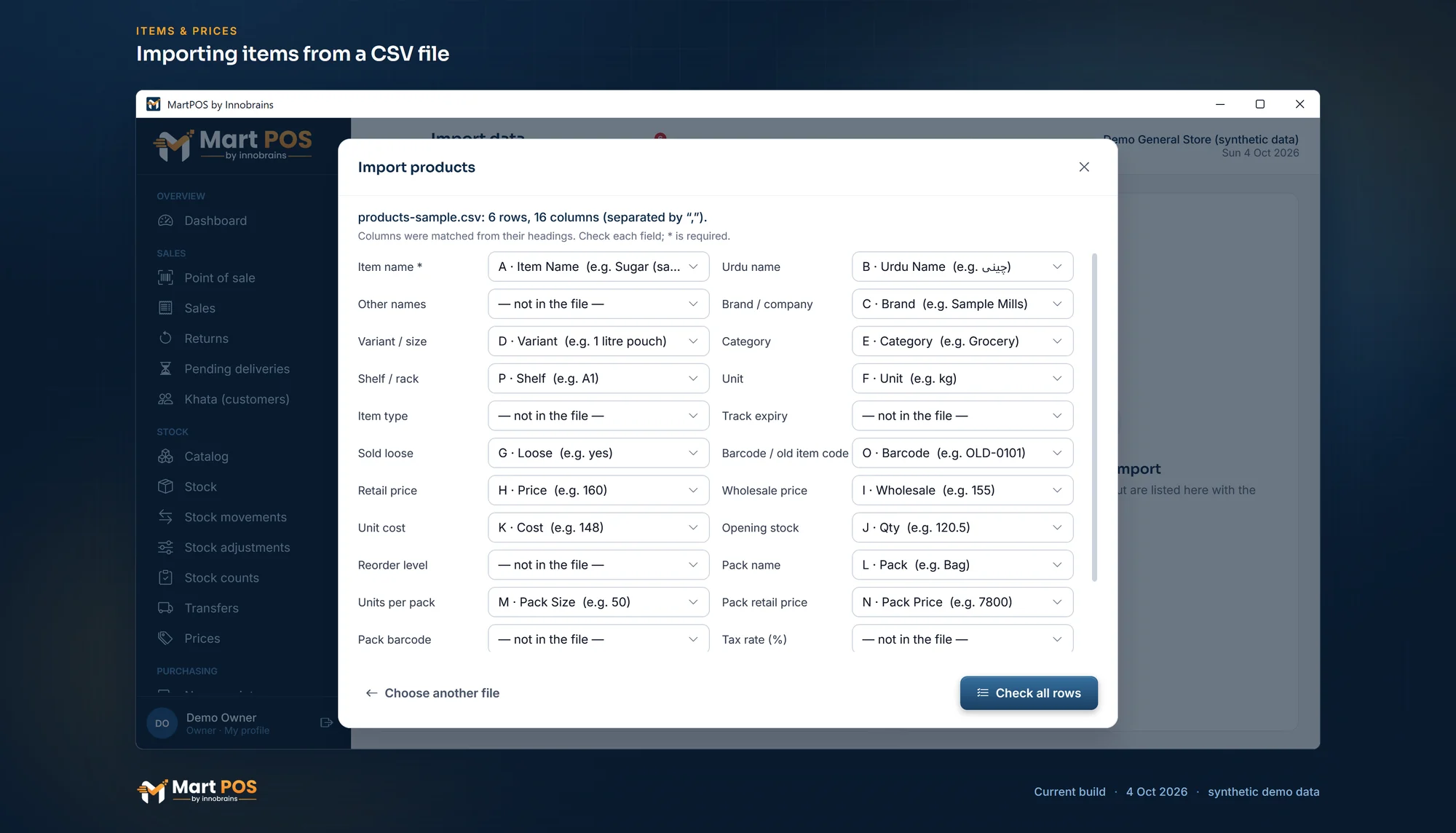
Importing items from a CSV file. The import wizard matches the file's columns to MartPOS's fields, Urdu names, packs and opening stock included, and checks every row before anything is saved. Screenshot of the current build (4 Oct 2026), synthetic demo data.
While it runs, and afterwards
- "Importing on the store server… Tills keep working meanwhile. You may close this window; the import continues and appears under Import data."
- Rows are saved in small batches, each complete or absent.
- If the store PC switches off mid-import, it continues from where it stopped the next time the store server starts. Nothing is imported twice.
- Import data lists every import: the file, who imported it, when, how many rows were added, already there or left out, and what happened to each row. MartPOS keeps the file exactly as imported, with its File fingerprint (SHA-256), so you can always tell which version of a file was used.
Correcting mistakes
Imported records are ordinary records; nothing is undone with one click.
| Mistake | Correction |
|---|---|
| Wrong item details or price | Edit the item in Catalog. |
| Wrong opening stock | A stock adjustment with a reason. |
| Wrong opening balance | A correction on the customer's or supplier's opening balance. |
| A whole file imported by mistake | Not undone automatically; contact the MartPOS team. |
What an import leaves out
- Prices of items already in MartPOS: rows for an item that is already there are skipped, so an import never changes a price. Change prices in Catalog.
- Excel workbooks: save them as CSV UTF-8 first (above).
- Customer or supplier advances as opening figures: an opening balance is money owed. Take advances held before MartPOS as new advances on the first day.
- Past sales: MartPOS starts from opening figures, which is what the accounts need.
- Expiry dates and batch numbers of opening stock: imported opening stock goes into a lot with no date. An item marked Track expiry asks for dates from its next delivery on; to date the packs already on the shelf, enter that opening stock on Stock adjustments instead (it has an EXPIRY · BATCH column), or count the item by lot after the import.
Common questions
My file counts stock in cartons. What do I do?
Convert to pieces first: 5 cartons of 24 is 120. Opening stock is always in the item's unit (pieces, kg, litres), never in cartons or bags.
What if my list has the same item in two sizes?
Keep them as two rows, with the size in the Variant / size column (1 kg, 5 kg). They become two items, as they should. Two rows with the same name, size and brand are an error.
My old software exported loose sugar in grams. Is that a problem?
No, if the Unit column says g: the item is then kept in grams and sold loose. If you would rather sell it by the kilo, convert the stock and price to kg in Excel first (divide the grams by 1,000, multiply the price by 1,000).
Can I import again after fixing errors?
Yes. Rows that went in the first time are recognised as Already there and skipped.
Related guides
Last updated 05 October 2026. Still stuck? Contact us.