MartPOS is billing, stock and khata software for kiryana stores, general stores and mini marts in Pakistan. A Windows program runs the till, a store server on the shop's main PC keeps the shop's records, and the optional MartPOS Cloud portal lets the owner see each branch's daily sales from anywhere. This guide explains how the pieces fit together, where everything is in the menu, and what to do on your first day.
Before you start. The Windows installer is offered on the Download page once a release is published there, and is not code-signed yet; while that page says there is no public installer, the MartPOS team sets the Windows app up on your store PC with you. Where a guide describes something that is only partly built, it says so.
How MartPOS is put together
| Part | Where it runs | What it does |
|---|---|---|
| Store server (MartPOS StoreHost) | The shop's main PC, the store PC | Keeps the shop's database: items, stock, bills, khata, the day book. It is the only program that writes to it. |
| MartPOS app (the till) | The store PC, and any other PC in the shop | The screens you bill and work on. On other PCs it talks to the store server over the shop network. |
| MartPOS Cloud (optional) | martpos.pk, in any browser | The owner portal: daily sales per branch, paired PCs, the licence, item and price edits, shop settings and support. |
Billing, returns, purchases, khata payments, the day book and printing all run on the store PC with no internet. When the store is paired with MartPOS Cloud, its records are sent up in the background whenever the internet answers; billing never waits for it.
Your first-day checklist
| Step | Where | Guide |
|---|---|---|
| 1. Set up the store on the store PC, and choose your business type | First start: Set up this store | Installing MartPOS and setting up the store, Choosing your business type |
| 2. Add your staff and counters | Staff & counters | Staff, roles and counters |
| 3. Fill in the business details and receipt settings | Settings | Receipt and printer settings |
| 4. Bring in your items with opening stock | Import data, or Catalog | Importing from CSV, Adding items |
| 5. Enter what customers and suppliers owed before MartPOS | Khata (customers), Suppliers | Opening balances |
| 6. Set a backup password | Sync & FBR › Backups | Backups and restoring a store PC |
| 7. Open a shift and make the first bill | Point of sale | Billing at the till |
| 8. Count the drawer and close the shift | Day book | Shifts and closing the day |
| 9. Optional: pair with MartPOS Cloud, add tills on other PCs | Sync & FBR, Staff & counters | Pairing with MartPOS Cloud, Tills on other PCs |
A good first bill is a real one: a packet of tea, Rs 50 of loose sugar (press F6 on the sugar line and type 50) and a bar of soap for a walk-in customer, paid in cash. It proves the till, the scanner, the printer and the drawer in one go, and shows a loose item and a packed one on the same bill.
Signing in
Every person signs in with their own username and password on the Welcome back screen. The screen also shows which store server the PC is talking to. Every bill, payment and stock change records who made it.
- After five wrong passwords in a row, that account is locked for five minutes: "Too many attempts. Try again after 5 minute(s)."
- A sign-in lasts 12 hours. After that, MartPOS asks you to sign in again.
- To sign out, use the arrow button next to your name at the bottom of the menu. Sign out before someone else uses the till, so their bills carry their own name.
Nothing ships with a default password. The owner's sign-in is created on the setup screen, and the owner adds everyone else.
Where things are in the menu
| Menu section | Screens |
|---|---|
| Overview | Dashboard |
| Sales | Point of sale, Sales, Returns, Pending deliveries, Khata (customers) |
| Stock | Catalog, Stock, Stock movements, Stock adjustments, Stock counts, Transfers, Prices |
| Purchasing | New receipt, Purchases, Suppliers, Supplier returns |
| Money | Day book, Accounts & books, Shifts, Expenses, Reports |
| Administration | Sync & FBR, Staff & counters, Roles, Import data, Audit log, Settings |
| Account (owners only) | Plan & licence, Downloads & updates |
Your business type (kiryana, general store or mini mart) keeps some back-office screens out of the menus until you want them, such as stock counts for a kiryana; Settings › Business type changes it, and nothing is ever deleted. See Choosing your business type.
The menu also shows only the screens a person's role can use: a cashier does not see the Dashboard, Suppliers, Purchases, Expenses or the Audit log, for example. The store server checks the role again on every screen, so hiding a screen is a convenience, not the protection. A small number beside a screen counts what is waiting there: customer orders still open beside Pending deliveries, bills not with FBR yet beside Sales, changes from MartPOS Cloud needing a decision beside Sync & FBR, goods from another branch to count in beside Transfers, and returns to suppliers not credited yet beside Supplier returns. The numbers refresh every half minute. The bell at the top of every screen lists what needs your attention, each item opening its screen. See The notifications bell.
After signing in, a cashier starts on Point of sale; owners, managers, accountants, auditors and warehouse staff start on the Dashboard.
Settings groups its pages under Shop, Selling & payments, Printing & devices, Staff & security and System. To find a setting without knowing its page, type a word in the search box above the pages, such as receipt, logo, khata limit or backup: choose a result and Settings opens that page at the card. Settings history lists who changed which setting, when, and from what to what.
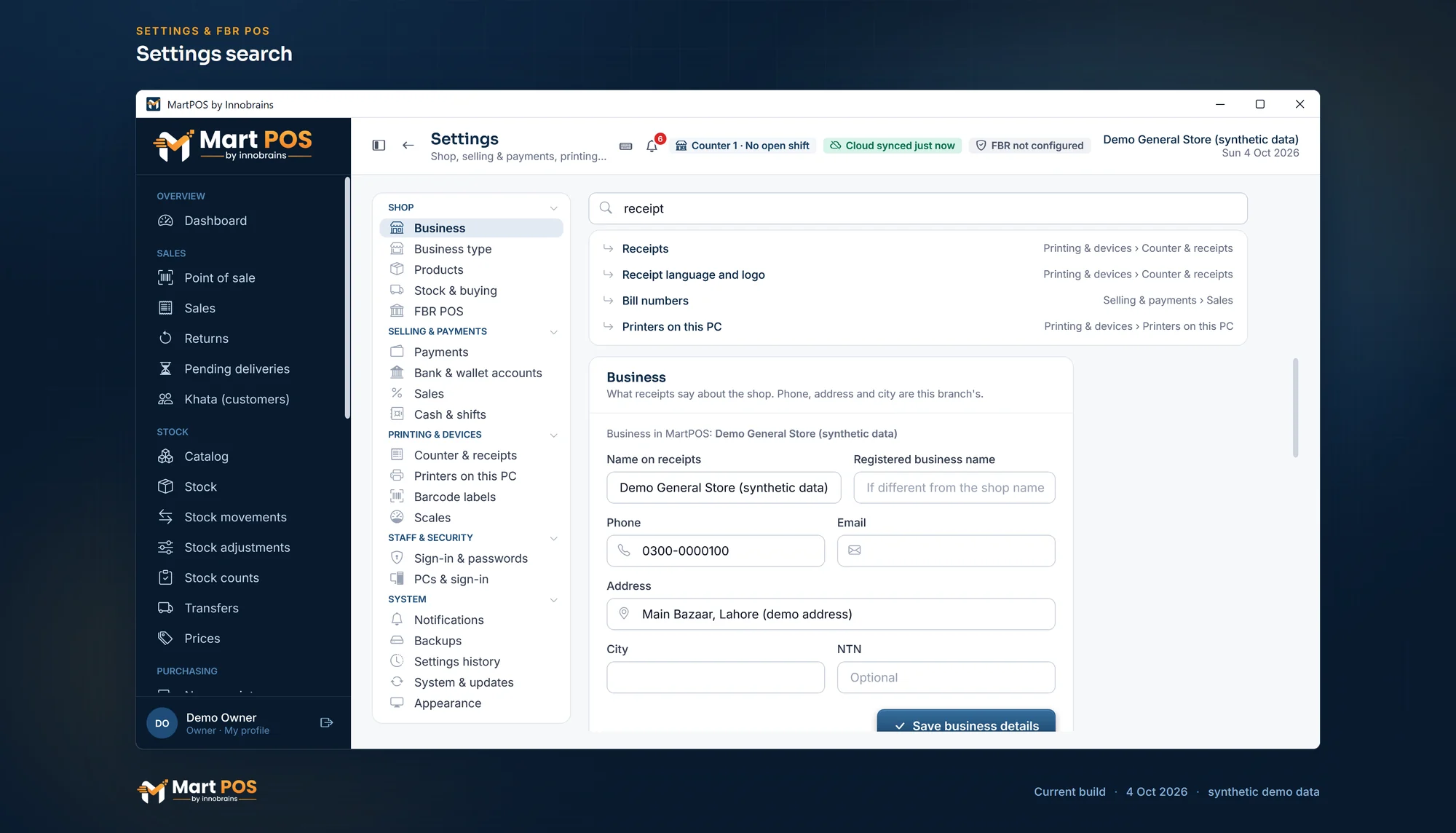
Settings search. Type what you are looking for beside the Settings menu, and it opens the page and the card. Screenshot of the current build (4 Oct 2026), synthetic demo data.
The dashboard
The Dashboard is the owner's day at a glance. Sales today against yesterday, the day's bills and average bill, profit today (for those who may see reports) and this month; a chart of net sales and profit for the last 30 days; how customers paid today; the top items this month; what needs attention (low stock, stock near or past its expiry date, shelf labels showing an old price, and more); where the money is (cash in the drawers, bank and wallets from the books, what customers owe and what you owe suppliers); the getting started steps; and the recent activity from the audit log. Click a row, a card or a step to open the screen that deals with it. The figures are the daily sales report's, so the two always agree. See Reports for the owner.
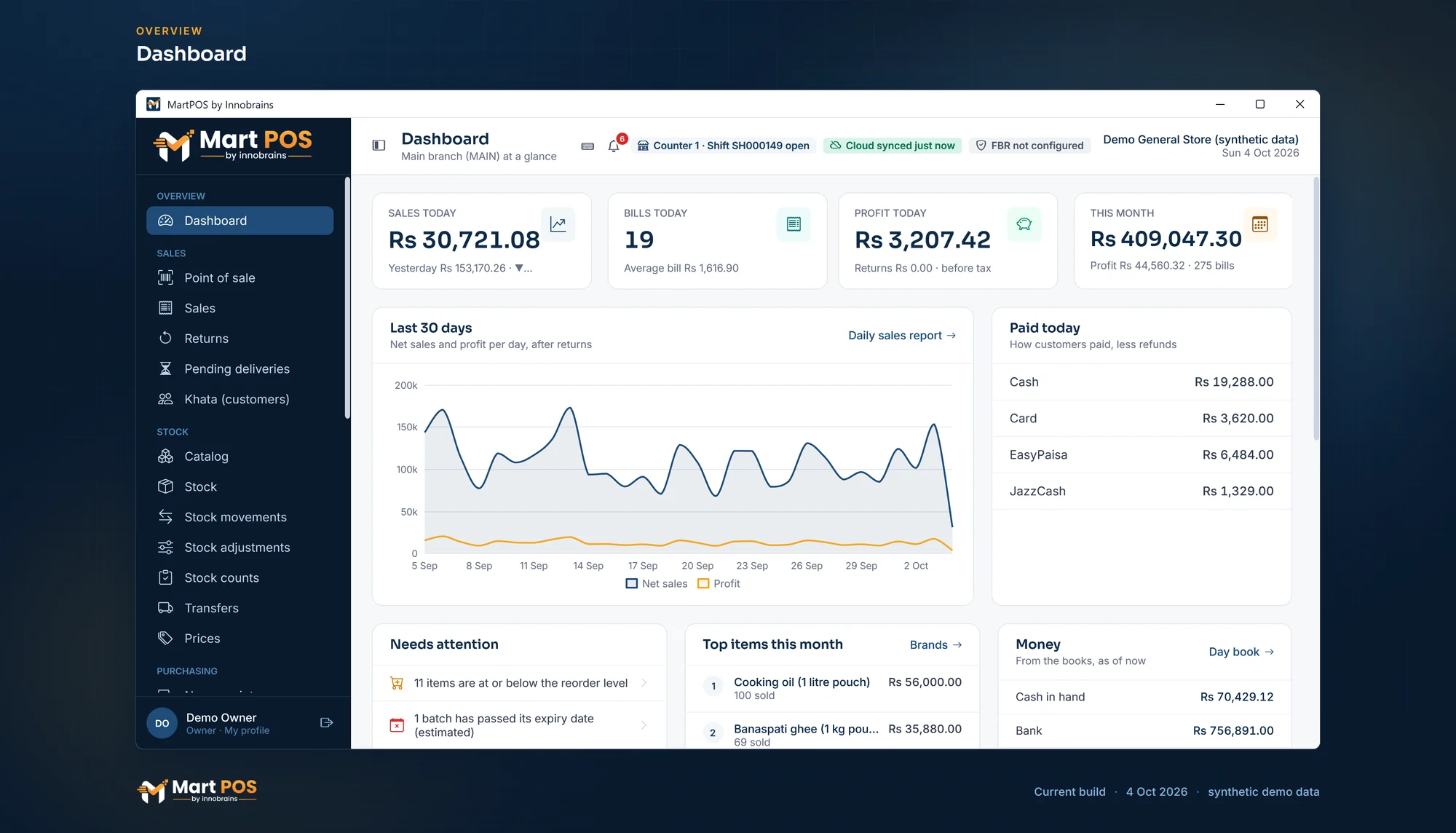
Dashboard. Today's sales, bills and profit, the last 30 days, how customers paid (cash, card, EasyPaisa, JazzCash or khata) and what needs attention. Screenshot of the current build (4 Oct 2026), synthetic demo data.
The bar across the top of every screen
At the far left, the menu button folds the menu to icons or opens it again; this PC remembers the choice. Point of sale keeps the menu folded, to leave room for the bill, until you open it there. After you have moved from one screen to another, the arrow beside it (or Alt+←) goes back to the screen before, as you left it: from a bill back to the list of bills, for example.
Next to the page title, MartPOS always shows where you stand:
- This PC's counter and shift, for example Counter 1 · Shift 2 open or No open shift.
- The cloud: Cloud not connected, Cloud synced 2 min ago, Cloud last synced …, Cloud sync problem, or Store server offline when this PC cannot reach the store PC. A number such as · 12 waiting counts records not yet sent.
- FBR: FBR not configured while FBR POS integration is off, which is how MartPOS starts. Once it is on, FBR sandbox or FBR POS, with how many invoices are not with FBR yet. See FBR POS integration.
- The licence, only when it needs attention: Licence: reconnect soon, Licence ran out or Licence suspended. See Your MartPOS licence.
- The business name and business date.
Rules worth knowing
- One store PC per branch. Only the store server writes to the shop's records. Other PCs bill through it, so two counters can never both sell the last packet.
- Posted records are never edited. A wrong bill is corrected with a return, a wrong stock figure with an adjustment, a wrong opening balance with a correction. Each keeps a reason and a name.
- Money is in rupees with two decimals, dates are Pakistan dates, and the business day follows Pakistan time. It changes at midnight unless the owner sets a later time for a shop open past midnight (Settings › Business › Business day).
- Keep the store's database on the store PC's own disk. Never on a shared folder, OneDrive or Google Drive.
Good to know before the first busy day
- Loose goods. Weigh the goods and type the weight in the line's Qty (0.25 for a pao), tap a quick weight (100 g, 250 g, 500 g or 1 kg), or sell by amount with F6 ("Rs 100 of sugar"): the store PC works out the weight to the gram. See Billing at the till.
- Expiry lots follow the earliest date first. For the items you choose, MartPOS keeps each delivery's expiry date and batch number as a stock lot and sells the earliest date first, but the till does not ask which pack the customer picked: if the shelf is not rotated, count the item by lot to put it right. See Expiry dates and the near-expiry report.
- The owner portal shows each branch's daily sales, stock (also per place), purchases, customer and purchase orders, khata (with advances on both sides), expenses, shifts, staff, alerts and a sales report with expenses, read-only; the other reports stay on the store PC. An owner can invite managers to it by email. Alerts can be emailed to you, or sent as texts through SendPK with approved message templates. See The owner portal.
- FBR POS integration is optional and off until you switch it on. Once it is on, every sale and return is reported to FBR right after the bill is saved, and the receipt carries the FBR invoice number and QR code; a bill made while FBR cannot be reached prints as an offline invoice and is sent by itself later. See FBR POS integration.
Common questions
Can I download MartPOS and install it myself?
Once a release is published on the Download page, yes: run it on the store PC first, then on any extra tills. See Installing MartPOS and setting up the store. While that page says there is no public installer, sign up on the website and the MartPOS team sets the Windows app up on your store PC with you.
Does MartPOS need the internet?
No, not for billing. The store PC keeps working without internet, and records go to MartPOS Cloud when the connection is back. Tills on other PCs need the shop network and the store PC, not the internet.
Can two counters bill at the same time?
Yes. Each extra till is the MartPOS app on another PC in the shop, connected to the store PC over the shop network. Every bill is saved by the store PC, one at a time, so two counters can never both sell the last packet. See Tills on other PCs.
How much does MartPOS cost?
See the pricing page: Single Counter, Standard and Multi-Branch, as a Cloud subscription (monthly or yearly) or an Offline licence (1 or 5 years). Plans, invoices and payments are under Plan & billing in the owner portal.
Related guides
Last updated 05 October 2026. Still stuck? Contact us.