A business with two shops runs one store PC in each. For the two to be one business (daily sales side by side in the portal, item edits for both, transfers between them), the second shop's store PC is set up as a branch of the business on MartPOS Cloud, not as a new business. This guide covers that setup and what the new branch starts with.
Before you start
- The first branch must already be set up and paired with MartPOS Cloud. Until it is: "No store PC of … is connected to MartPOS Cloud yet. Set up the first branch as a new business and pair it; then add the others this way."
- The new shop's PC needs MartPOS (installed as a Store PC) and internet during setup. While the Download page has no installer, the MartPOS team puts MartPOS on it with you.
- Decide the new branch's code: 2 to 8 capital letters or digits, different from every other branch, for example CANTT. It appears in the branch's bill numbers (CANTT-C1-S000001) and item codes.
Step 1: Create a pairing code for the new branch
In the owner portal, open Pairing codes and choose Create a pairing code. Each branch needs its own code; it works once, for 30 minutes.
Step 2: Set up the new store PC as a branch
- Start MartPOS on the new shop's PC. The first start shows Set up this store.
- Choose A branch of a business on MartPOS Cloud.
- Type the MartPOS Cloud address (https://martpos.pk) and the Pairing code. "The owner makes a pairing code in the MartPOS Cloud portal. The business name and its records come from there; this branch needs its own code."
- Fill in the branch: Branch name, Branch code, Address (on receipts), Phone and First counter.
- Fill in the Owner's sign-in for this store PC: full name, username and password (8 characters or more).
- Choose Join the business.
MartPOS asks the cloud which business the code is for, sets this PC up as a new branch of it under the business's name, and pairs it with the same code. A branch code already used in the business is refused: "CANTT is already a branch of …. Use this branch's own code."
The new branch appears in the portal under Branches and on the dashboard after its first sync.
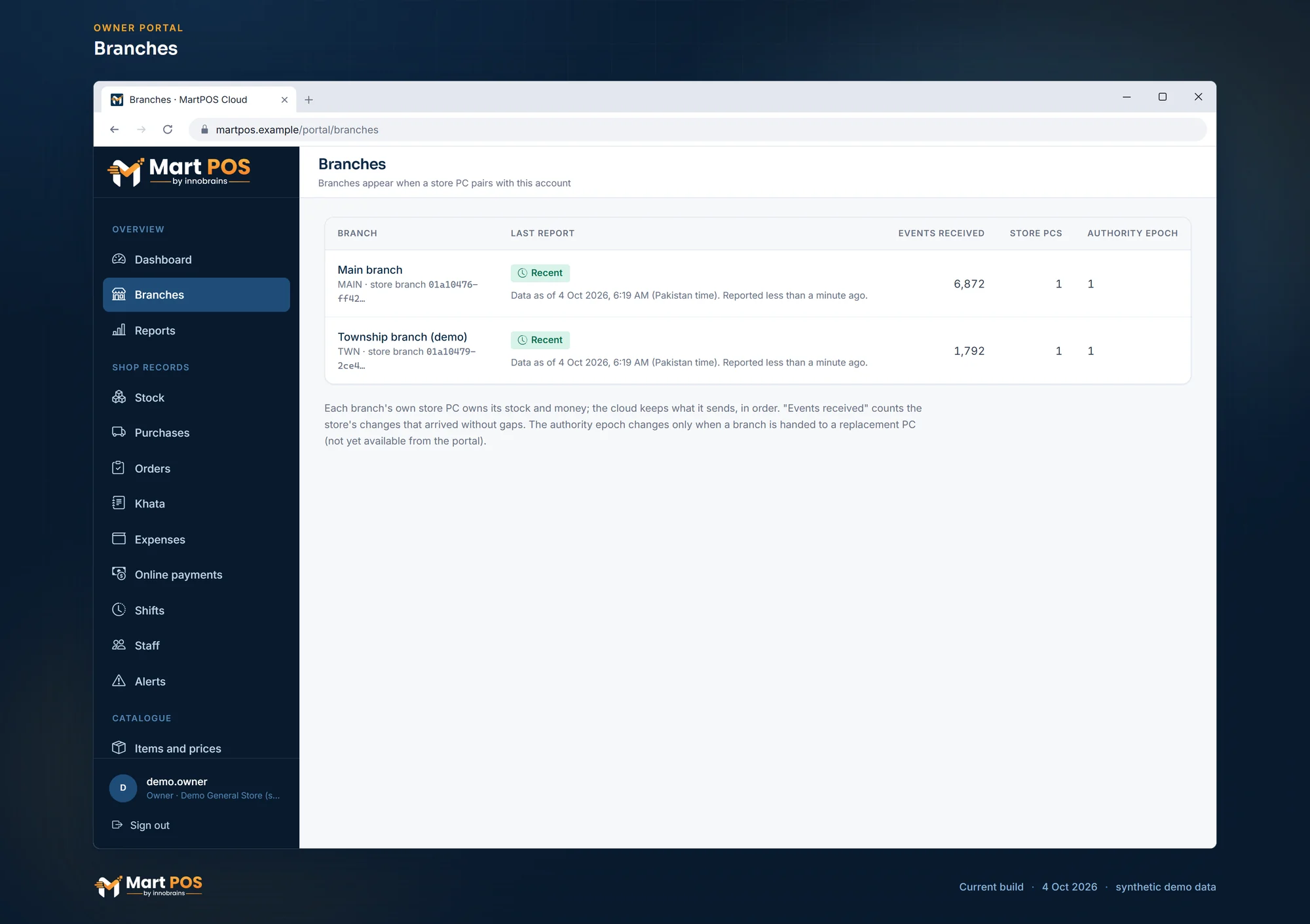
Branches. Each branch with its last report, the changes received from its store PC and how many store PCs it has. Screenshot of the current build (4 Oct 2026), synthetic demo data.
What the new branch starts with
The branch is part of the same business, but its store PC keeps its own records:
| Starts empty, set up on this PC | Comes from the business |
|---|---|
| Items and stock (import them, add them, or receive them by transfer) | The business name |
| Customers, khata and suppliers | The cloud account, licence and pairing |
| Staff accounts and counters | Transfers and item edits from the portal, once items exist |
| Receipt settings and the printer |
Ways to fill it:
- Import the item list, customers and suppliers from CSV. See Importing items, customers and suppliers from CSV.
- Send stock from the first branch with Send to branch. Items the new branch does not have are added there with the same identity. See Transfers between branches.
- Settings can be sent from the portal, with Also send to …, once the branch has reported its settings.
- Settings your business shares (under Settings › For all branches in the portal) reach the new branch by themselves: a branch that joins after a section was shared follows it, and its store PC applies the business's value at its first syncs, with its own checks. You can let it keep its own instead. See Settings for all branches.
Rules worth knowing
- One store PC per branch. Tills on other PCs in the new shop pair with this branch's store PC, as in the first shop.
- Each branch owns its own stock and money. Stock, khata, advances and price lists are not shared between branches.
- A branch set up as a separate business cannot join later. If you set up the second shop as A new business by mistake, stop and contact the MartPOS team before billing on it.
Common questions
Can both branches use the same item codes?
Each branch's item codes (SKUs) carry its branch code (IT-CANTT-000001), so they never collide. An item that arrives by transfer keeps the same identity as at the sending branch, so both branches see one item, but it gets a SKU of the receiving branch's series; its notes name the SKU it had at the sending branch. The pack barcodes printed by the maker are the same in both shops.
Do staff of the first branch sign in at the new one?
No. Staff accounts are per store PC. Add them on the new store PC under Staff & counters.
Can the owner see both branches together?
Yes. The portal dashboard shows each branch's daily sales, each with when it last reported.
How do we add a third shop?
Do the same again, with a new pairing code and another branch code.
Related guides
Last updated 04 October 2026. Still stuck? Contact us.