In the Ramazan and Eid rush, or at the start of the month, one counter is not enough. Another PC in the shop can bill as an extra till against the same stock. It keeps no records of its own: every price, every search and every bill goes through the store PC, so two counters can never both sell the last packet on the shelf. This guide covers allowing tills, pairing a PC, choosing its counter, and removing it.
What you need
- The store PC and the new PC on the same shop network, by cable or Wi-Fi.
- MartPOS on the new PC: run the installer there and choose Extra till (connects to the store PC). While the Download page has no installer, the MartPOS team installs it with you.
- The owner's sign-in on the store PC.
Step 1: Let the store PC accept tills
The store PC does not accept tills until it is allowed to. Staff & counters › Tills on other PCs says which it is:
- "Allowed. On the till PC, connect to 192.168.1.10." (the store PC's addresses)
- "Allowed, but this PC has no network address right now. Check its network cable or Wi-Fi."
- "Not allowed yet. Run MartPOS Setup on this PC again (as an administrator) and tick "Extra tills on the shop network will connect to this PC"."
To allow tills, run the MartPOS installer on the store PC again and tick Extra tills on the shop network will connect to this PC. It turns on the store server's shop-network listener and adds a Windows Firewall rule for private networks only (TCP port 47522); the shop's data is kept. On a store server that was not put there by the installer, the message names the setting to change instead, and the MartPOS team does it with you.
Step 2: Make a one-time code on the store PC
- Sign in as the owner and open Staff & counters.
- Under Tills on other PCs, choose Add a till.
- The window Add a till on another PC shows the Store PC address and a Code such as K7P2Q-9XM4D. "Works once, until 3:45 PM." It also shows a short certificate fingerprint for checking by phone if anyone asks.
The code works once, for 15 minutes. A new code can be made at any time.
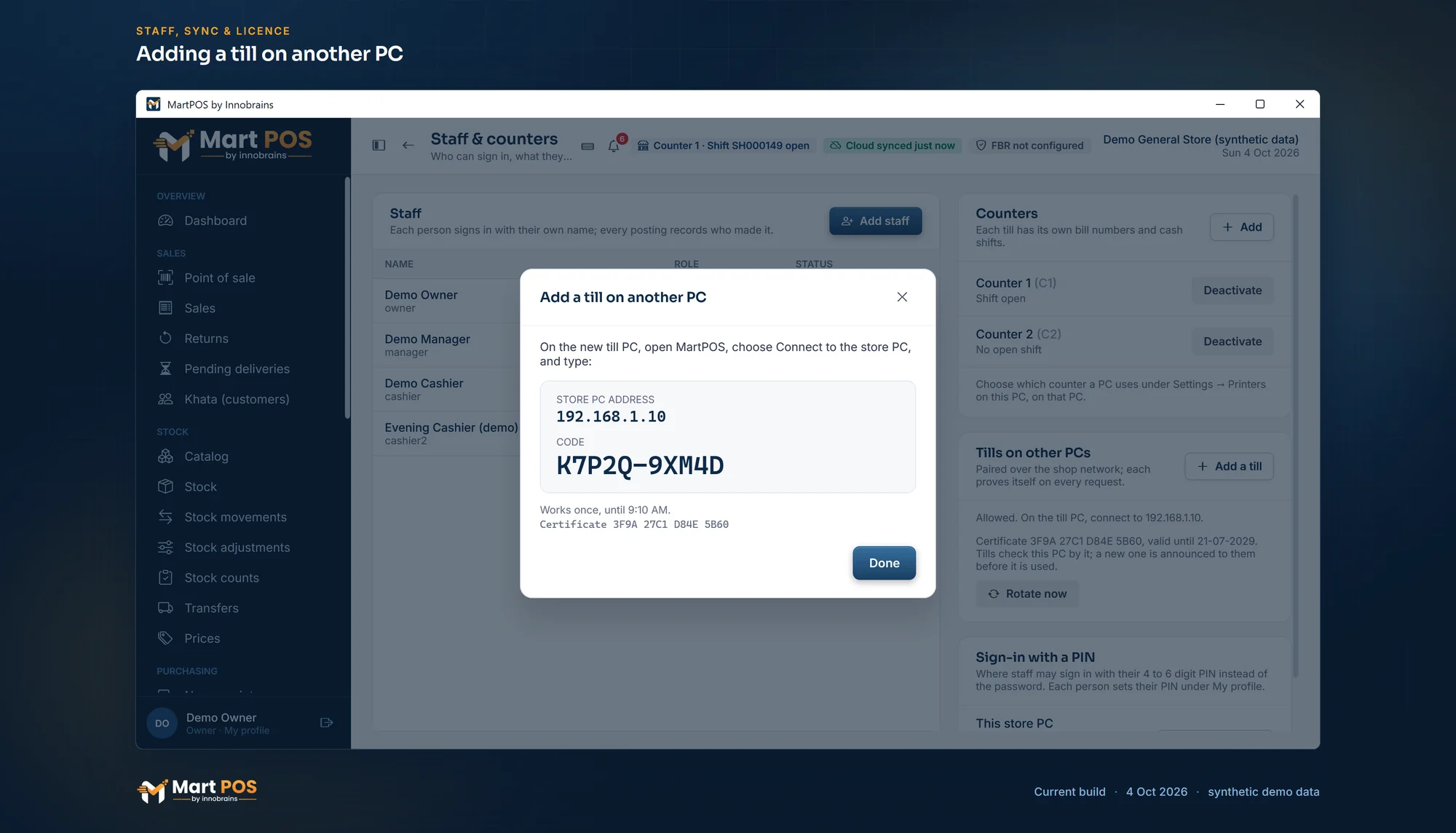
Adding a till on another PC. The owner makes a one-time code on the store PC and types it on the new till with the store PC's address; it works once, for 15 minutes. The address, code and certificate shown are samples. Screenshot of the current build (4 Oct 2026), synthetic demo data.
Step 3: Connect the new PC
- On the new PC, open MartPOS. When no store server runs on it, it offers Connect to the store PC ("This PC is a till; the store server runs on another PC in the shop.").
- Type the Store PC address (for example 192.168.1.10) and the Code, exactly as shown.
- Choose Connect.
- Sign in with your own username and password, as on the store PC.
"The code is never sent over the network. This PC and the store PC each prove they know it, and this PC then trusts only that store PC's certificate." From then on every request is encrypted and carries the till's own key; a copied sign-in does not work from another PC.
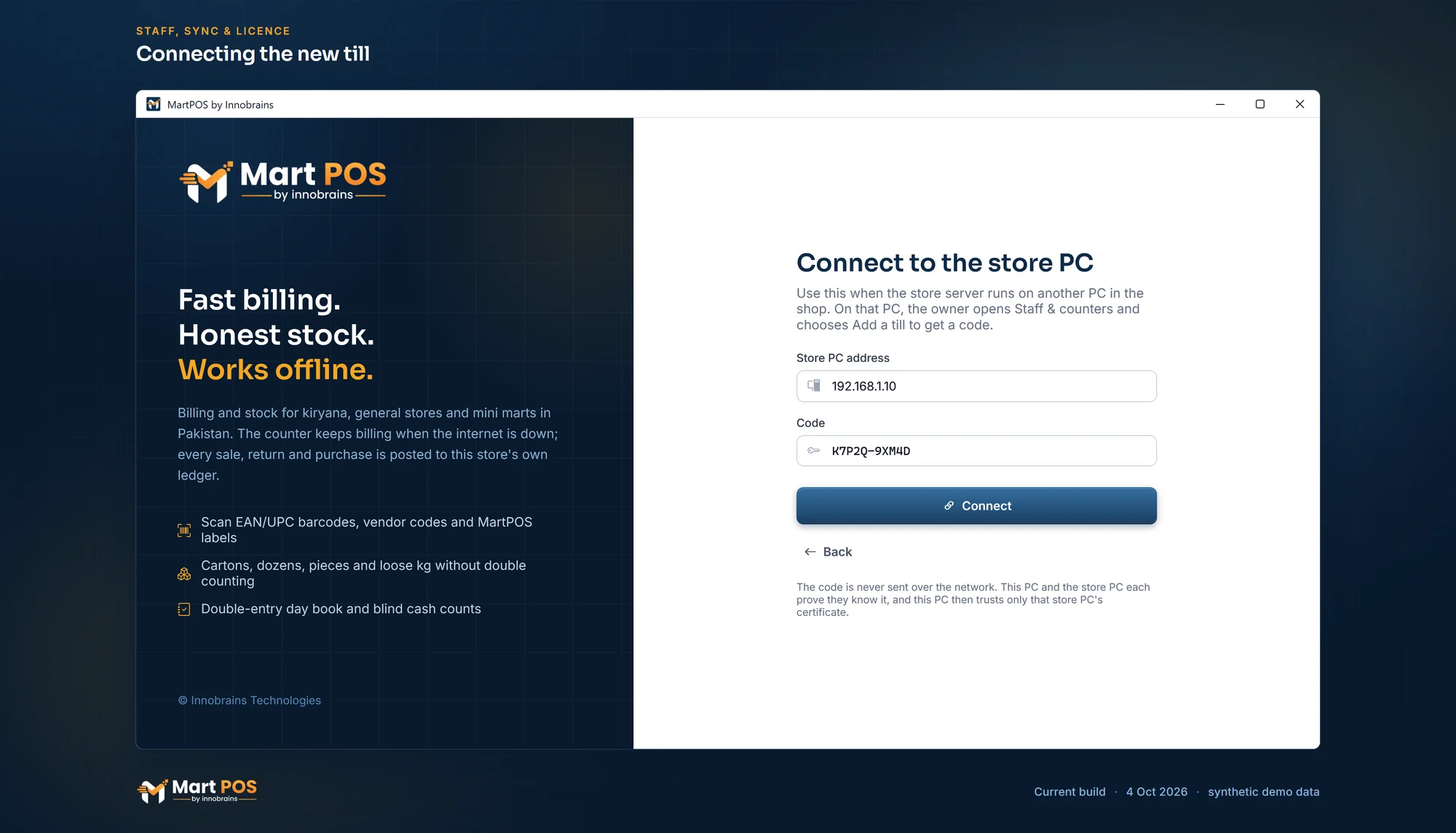
Connecting the new till. On the new PC, Connect to the store PC takes the address and the code; the code never crosses the network, and the till then trusts only that store PC's certificate. Screenshot of the current build (4 Oct 2026), synthetic demo data.
Step 4: Choose the till's counter and printer
On the new till, open Settings › Printers on this PC:
- Counter: which counter this PC bills as. Each counter has its own bill numbers and its own cash shift; add counters under Staff & counters › Counters on the store PC.
- Receipt printer: this PC's own printer. See Receipt and printer settings.
Then open a shift on that counter and bill as usual.
To make the new PC a counter for cashiers only, or keep cashiers off a back-office PC, the owner chooses what each PC is for and which roles sign in there under Settings › PCs & sign-in on the store PC. The owner can also keep one person to particular PCs (for example a cashier only on this counter) under People on particular PCs on the same page. See Staff, roles and counters.
Removing a till
On the store PC, Staff & counters lists each till with when it was last seen. Remove asks: "… stops working with this store at once and anyone signed in there is signed out. A bill in progress stays on that PC. To use it again, pair it with a new code."
Use it when a PC is replaced, sold, lost or stolen. The removed PC shows: "This PC is not paired with the store server, or its pairing was withdrawn. Ask the owner for a new code on the store PC."
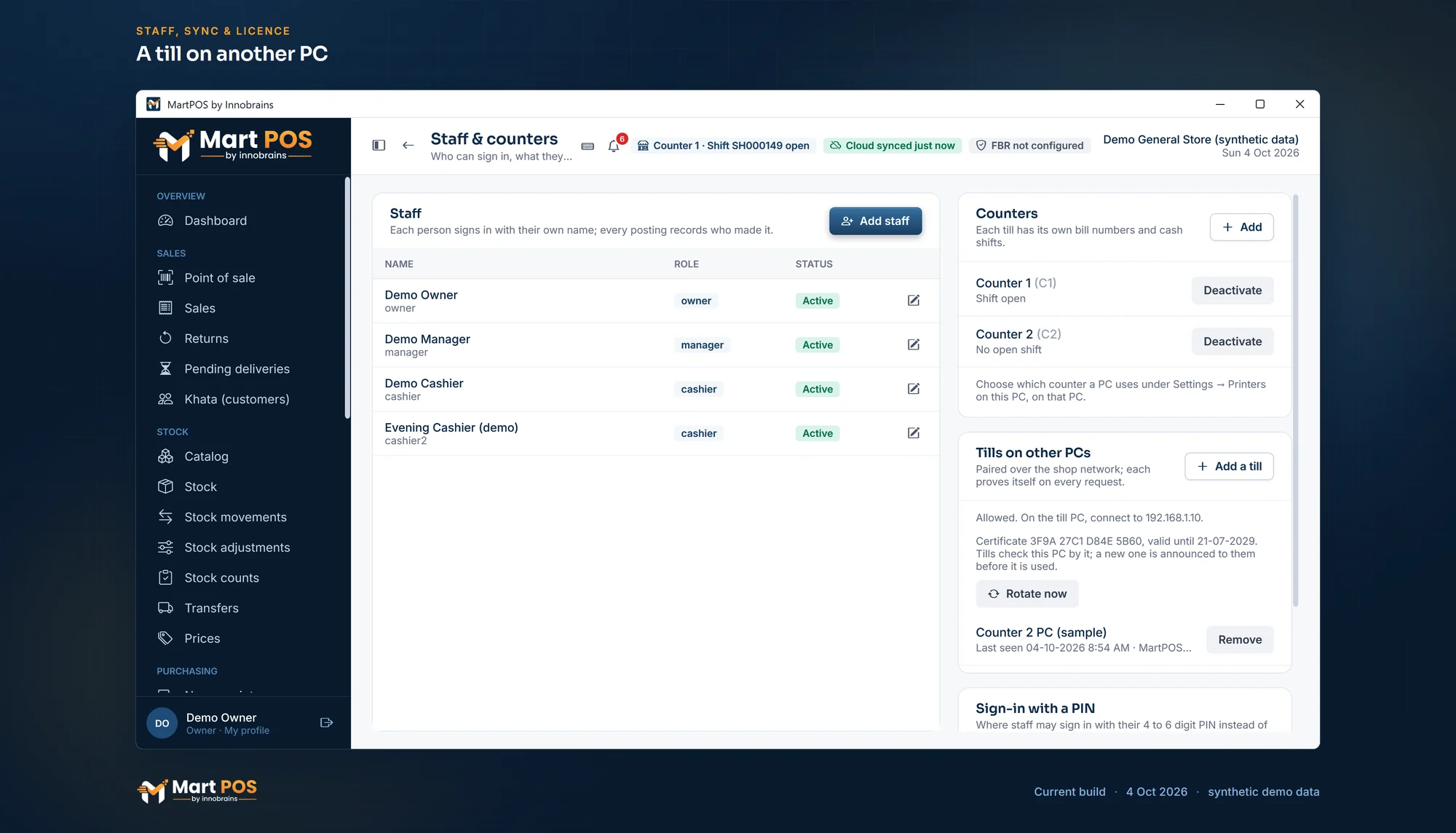
A till on another PC. Staff & counters lists each till with when it was last seen and its MartPOS version, beside the certificate the tills check the store PC by; Remove withdraws a till at once. The till and certificate shown are samples. Screenshot of the current build (4 Oct 2026), synthetic demo data.
Updates and the certificate
Staff & counters also shows each till's MartPOS version and whether it has the store PC's current certificate.
- When the store PC runs a newer version, each till shows Update to … from the store PC and installs that version from the store PC in about a minute. See Updating tills from the store PC.
- The store PC changes its certificate from time to time and tells the tills beforehand, so they follow without being paired again. A till that was off for the whole change asks to be paired again. See The tills' certificate.
What works when the store PC is off
- The store PC itself keeps billing, with or without internet.
- Other tills cannot bill until the store PC and the network are back. Their open bill is kept, and a bill whose answer was lost is locked and finished with Retry, never charged twice. MartPOS deliberately does not let a till sell on its own: two PCs selling the same stock separately could both sell the last piece.
See A till cannot reach the store PC.
Common questions
Does the second PC need the internet?
No. It needs the shop network and the store PC. The internet matters only for the store PC's sync with MartPOS Cloud.
Why did the code not work?
It may have expired (15 minutes), been used, or been typed wrongly: "This code is wrong, expired or already used. Ask the owner for a new code on the store PC." Make a new one with Add a till.
We moved the store server to a new PC. Do the tills still work?
No. The new store PC has a new certificate, so each till must be paired again with a new code.
How many tills can one store PC serve?
MartPOS itself sets no number, but your plan does: it limits how many counters the branch may have, and tills on other PCs must be part of the plan. Account › Plan & licence on the store PC shows what the plan allows and what is in use. See Plan & licence and downloads in the app.
Related guides
Last updated 05 October 2026. Still stuck? Contact us.