Before Ramazan or Eid, or for the month-start rush, a general store orders extra stock from each distributor: cartons of cooking oil, bags of atta and sugar, crates of soft drinks. It rarely arrives in one go. A purchase order records what you ordered and at what cost; each delivery is received against it, and MartPOS shows what is still to come and whether the supplier billed what was agreed.
Cannot find Orders? A shop set up as a Kiryana keeps purchase orders out of the menus. Choose another business type, or tick Show every feature, under Settings › Business type. See Choosing your business type.
How to place an order
- Open New receipt and choose the supplier.
- Choose Orders ("Purchase orders to this supplier; receive a delivery against one"). The Purchase orders window lists this supplier's open orders.
- Choose New order.
- Find each item by its name, SKU or barcode and add it, with its Unit (a carton, a bag, or single pieces), Qty and Agreed cost.
- Optionally type the expected date (dd-mm-yyyy) and Notes for the supplier.
- Choose Place order.
The order gets a number such as MAIN-PO000004. Placing an order does not change stock or what you owe: nothing is owed until goods arrive. Only units marked as bought on the item can be ordered.
Deciding what to order
Reports › Low stock & reorder lists the items at or below their reorder level, with what is on hand, what sold in the last 30 days, and a Suggested quantity: enough to bring stock back to twice the reorder level, or to cover the last 30 days' sales if that is more. Set each item's Reorder level (in the base unit) in its item form, for example 24 packets of tea or 50 kg of sugar. On the Stock page, the Low stock filter shows the same items. Before a busy season, look at last year's sales of the same weeks as well: Best sellers on Reports shows what sold most in a period.
How to receive a delivery against an order
- In New receipt, choose the supplier, then Orders.
- Choose the order and Receive a delivery.
- The receipt fills in with every line still to come, at the agreed cost: "Receiving against MAIN-PO000004: lines show what is still to come; change them to what arrived."
- Change each Qty to what actually came in this delivery. Remove lines that did not come. Add Free goods if the distributor sent a bonus.
- If the bill's cost differs from the agreed cost, type the bill's Unit cost: the difference shows in the match (below).
- Type the Supplier's bill no., what you paid now, and Post receipt.
The order becomes partly received until every line has arrived, then received. Receive as many deliveries as needed. A line may be received in a different unit of the same item: ordered in cartons of 24, part of it received as single pieces, it still counts towards the same line.
You cannot receive more than is still to come, and free goods count towards it. A line beyond what was ordered is refused: "Put the extra on its own line, not against the order." To keep the extra, add the item again as its own line on the same receipt (or on a receipt without the order): it goes into stock without touching the order. If the bonus came on top of the full order, receive the order line in full and add the bonus as its own line with a Unit cost of 0.
Closing an order short
When the rest will never come (the distributor ran out, the brand stopped a pack size, or you cancelled), choose the order, type To close short: why the rest will not come and choose Close short. The reason is kept with the order, and nothing more can be received against it. An order with something received becomes closed; an order with nothing received becomes cancelled.
Reading an order
For each line the window shows what was Ordered at what cost, Received, still To come and Billed, and a Match:
| Match | Meaning |
|---|---|
| not received | Nothing has arrived yet. |
| partly received | Some arrived and was billed at the agreed cost; more is to come. |
| matched | Everything arrived and was billed at the agreed cost. |
| price differs | The bills charged more or less than the agreed cost of the goods received, shown as Rs … vs order. |
Free goods never look like a price difference. Bonus goods are counted apart; only the paid quantity is compared with the agreed cost.
The top of each order shows its status, when it was ordered and expected, the value still to come and, once closed, the reason. The list beside it shows each order's status and total ordered. Show closed adds received, closed and cancelled orders.
When the store PC is paired with MartPOS Cloud, the owner portal's Orders page has a Purchase orders tab: each branch's orders with what is still to come, the expected date and the value at the ordered cost, read-only, as the store PC last sent them.
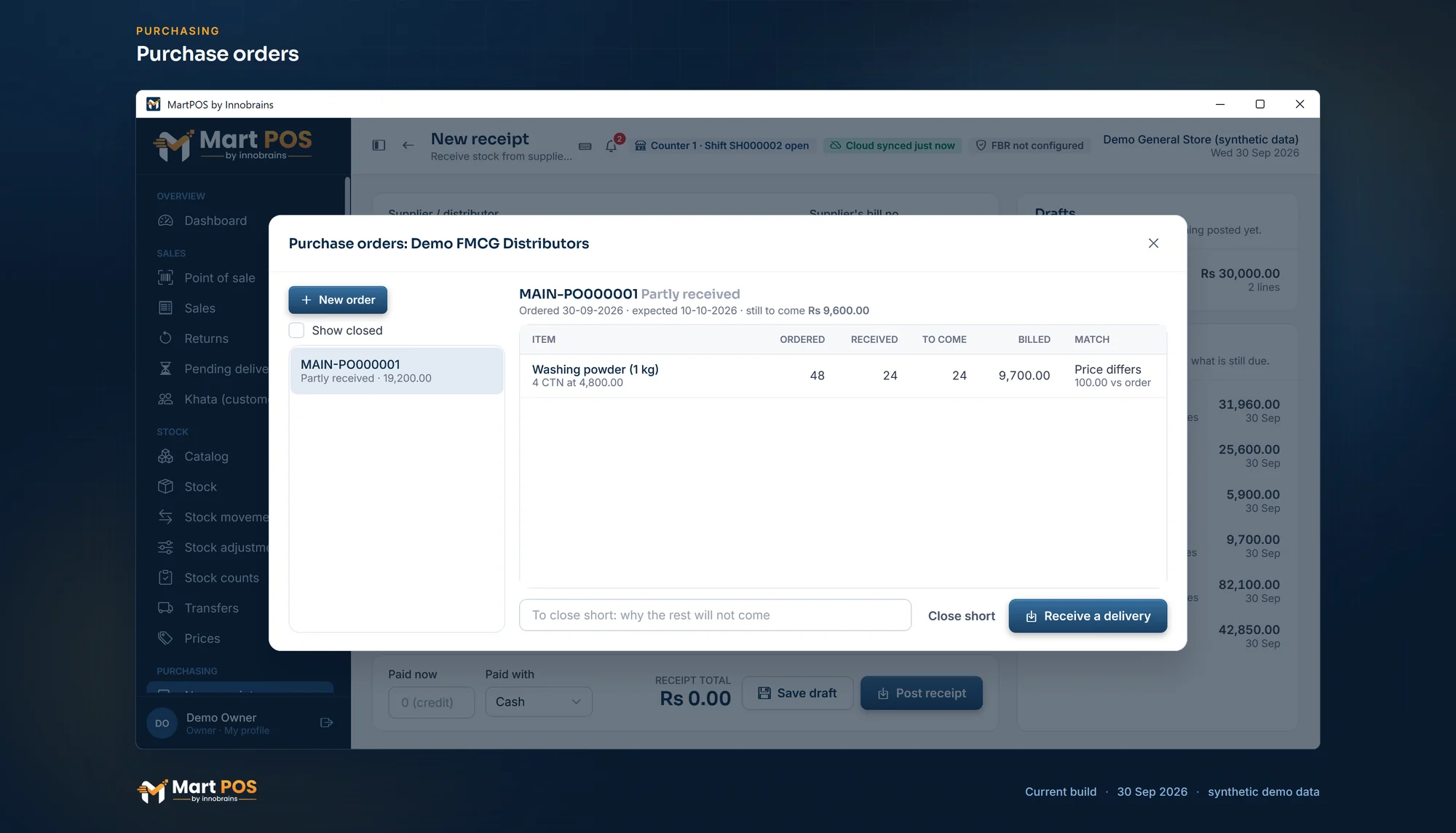
Purchase orders. An order received in parts, each line matched against what the supplier's bill charged. Screenshot of the current build (30 Sep 2026), synthetic demo data.
Who can do this
Placing, receiving and closing orders needs the purchasing permission: owners, managers and warehouse staff. A supplier's orders are also listed on their account on Suppliers, under Orders, with what was ordered, billed and is still to come.
Common questions
The distributor sent a different size from the one I ordered. What now?
Each size is its own item in MartPOS (for example the 500 ml and the 1 litre bottle), so the other size cannot be received against the order line. Add it as its own line on the receipt; it goes into stock without touching the order. If the size you ordered will not come, close the order short with a reason.
Can I change an order after placing it?
No; placed orders keep what was agreed. Close it short with a reason and place a new one.
Does a purchase order reserve stock or money?
No. It only records what you expect. Stock and what you owe change when the delivery is received.
Related guides
Last updated 05 October 2026. Still stuck? Contact us.