When the distributor's van drops off cartons of soap, bags of sugar or crates of soft drinks, the stock and the supplier's bill go into MartPOS together as a purchase receipt. It adds the goods to the shelf, values them at what you paid, and adds the bill to what you owe the supplier, or records that you paid it. This guide covers suppliers, receipts, packs and loose goods, free goods and costs.
Suppliers
Choose the supplier at the top of New receipt (under Purchasing in the menu). A supplier is whoever you buy from: a brand's distributor, a wholesaler or cash-and-carry in the market, or a local maker. The brand printed on the pack is kept on the item, not on the supplier. For a new supplier, choose New and fill in:
- Name, for example Al-Madina Traders (demo);
- Contact person and Phone, and Email and NTN (as on their bills) if you have them;
- Address;
- Credit (days to pay): how many days they give you to pay. Where the owner set the shop's usual credit days (Settings › Stock & buying), a new supplier starts with them; type 0 for cash on delivery;
- Return window (days): how long after a delivery the supplier accepts returns. Returns after it need a manager and a reason. Empty means no limit;
- Notes (optional), for example order booker visits on Mondays.
Choose Save supplier. With a supplier chosen, the line under the name shows what is Owed to them, any Advance paid to them, and open Return claims, with buttons for Orders, Pay supplier, Advance and Opening balance. A supplier's whole account is on the Suppliers page. See Supplier payments and advances.
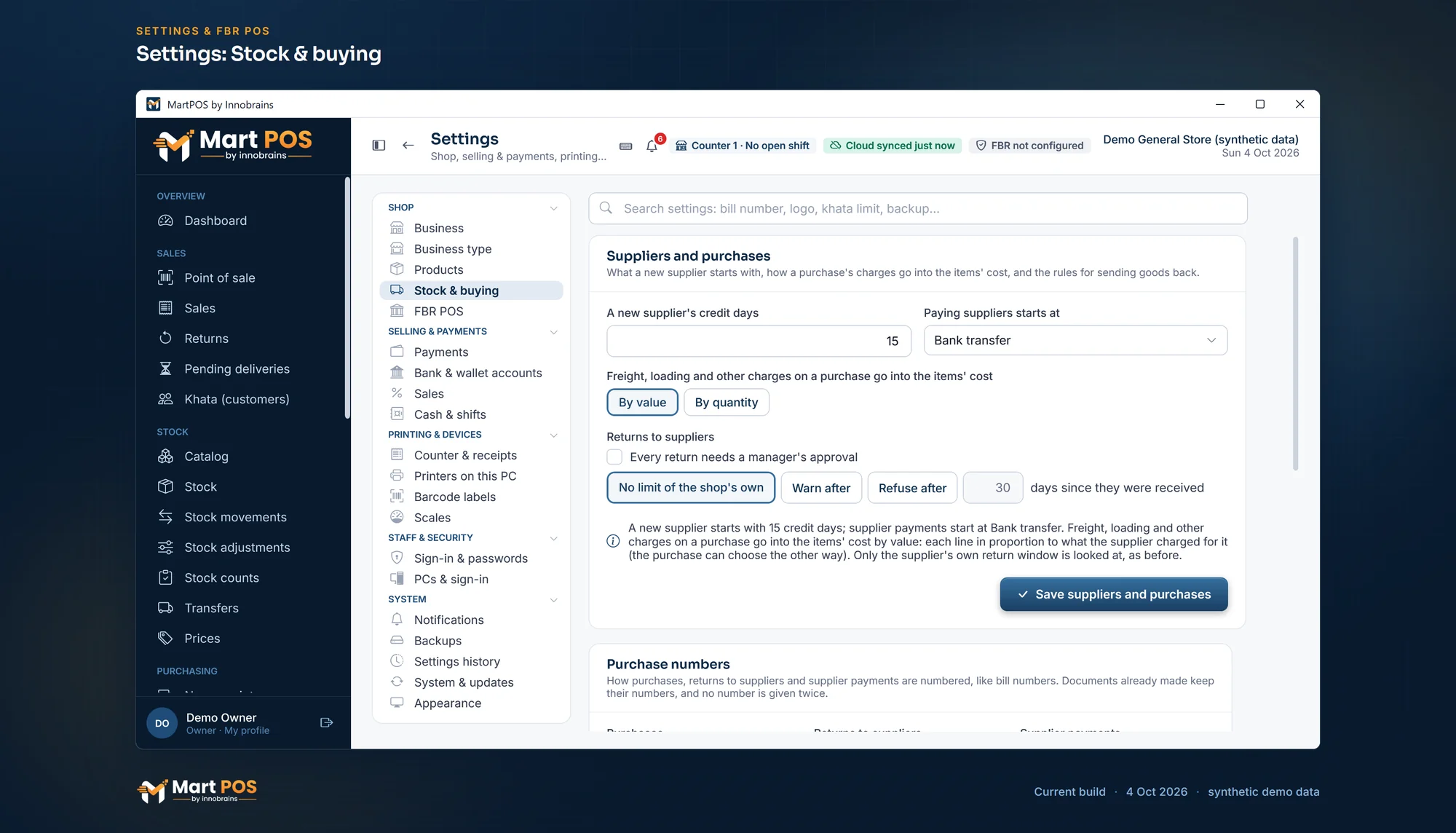
Settings: Stock & buying. A new supplier's credit days, how charges are shared into the cost, purchase numbers, and the rules for returns to suppliers and transfers. Screenshot of the current build (4 Oct 2026), synthetic demo data.
How to enter a delivery
- In New receipt, choose the supplier.
- Type the Supplier's bill no. exactly as printed on their bill.
- In the search box, type the item's name, SKU or barcode and choose the item. Scanning the barcode on the pack finds it too. Each item is one line.
- For each line fill in:
| Column | What to enter |
|---|---|
| Unit | The unit on the supplier's bill: a pack such as a carton of 24 or a bag of 50 kg, or single pieces or kg. A new line starts on the item's first pack. |
| Qty | How many of that unit you are paying for. Loose goods take decimals, such as 37.5 kg. |
| Free | Free goods (bonus) in the same unit, for example 1 carton free with 10. They go into stock at no cost. |
| Unit cost | What one unit costs you, before the line discount. |
| Discount | A discount in rupees on the whole line, if the bill shows one. |
| Net | Worked out: quantity × unit cost − discount. |
| Expiry | Only for an item that tracks expiry dates: the date printed on the goods, day first, such as 31-12-2026. It is required for such an item, and goods already past it are refused. The layers button beside it adds the batch number, or splits the line into lots with their own dates (2 lots). Other items show a dash. |
Under the item's name, each line shows how much goes into stock in the item's base unit, for example 264 PCS into stock.
- At the bottom, enter what you Paid now and choose Paid with: cash, bank transfer, card, EasyPaisa, JazzCash, or From advance (money you paid this supplier earlier). Paid with starts at the shop's usual way of paying suppliers (Settings › Stock & buying), cash unless the owner changed it. Leave Paid now empty to owe the whole bill (on credit). If the delivery came with freight, loading or another charge, add it with Charges (below).
- Check the Receipt total against the supplier's bill, and choose Post receipt.
MartPOS shows, for example, "MAIN-P000017 posted · Rs 42,500.00 from …". The goods are in stock on the shop floor at once. Recent receipts lists the last ones; choose one to open it on Purchases.
Cash paid here comes out of this counter's drawer and is subtracted at the shift close, so a shift must be open for a cash payment.
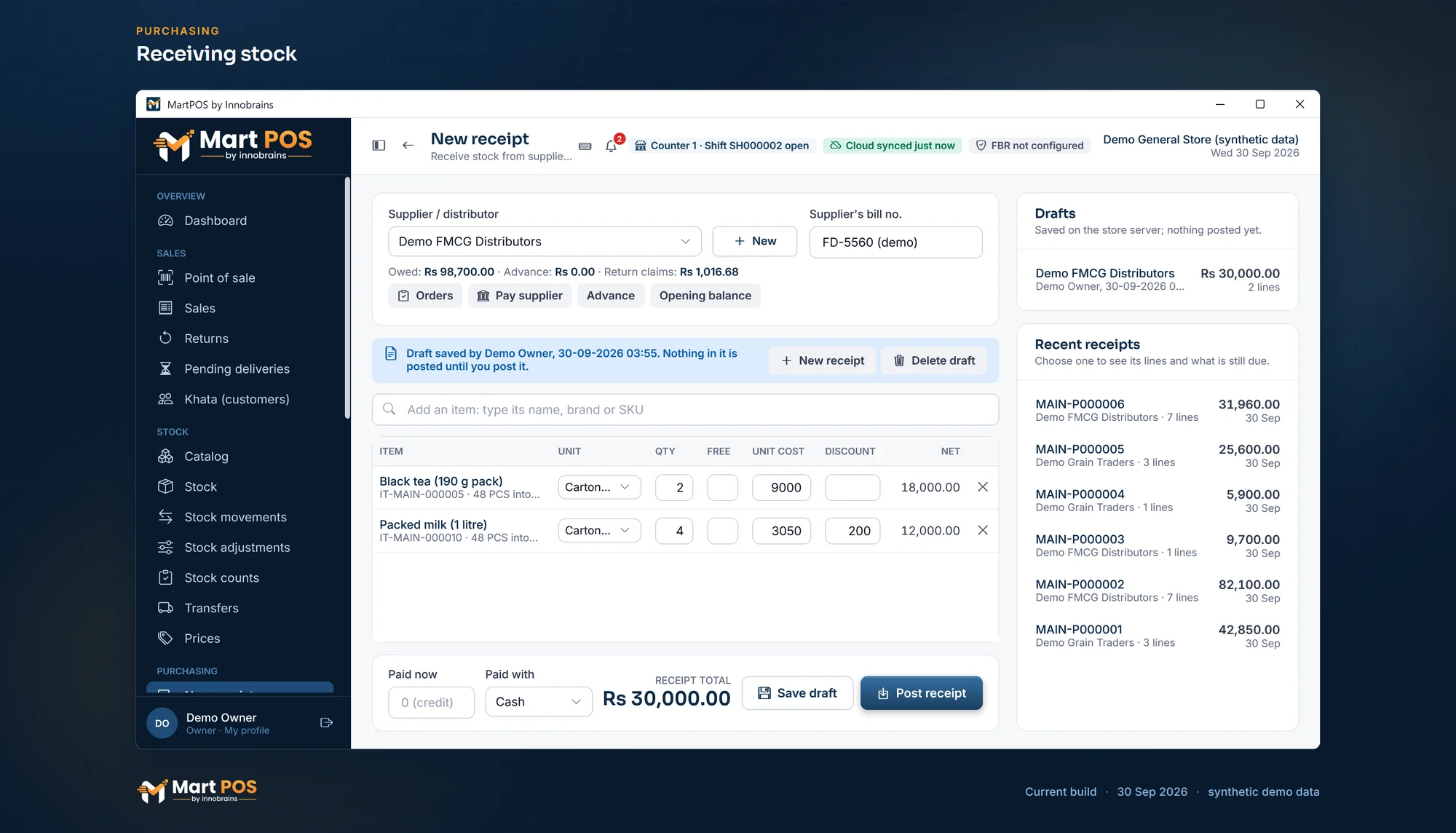
Receiving stock. A supplier's bill entered by the carton with its discounts, kept as a draft until it is checked, beside the recent receipts. Screenshot of the current build (30 Sep 2026), synthetic demo data.
Cartons, bags and loose goods
- Buy in packs, keep stock in the base unit. Ten cartons of 24 put 240 pieces into stock. The till then sells single pieces or whole cartons, each at its own price. Packs and their sizes are set on the item: see Units, packs, prices and barcodes.
- Loose goods. An item ticked Sold loose, by weight or measure keeps its stock in kg (or litres) with up to three decimals. Receive three bags of 50 kg of sugar as 3 bags (150 kg into stock), or receive the weight itself in kg, such as 37.5 kg of chana daal weighed when it arrived.
- Whole pieces for everything else. For an item not sold loose, the quantity must come to whole pieces. Half a carton of 24 is 12 pieces and is accepted; a quantity that leaves part of a piece is refused ("… this item is counted in whole units").
- Only units marked bought can be received. A unit sold but not bought is refused: "… is not bought in …". Tick Buy on the unit in the item form if you do buy in it.
- A pack's size is fixed once used. If the distributor changes a carton from 24 to 12, add a new unit to the item for the new carton instead of changing the old one.
Saving a bill as a draft
A long bill can be entered in parts, or put aside while the supplier's bill is checked. Save draft (next to Post receipt) keeps everything on the page on the store server: nothing goes into stock and nothing is owed yet. The draft shows in the Drafts card above Recent receipts and on Purchases › Drafts, with who saved it and when. Open it (from this PC or another), finish it and choose Post receipt: the bill is posted and the draft is gone in the same step. New receipt on a draft's banner starts an empty page and leaves the draft saved; Delete draft removes it. If an item or unit on the draft changed since it was saved (for example a carton now holds 12, not 24), the banner says so and posting waits until you check the line and save the draft again. See Drafts and same-day voids.
How costs are worked out
MartPOS values stock at a moving weighted average. Each item's stock has a total value and a quantity; the average cost is value ÷ quantity.
- A delivery adds its quantity and its net cost.
- Free goods add quantity at zero value, which lowers the average. Ten cartons of 24 soaps at Rs 2,400 a carton, plus 2 cartons free, is Rs 24,000 for 288 soaps: Rs 83.33 each instead of Rs 100.
- A sale takes stock out at the average cost of that moment, and the bill keeps that cost for its profit.
The till warns about lines that would sell below this average cost.
Freight, loading and other charges
Some deliveries cost more than the goods: the transporter's freight, the labourers who unloaded the truck, a toll. These belong in the goods' cost, so the profit on each item is true. Choose Charges, beside the box where you add items:
- For each charge choose what it was (Freight, Loading and unloading or Other charge), its amount and, if you like, a note such as Truck from Lahore.
- Choose On the supplier's bill when the supplier charged it on their bill: you owe it to them with the bill, and the Receipt total includes it. Choose Paid now when you paid someone else, and how: cash from this counter's drawer (a shift must be open), bank transfer, card, EasyPaisa or JazzCash.
- Choose how it is shared over the lines: By value (each line in proportion to what the supplier charged for it) or By quantity (every unit received, free goods too, takes an equal share). The dialog shows each line's share before you confirm. The shop's usual way is set in Settings › Stock & buying.
- Choose Use these charges. Under the total the page says, for example, Charges Rs 1,500.00 in the cost.
When the receipt is posted, each line goes into stock at its net plus its share, so the average cost carries the charges; the bill on Purchases lists the charges and who was paid. A same-day void takes all of it back, and cash paid for a charge comes back into the drawer. A purchase without charges works exactly as before. A charge that comes after the receipt was posted is added to it as a later charge (below).
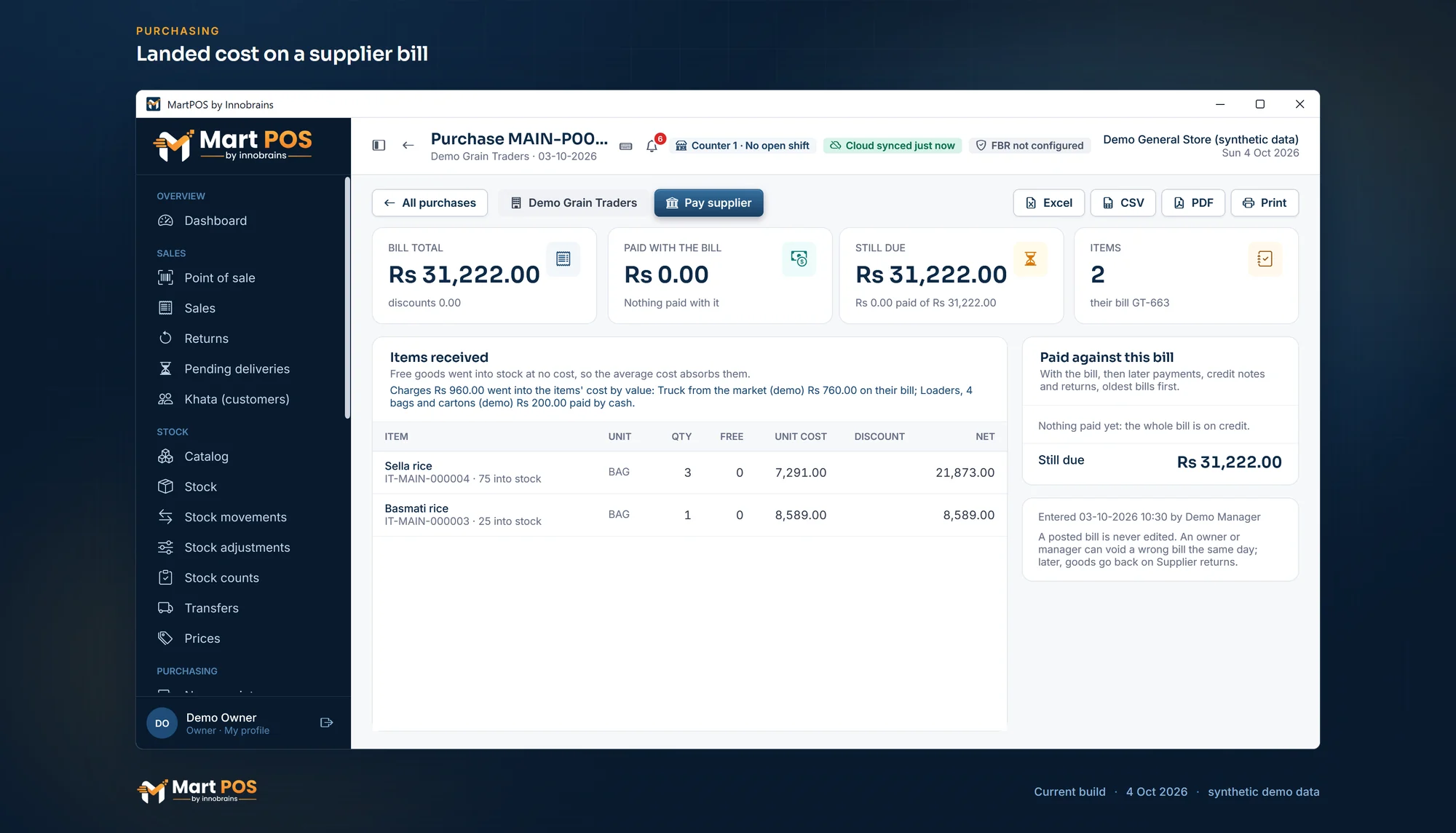
Landed cost on a supplier bill. Freight on the supplier's bill and loaders paid from the drawer, shared into the items' cost by value, so profit counts what the goods really cost. Screenshot of the current build (4 Oct 2026), synthetic demo data.
Charges that come after the purchase was posted
A transporter's bill often arrives a week after the goods. Open the purchase on Purchases and, under Later charges, choose Add (anyone who may enter purchases):
- Enter each amount as on the receipt: what it was, the amount, and On the supplier's bill (owed to the purchase's supplier) or Paid now (cash from this counter's drawer with a shift open, bank transfer, card, EasyPaisa or JazzCash). Add the transporter's bill number under Their bill number if you like.
- Choose By value or By quantity. Under Where it goes, the store PC shows each line's share and how it splits: the part for the goods still in stock goes into their cost (their average cost rises), and the part for the goods already sold goes to cost of goods sold, because those goods have left at the old cost.
- Choose Post the charge. It gets its own number (MAIN-LC000001), the books stay balanced, and the purchase lists it with its split.
For example, a purchase of 10 tea at Rs 100 and 20 kg sugar at Rs 150 (Rs 4,000). After 4 tea and 5 kg of sugar were sold, a freight bill of Rs 400 comes, shared by value: tea's share is Rs 100, of which Rs 60 goes into the 6 tea still here (their average goes from Rs 100 to Rs 110) and Rs 40 to cost of goods sold; sugar's share is Rs 300: Rs 225 into the 15 kg still here (Rs 150 to Rs 165 a kg) and Rs 75 to cost of goods sold.
An owner or manager can Void a later charge on the day it was posted, with a reason, as long as none of the stock it went into has gone out since: everything it did is reversed exactly and cash paid comes back into the drawer. A purchase with a later charge cannot be voided until the charge is. You can still record a late bill as a plain expense instead (Expenses), in which case it does not change the goods' cost.
Rules worth knowing
- The same supplier bill number cannot be entered twice. "Invoice 4471 from … was already received as MAIN-P000012 on 20-09-2026." It is checked per supplier, whatever the capitals; a bill voided the same day does not count.
- Pay no more than the bill. "The payment is more than the receipt total. Record an advance to the supplier separately." See Supplier payments and advances.
- Posted receipts are never edited. On the day it was entered, an owner or manager can Void this bill on its page on Purchases, with a reason, while everything it brought in is still here and none of it has been sold or moved since: its goods go back out, what the supplier is owed comes off, and money paid with it comes back (cash into a drawer, or onto their advance). After that, a wrong quantity is corrected with a stock adjustment, and goods going back are a supplier return.
- Services and charges are never received. Home delivery or a carry bag set up as a charge has no stock: "… is a non-stock item (a service or charge): it is billed only, never bought." See Services and charges.
- Who can enter receipts: owners, managers and warehouse staff.
- The licence. If the store's licence has run out or is suspended, new purchases stop until it is renewed. See Your MartPOS licence.
Finding a bill later: Purchases
Purchases (under Purchasing) lists every supplier bill, newest first, with its total, what was Paid with it when it was entered, and what is still Due. Narrow the list by:
- From and To (type dates as dd-mm-yyyy, then Show), or a quick choice: Today, This month, Last month, Year (from 1 July) or All;
- the supplier, in All suppliers;
- text: the bill number, the supplier's bill number or the supplier's name;
- Unpaid only, for bills with something still due;
- All bills or Voided, for bills voided the same day.
The cards above the list add up every bill that matches, not just the page shown: Bills, Billed, Paid with the bills and Still due. A voided bill is listed with a Voided badge (its tooltip says who voided it, when and why) and counts in no total. Drafts next to Bills lists the bills saved to finish later.
Choose a bill to open it. It shows each line with its unit, quantity, Free goods, unit cost, discount and Net; whether it was received against a purchase order; who entered it; and Paid against this bill: what was paid with it, then the later payments, credit notes and returns that settled it. A payment to a supplier settles their oldest bills first, so a newer bill stays due until the older ones are paid. The supplier's name opens their account, and Pay supplier records a payment there and then.
CSV saves the list or the bill for Excel, PDF saves an A4 copy and opens it, and Print sends it to the printer. Buyers, whoever pays suppliers, owners, managers, accountants and auditors can see purchases; cashiers cannot.
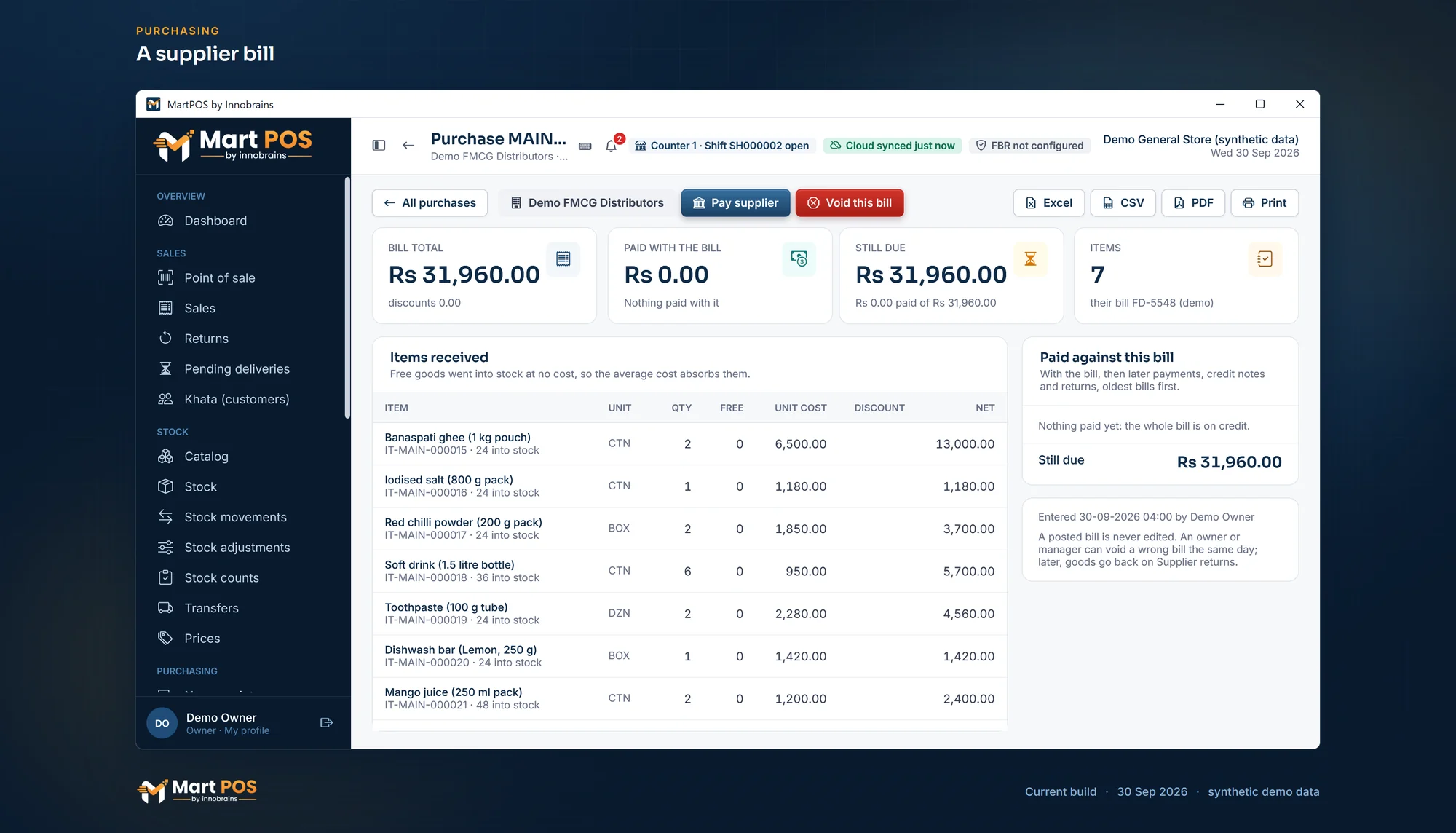
A supplier bill. The items received on a supplier's bill by the carton, box or dozen, what was paid with it and what is still due. Screenshot of the current build (30 Sep 2026), synthetic demo data.
Deliveries against an order
If you placed a purchase order, open Orders, choose the order and Receive a delivery. The lines fill in with what is still to come at the agreed cost ("Receiving against MAIN-PO000004: lines show what is still to come; change them to what arrived."). Change them to what actually came, and post as above. See Purchase orders and deliveries in parts.
Common questions
The supplier's bill shows a discount percentage. What do I enter?
Enter the rupee amount of the discount for each line, or enter the unit cost after discount and leave Discount empty. Either way the Net should match the bill.
A different item came free with the delivery. How do I enter it?
Add that item as its own line with its quantity and a Unit cost of 0. It goes into stock at no cost, like free goods of the same item. The Free column is for bonus goods of the item on that line.
Can I receive stock into the godown?
Receipts go onto the shop floor. Move them to the godown afterwards with Move stock on the Stock page. See The godown and the shop floor.
We paid part of the bill now. How do I record the rest later?
Enter the part paid in Paid now. The rest is owed to the supplier; pay it later with Pay supplier on the Suppliers page or on the bill itself on Purchases. The bill then shows the payment under Paid against this bill.
A carton of 12 boxes of tea arrived. Which unit do I use?
The unit on the bill. If the bill counts cartons, receive cartons; MartPOS converts them to the base unit for the stock.
Can I record expiry dates or batch numbers when receiving?
Both. For an item with Track expiry dates ticked, each line has an Expiry box for the date printed on the goods, and posting without it is refused: "Enter the expiry date printed on …". The layers button beside it opens Lots of … for the batch number, or for goods that came with several dates (each with how many units carry it). Each date and batch is kept as a stock lot, sales take the earliest date first, and Reports › Near expiry shows what is close to its date. See Expiry dates and the near-expiry report.
The transporter charged for the delivery. Does it go into the cost?
Yes. With the purchase: choose Charges, enter the freight and whether it is on the supplier's bill or paid now, and it is shared over the lines into the items' cost. If the bill comes after the purchase was posted, add it on the purchase as a later charge: the part for goods still in stock goes into their cost, and the part for goods already sold to cost of goods sold. Entered as a plain expense instead, it does not change the cost.
I entered the bill against the wrong supplier. What now?
If it was today and nothing from it has been sold or moved, ask the owner or a manager to open it on Purchases and choose Void this bill, then enter it again against the right supplier; the same bill number is accepted again. Otherwise send the goods back on Supplier returns.
Related guides
Last updated 04 October 2026. Still stuck? Contact us.