Point of sale is where your counter staff bill customers. It is built for the keyboard: scan or type, press Enter, adjust the quantity, press F9, take the money and the bill is saved. This guide walks through a bill from start to finish, shows how to sell loose goods such as sugar and daal by weight or by amount, explains what the till checks, and lists every shortcut.
Before the first bill: open a shift
Cash has to pass through a counted drawer, so a counter needs an open shift before it can bill. If none is open, Point of sale says "No shift is open on this counter".
- Choose Open shift.
- Count the cash already in the drawer and type it in Opening float (Rs).
- Choose Open shift. The bar at the top now shows, for example, Counter 1 · Shift 3 open.
Pressing F9 on a bill with no shift open offers the same step. See Shifts and closing the day.
How to bill a customer
- Open Point of sale. The cursor is already in the search box at the top (F2 brings it back from anywhere on the page).
- Scan the barcode on the pack. The item goes straight onto the bill. Scanning the same item again adds one to the same line. Scanning a carton's own barcode puts the carton on the bill, not a single piece.
- Or type two or more letters of the item's name, brand, Urdu name, other names or SKU. The results appear as you type, each with its price and stock, and the first one is highlighted. Press Enter to add the highlighted one, use Up and Down to highlight another, or click a result once to add it. The search box is then empty and ready for the next item. If you press Enter before the results appear and only one item matches, it goes straight onto the bill.
- On the line, change the Unit (piece, packet, carton, kg…) and the Qty if needed. Press Enter in the box to go back to the search for the next item.
- When everything is on the bill, press F9 (pay). The Take payment window opens with the total.
- Take the money (see Taking payment) and choose Complete sale, or press Enter.
The till shows "MAIN-C1-S000042 saved · Rs 1,250.00 · change Rs 250.00", clears the bill and shows the receipt under Last receipt. If Print the receipt as soon as the sale is saved is on in Settings, it prints at once.
A charge such as home delivery or a carry bag goes on the bill like any item, by name or barcode. It has no stock, so it is never out of stock. See Services and charges.
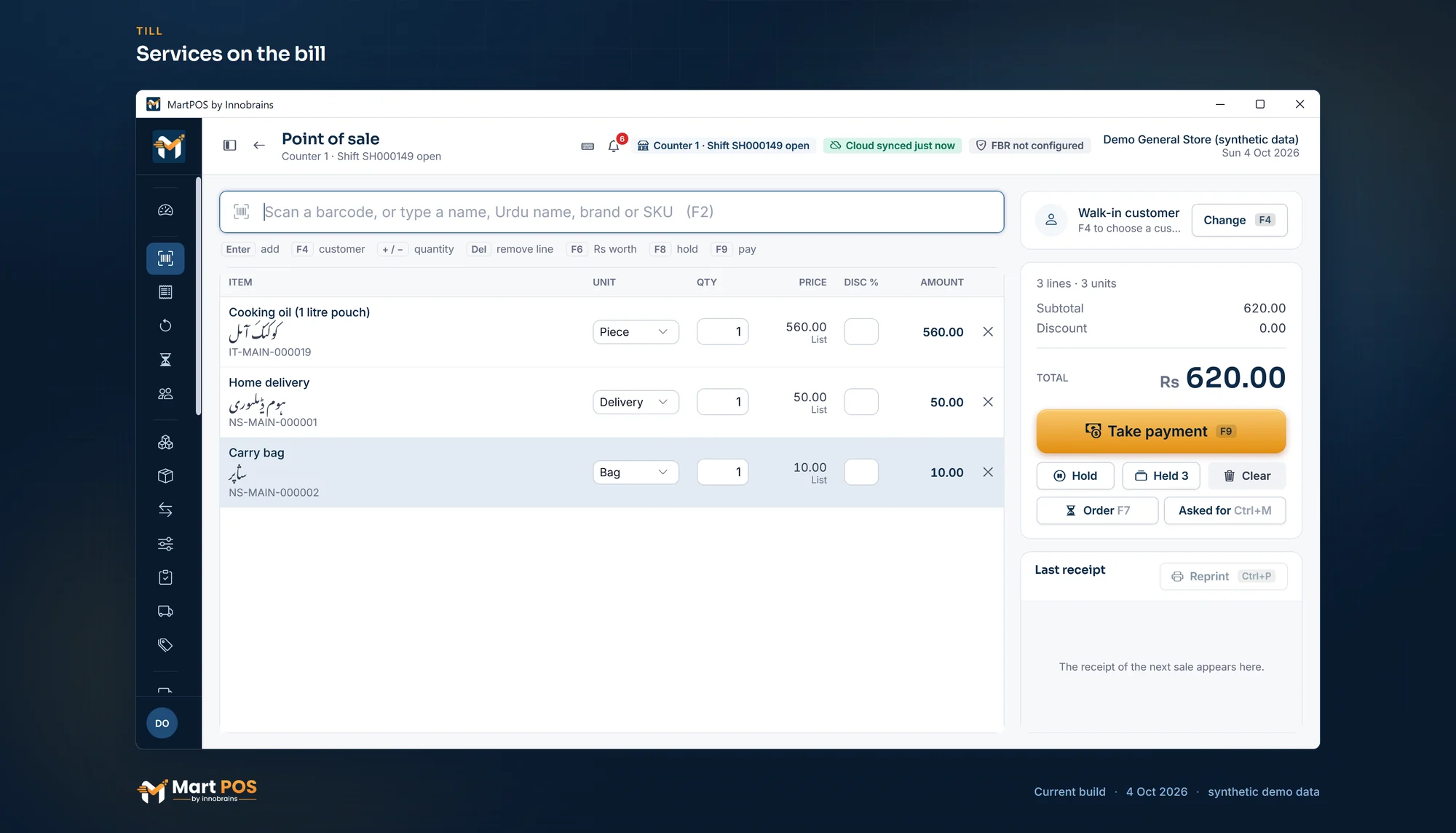
Services on the bill. A delivery charge and a carry bag go on the bill like any item, each with its own code starting NS; they are never bought, counted or kept in stock. Screenshot of the current build (4 Oct 2026), synthetic demo data.
Selling loose goods by weight or by amount
Sugar, rice, daal, atta and spices sold from the sack are loose items: the item is marked Sold loose, by weight or measure in Catalog, and its stock is kept in kilograms (or litres) with up to three decimals. See Adding items.
- Scan or search the item as usual. It goes on the bill as 1 of its base unit, for example 1 KG of chana daal.
- Weigh the goods.
- Type the weight in Qty with decimals and press Enter: 0.5 for half a kilo, 0.25 for a pao (250 grams), 2.5 for two and a half kilos, 0.625 for 625 grams.
- The Amount shows the price for that weight. On a Rs 320 a kg daal, 0.75 kg comes to Rs 240.00.
If the item also has a bag or sack unit (for example Bag of 50 kg), choose it in Unit to sell the whole bag at the bag's own price. Search results show the stock in the base unit, for example 12.5 KG in stock.
Items that are not sold loose (a packet of biscuits, a bar of soap) are counted in whole units, and a fraction is refused: "… this item is counted in whole units."
By amount. When a customer asks for "Rs 100 of sugar", select the sugar line and press F6, or choose Rs worth (F6) under the item's name. Type 100 in Customer asks for and choose Add to the bill. The store PC works out the weight to the gram at the line's own price, and the line shows it: at Rs 160 a kg, Rs 50 comes to 0.313 kg for Rs 50 → Rs 50.08, because the weight is rounded to the gram. Weigh out the weight the line shows.
Why Rs 50.08 and not Rs 50? At Rs 160 a kg, Rs 50 buys 0.3125 kg, which is 0.313 kg to the gram, and 0.313 kg costs Rs 50.08. The bill is always for the weight that leaves the shelf, so stock and money agree. The amount is before any tax or discount on the line, and a quantity price on the line is used as well.
- F6 works only on a loose item, and it always sells in the item's base unit: a line on a bag switches back to kg.
- With no line chosen, the till says "Choose the loose item first, then press F6 to sell it by amount."
- Press F6 again on the same line to change the amount. Typing a weight in Qty instead replaces the amount with that weight.
- An amount that buys less than one gram is refused.
Quick weights. While the bill has a loose item, the till shows a row with Quick weight buttons, 100 g, 250 g, 500 g and 1 kg, and a Customer asks for Rs box. Select the loose line, then tap its weight, or type the rupees in the box and press Enter (or Apply): that sells it by amount, exactly as F6 does. A quick weight is a typed weight, so it can be changed in Qty like any other. On an item that is not sold by weight in the chosen unit, the till asks you to type its quantity in Qty instead.
Searching well
- Every word you type must start a word in the item: sug 1 finds Sugar 1 kg, oil 5 finds a cooking oil with 5 in its name or size.
- Other names on the item are found too: cheeni or shakar finds sugar when they are on the item.
- Urdu names are found by their Urdu words.
- SKUs such as IT-MAIN-000123 are found by typing them or scanning their label.
- Barcodes are looked up when you scan or type them and press Enter, including old codes from your previous system that you added to the item.
- If a scanned code belongs to several items, the till lists them all and asks you to choose the one in the customer's hand. It never picks one for you.
- If nothing matches: "Nothing matches … Check the code, or add the item in Catalog." Where the owner allows it (Settings › Products › Adding items at the till), a scanned code that matches nothing opens Not found: add this item instead, and the new item goes straight on the bill: see Adding items.
What each line shows
| Column | What it is |
|---|---|
| Item | The item name and its variant or size, with its SKU. |
| Unit | The units the item is sold in: piece, packet, carton, kg, bag. |
| Qty | The quantity in that unit; decimals for a loose item. |
| Price | The unit price, with where it came from: List for the ordinary price, or Wholesale, Price list, Qty price, Promotion, Contract, Order price or From unit price. On a bill at wholesale prices, an item that has no wholesale price says Retail, and the line is marked No wholesale price: retail. |
| Disc % | A discount on this line. |
| Amount | What the line costs after discount. |
Under the lines are the Subtotal, the Discount and the Total. When items on the bill carry a tax rate, the bill's tax is shown too; tax is added on top of the price (see Adding items). The total is then rounded as the shop chose under Counter & receipts (to the nearest rupee unless changed), and a Rounding line shows the difference. A POS service fee line of Re 1 appears only for a shop that has switched on FBR POS integration with the fee option, in Sandbox or Production. See FBR POS integration.
Discounts
Type a percentage in Disc % on the line.
- Anyone who may bill can give up to 10% on a line. More needs the price-override permission, which owners and managers have. A cashier's bill with a larger discount is held back with This bill needs a manager's approval above the lines: a manager chooses Manager approval, picks their name and types their PIN, and that one bill goes through. See PIN sign-in and manager approval.
- A line that would sell below its average cost shows Below cost. Unless its price comes from a clearance promotion the owner set up, such a line needs the below-cost permission, which owners and managers have, and a reason. See Price lists, quantity breaks and promotions.
- When an owner or manager completes the sale, the till asks for the reason in Sell below cost, for example clearance or torn packing; Save the bill saves it, and the reason is kept with the bill line. Closing that window leaves the bill on the till, unsaved.
- A cashier's bill needs a manager's approval by PIN for selling below cost on that bill, and the reason is still asked for. Or lower the discount.
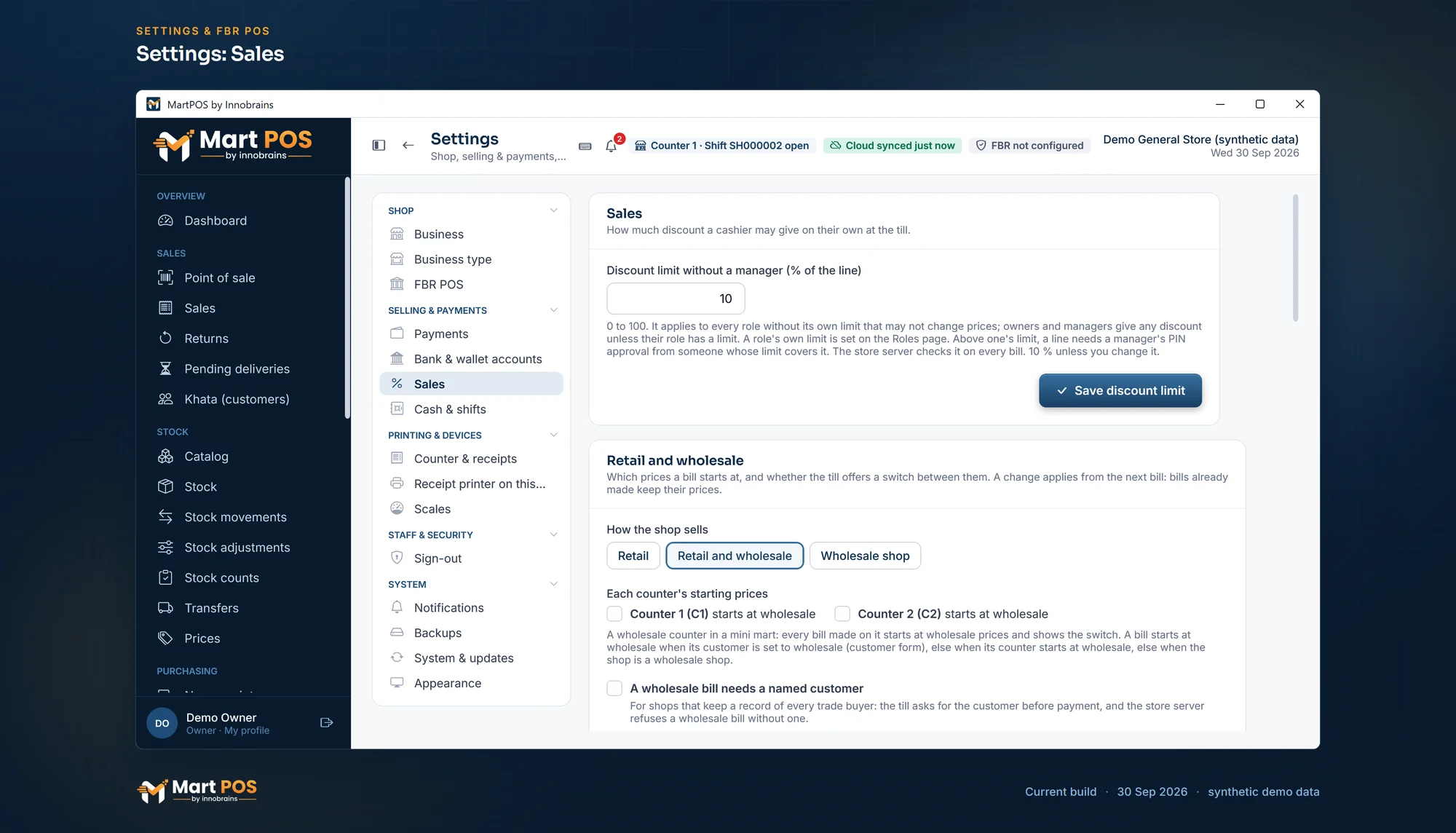
Settings: Sales. The discount a cashier may give without a manager, and whether the shop sells retail, wholesale or both, counter by counter. Screenshot of the current build (30 Sep 2026), synthetic demo data.
What the till checks
The screen is a preview. When you complete the sale, the store server checks everything again and refuses the whole bill, with a message, if something is wrong:
- Stock. A line asking for more than is on the shelf shows Only 3 in stock (or Only 2.5 in stock for a loose item) in advance; at payment it is refused: "Not enough stock of … available, … needed." Negative stock is never allowed.
- Stock held for orders. Goods held for a customer's order cannot be sold to someone else: "Only 2 of … are free; 3 are held for customer orders."
- Whole units. A fraction of an item that is not sold loose is refused.
- Credit limit for bills on khata. See Taking payment.
- Discontinued items still sell while stock lasts; the line says so.
Nothing is saved when a bill is refused. Fix the line and press F9 again.
When a customer asks for something you cannot sell
Press Ctrl+M, or choose Asked for, to note it without leaving the bill: the item or the words the customer used, how much, and why it was not sold (Out of stock, We don't keep it or Price too high). Nothing is sold and the bill stays as it is. The owner sees what is asked for most in Reports › Missed sales. See Missed sales: what customers asked for.
Choosing a customer
Most bills are for a walk-in customer. Press F4 to choose a named customer by name or phone, or Walk-in customer to go back. The panel then shows their balance and credit limit ("Balance Rs 2,400.00 · limit 10,000" or "cash only"). A customer is needed for khata, for paying from an advance, for orders and for customer prices such as a hotel's price list or a wholesale buyer's rates.
Retail and wholesale prices
A bill starts at wholesale prices when its customer is marked Charge wholesale prices, when the counter starts its bills at wholesale, or in a shop set up as a wholesale shop; otherwise it starts at retail prices. The owner or a manager chooses this under Settings › Sales › Retail and wholesale:
- Retail (as MartPOS always worked): wholesale prices only for customers marked for them. The till shows no switch.
- Retail and wholesale: the till shows a Retail | Wholesale switch under the customer, on every bill.
- Wholesale shop: every bill starts at wholesale prices, walk-in bills too; the switch gives retail prices when a customer asks.
- Each counter's starting prices: a counter can start every bill at wholesale, for example a wholesale counter in a mini mart. Its till shows the switch even in a retail shop.
- A wholesale bill needs a named customer (off unless chosen): for shops that keep a record of every trade buyer. F9 then asks for the customer first on a wholesale bill, and the store PC refuses one without a customer. Switching the bill to retail takes away the need.
Who may switch. Owners and managers may switch any bill. A cashier may when the owner allows it on the Roles page (see Staff, roles and counters); otherwise the till shows This bill needs a manager's approval for switching the bill between retail and wholesale prices, and a manager approves that one bill with their PIN. The store PC checks it on every bill, whatever the screen shows. Changing a line's price by hand still needs the price-override permission.
An item without a wholesale price is sold at its retail price on a wholesale bill; its line says No wholesale price: retail, so nobody is surprised. A carton without a price of its own takes the piece's wholesale price times the pieces in it. The receipt, the A4 invoice and the bill's page say Prices: Wholesale on a wholesale bill; a return refunds what the bill charged. A held bill comes back at the prices it was held at.
The owner or a manager can change how walk-in bills work under Settings › Sales › Walk-in customers: the name they carry (for example Cash customer instead of Walk-in customer; bills already made keep theirs), whether the till asks for the buyer's name and mobile when taking payment (not at all, optionally, or required on bills from an amount the owner sets; see Taking payment), and Every bill needs a customer, for shops that sell only to customers they know: F9 then asks for the customer first, and the store PC refuses a bill without one.
Keyboard shortcuts
| Key | What it does |
|---|---|
| F2 | Go to the search box |
| Enter in search | Add the highlighted item, or look up a scanned code |
| Up / Down | Move through the search results |
| Esc | Clear the search |
| + / − (search box empty) | One more / one less of the selected line |
| Del (search box empty) | Remove the selected line |
| Enter or Tab in Qty or Disc % | Keep the change and go back to the search |
| F4 | Choose the customer |
| F6 | Sell the selected loose item by amount ("Rs 100 of sugar") |
| Ctrl+M | Note something a customer asked for and could not buy |
| F7 | Order: hold items for the customer and bill them when collected |
| F8 | Hold the bill (kept on the store PC) |
| Shift+F8 | Hold the bill with a name or note (Aslam bhai, blue shirt) |
| F9 | Pay |
| Ctrl+P | Reprint the last receipt |
Common questions
Can I change a bill after it is saved?
No. A saved bill is never edited. Take a return against it and bill again if needed. See Returns, reprints and A4 invoices.
The internet is down. Can I still bill?
Yes. Billing runs on the store PC and needs no internet. The records go to MartPOS Cloud later.
What if the power goes in the middle of a bill?
The bill in progress is kept on the PC and comes back when MartPOS starts again: "The unfinished bill from before was restored." See Held bills, unsaved bills and reprints.
Can two counters sell the last packet?
No. Every bill is saved by the store PC, one at a time, and a bill that would take stock below zero is refused.
Can I sell Rs 20 of haldi?
Yes. Any loose item can be sold by amount with F6. A small amount of an expensive spice comes out as a few grams; an amount that buys less than one gram is refused.
Does selling by amount change the price?
No. The line keeps its own price per kg. Only the weight is worked out, to the gram, so the total can differ from the amount by a few paisa.
Can a customer buy a carton and single pieces on one bill?
Yes. Scan the carton's own barcode and the piece's barcode, and each goes on its own line. Or add the item, change that line's Unit to the carton, then add the item again for the single pieces. Each line keeps its own unit and price.
Related guides
Last updated 05 October 2026. Still stuck? Contact us.