Everything you sell is an item in Catalog: a 1 kg pack of sugar, loose chana daal, a 5 litre tin of cooking oil, a bar of soap, a dozen eggs. This guide shows how to add items one by one, what each field is for, and the few rules that keep the shelf and the records in agreement. To bring in a whole list at once, see Importing items, customers and suppliers from CSV.
How to add an item
- Open Catalog (under Stock in the menu).
- Choose New item. The form opens as New item, with Goods (kept in stock) chosen at the top. For home delivery, a carry bag or another charge with no stock, choose Service or charge (no stock) instead: see Services and charges.
- Type the Item name as the shop calls it, for example Cooking oil, Basmati rice or Tea.
- Type the Variant / size if the same name comes in several packs, flavours or colours: 1 litre pouch, 5 kg bag, Rose, Family pack.
- Fill in what helps you find and sort the item: Urdu name (optional), Other names (optional), Brand / company, Category and Shelf / rack (see below).
- Type a Reorder level (in the base unit) if you want MartPOS to tell you when the item runs low.
- Under Units, prices and barcodes, type the Retail price of one piece (or one kg for a loose item), the Wholesale price if you sell to other shops or hotels, and the Barcodes printed on the pack.
- Leave the Tax rate (%) at 0 unless your tax adviser gives you a rate for this item (see below).
- Choose Save item.
MartPOS gives the item its own code, the SKU, for example IT-MAIN-000123 ("Cooking oil added as IT-MAIN-000123"). MAIN is the branch code, so two branches adding items at the same time, even offline, never get the same SKU. The SKU never changes, search finds it, and it is printed as a barcode label for items that have no barcode of their own. The owner can change how new SKUs start and how many digits they have in Settings › Products › Barcode rules, for example GR-MAIN-0042; items already made keep theirs.
Names, brand, category and shelf
- Item name and Variant / size together tell items apart. Sugar 1 kg pack and Sugar 5 kg bag are two items with their own stock and prices; so are two flavours of the same biscuit if you want to know how many of each are on the shelf.
- Urdu name (optional) is typed right to left, for example چینی for sugar. Search finds the item by it, and the item's page shows it beside the English name. Catalog, the till and the item form show Urdu in the Noto Nastaliq Urdu font, which comes with MartPOS, and PDFs made by MartPOS draw Urdu text in the same font. The till's bill shows the Urdu name under the English one; to show it on a bill's page and the stock list too (or nowhere), the owner or a manager chooses under Settings › Appearance › Item names on screens, for every PC. Receipts follow their own setting.
- Other names (optional) are the names customers and staff actually say, separated by commas: cheeni, shakar for sugar, surf for washing powder, ghee for banaspati. Search at the till and in Catalog finds the item by any of them.
- Brand / company is the company on the pack. Type it; a brand that is not in MartPOS yet is added when you save. Brands can then be used to filter the catalogue, to run a promotion on one brand, and in the Brands report.
- Category groups items for filters, counts and reports: Grocery, Dairy, Beverages, Toiletries, Household. Under it, the form suggests the categories your items already use, then a few that suit your business type; click one to use it, or type any other.
- Shelf / rack says where the item sits, for example A3 or Rack 2, top. It helps with stock counts and when a new cashier looks for something.
Loose items: sugar, rice and daal by the kilo
Some goods are weighed out from a sack or poured from a tin. Tick Sold loose, by weight or measure on such an item. If your business type is Kiryana, new items start with it ticked; untick it for packed goods (see Choosing your business type). On a new item the base unit then becomes KG (Kilogram); change it to Litre or Metre if that is how you measure it. The form's title changes to New loose item.
A loose item's stock is kept in parts of the unit, up to three decimals: 12.625 kg of sugar, 1.5 litres of oil. At the till, scan or search the item and type the weight in the line's Qty, for example 0.5 for half a kilo or 0.25 for a pao. An item that is not sold loose is counted in whole units: a quantity such as 1.5 packets is refused, because half a packet cannot be on the shelf.
A loose item can also be sold by amount: for "Rs 100 of sugar", the cashier presses F6 on the line and types 100, and the store PC works out the weight to the gram at the line's price. The till also has quick-weight buttons (100 g, 250 g, 500 g and 1 kg) for the selected loose line. See Billing at the till.
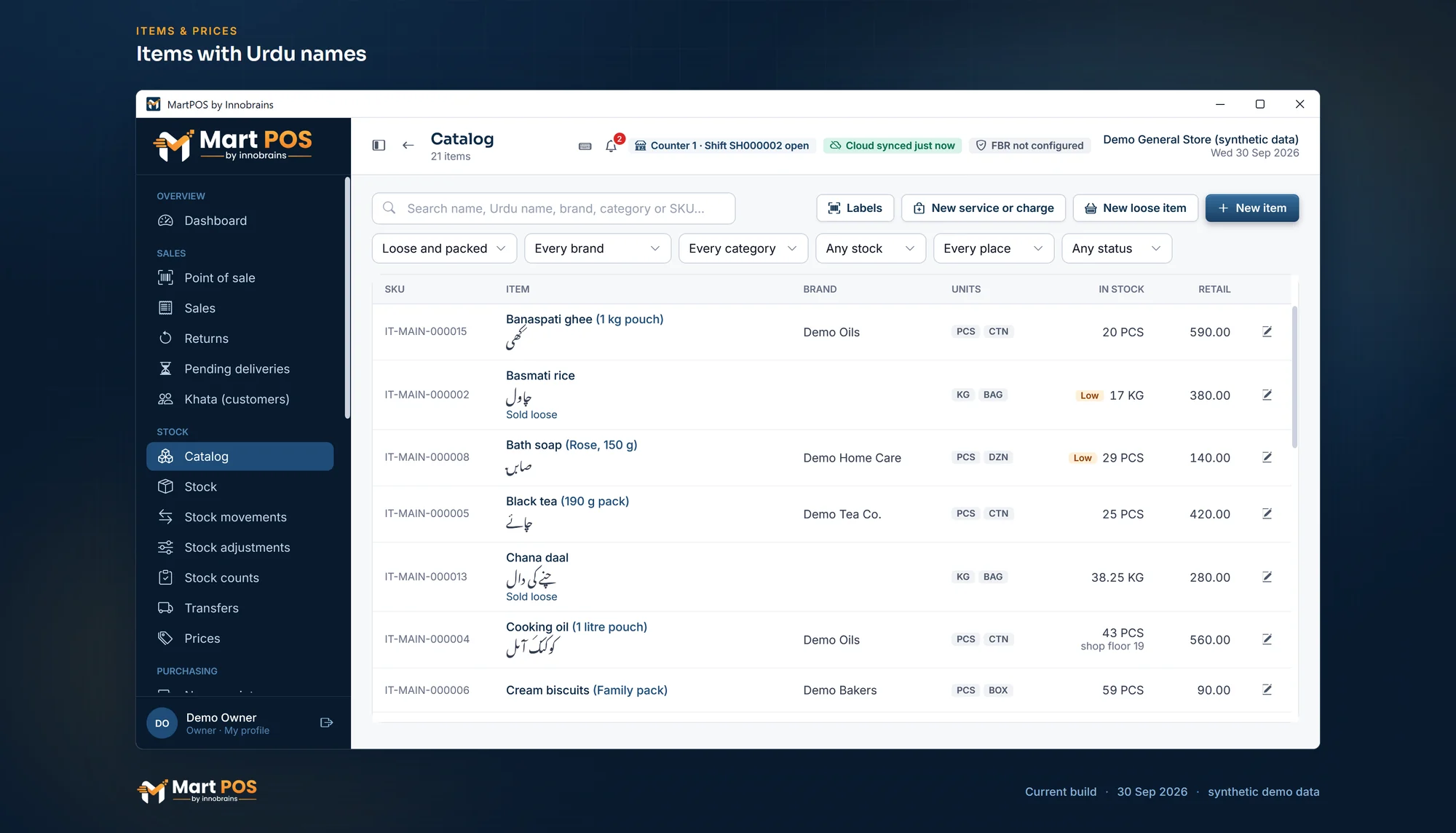
Items with Urdu names. Loose and packed items with their Urdu names, brands, units (piece, carton, kg, bag) and stock, with low stock marked. Screenshot of the current build (30 Sep 2026), synthetic demo data.
Expiry dates
Tick Track expiry dates on items that go off, such as packed milk, bread or biscuits: "the date printed on the goods is asked for on every purchase, and Reports › Near expiry lists what is close to its date". It is off unless you tick it, so soap and matches never ask for a date. A service or charge has no expiry. See Expiry dates and the near-expiry report.
Packs: cartons, bags and dozens
Many items are bought or sold in a pack as well as singly: a carton of 24 biscuit packets, a bag of 50 kg of rice, a tray of 30 eggs, a dozen soaps. Choose Add unit under Units, prices and barcodes. The first extra unit starts as CTN, Carton of 24, factor 24 (or BAG, Bag of 50 kg, factor 50 on a loose item): change it to suit. Each pack has its own Retail and Wholesale price and its own Barcodes, and the price need not be the single price times the factor. See Units, packs, prices and barcodes.
Adding an item at the till
A customer brings a pack the shop has never sold, and the barcode matches nothing. Where the owner allows it, the till can add the item there and then, and put it on the bill. It is off until the owner or a manager chooses, in Settings › Products › Adding items at the till (An unknown barcode at the till):
- Not found (off): as before, the till says "Nothing matches" and items are added in Catalog.
- Owners and managers add it: an owner or manager at the till adds the item. A cashier can fill it in and a manager approves that item with their PIN on the same till, or the cashier leaves it as Not found.
- Cashiers add it too: whoever is at the till adds it.
When a scanned code matches no item, Not found: add this item opens with the barcode already filled in. Type the Name, the Urdu name (optional), choose By the piece or Loose, by the kg, type the price (of one piece, or one kg) and a Category (optional), and choose Add and put on the bill. The item takes the tax rate and reorder level of new items (Settings › Products › New items), and the barcode rules still apply: a code that is already on another item is refused where the shop refuses duplicate barcodes. Not found leaves the bill as it is.
Every item added at the till is recorded in the audit log with who added it (and who approved it), and is marked for review: Catalog's Added at the till, needs review filter lists such items, and the dashboard and the Catalog entry in the menu count them. The item's form says Added at the till by … on … at the top. Check its name, price, category, units and tax, and save it with Mark as reviewed when saved ticked. It goes to MartPOS Cloud like any other item.
Barcodes and SKUs
- Type or scan the barcode printed on the pack into Barcodes. An item can carry several, separated by commas: the maker's barcode, an old code from your previous system, a distributor's code.
- MartPOS checks the check digit of EAN-13, UPC-A and EAN-8 barcodes, the kinds printed on packs. A wrong one is refused: "Barcode …: the check digit is wrong. Scan it again, or check the digits printed under the bars." It is almost always a typing mistake.
- Any other code, such as a supplier's own item code or a shelf label from your old system, is kept as it is.
- MartPOS never invents a maker's barcode. An item without one (a loose item, a local product) scans by its SKU label, printed as a Code 128 barcode. See Printing barcode labels.
- In-store barcodes. If the owner prefers EAN-13 labels, Settings › Products › Barcode rules can give each new item made without a barcode an in-store EAN-13 as well, from the same running number with its check digit worked out. It starts with a number from 20 to 29, the range kept for barcodes a shop makes for itself, which never appears on a maker's pack; give each branch its own.
- Two items may carry the same code, for example when a company prints one barcode on two flavours. The till then asks which one the customer is holding; it never guesses. The owner can refuse this instead (Barcode rules › Refuse a barcode already on another item): saving an item with a barcode another item or pack already has is then refused, while barcodes already shared stay as they are.
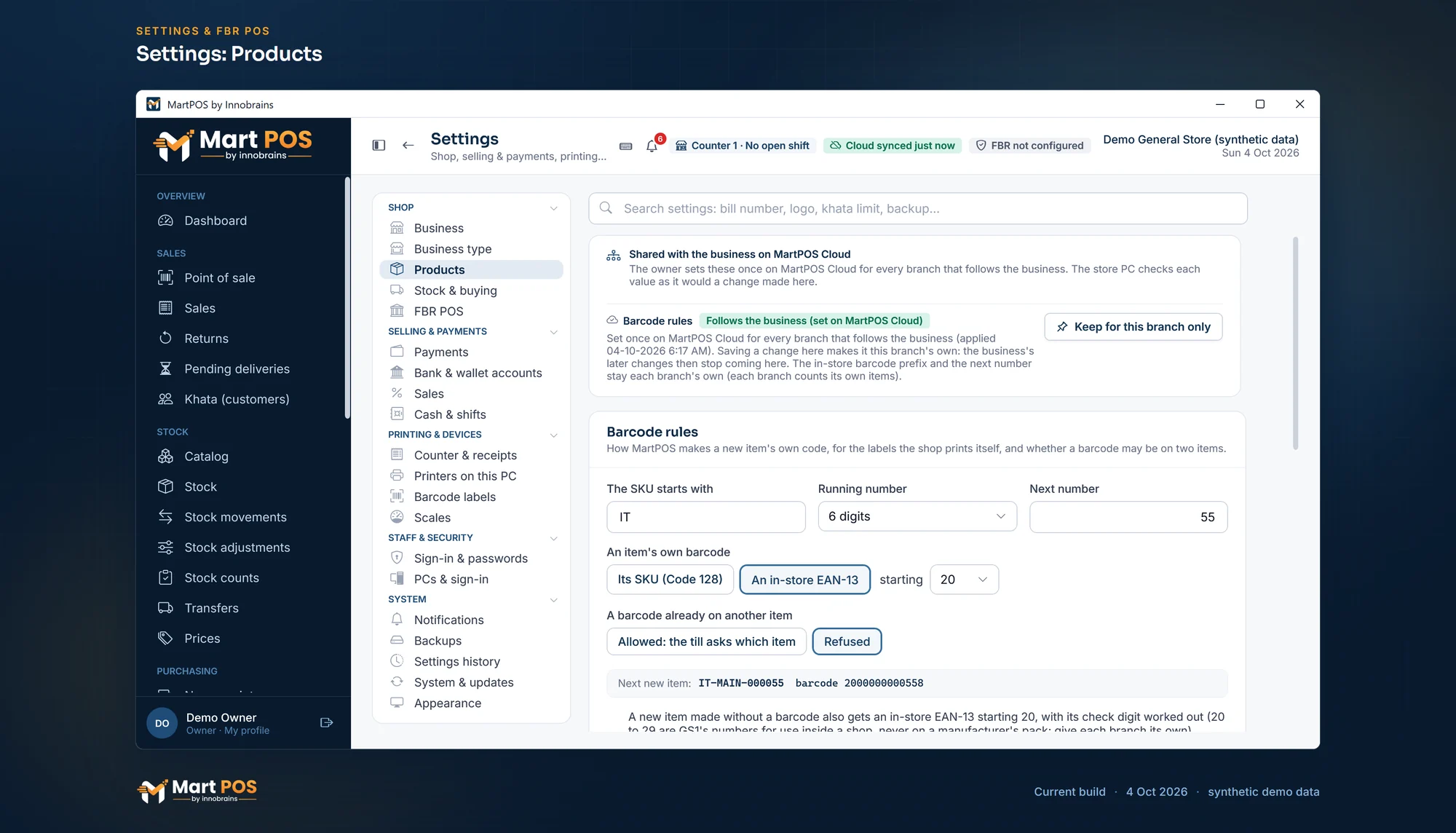
Settings: Products. The SKU prefix, in-store EAN-13 barcodes, duplicate barcodes, a new item's tax and reorder level, and what the till does with stock past its date. Screenshot of the current build (4 Oct 2026), synthetic demo data.
Tax rate and the FBR fields
Every item has a Tax rate (%): from 0 to 100 with up to 4 decimals. A new item starts with the shop's usual rate from Settings › Products › New items (0 unless the owner set one), and you can change it on the form; items already made never change when the usual rate does. Tax is added on top of the price, so a Rs 100 line at 5% comes to Rs 105, and it shows on the till, the receipt, the A4 invoice and the reports. MartPOS does not choose tax rates: set them as your tax adviser tells you.
When FBR POS integration is switched on, the form also shows:
- PCT code: 8 digits, optional. Blank uses the default PCT code from Settings › FBR POS.
- Third Schedule item: tick it for goods your tax adviser says are Third Schedule items; they are reported to FBR as such.
While FBR reporting is off, these two fields are hidden. See FBR POS integration.
Finding and changing an item
Type in the search box at the top of Catalog and press Enter. Search looks at the SKU, the item name, the variant, the Urdu name, the other names, the brand and the barcodes. Narrow the list with the filters under it: Sold loose or Packed, brand, category, place (the shop floor or the godown), stock (in stock, out of stock or low stock) and status (active or discontinued); Clear filters shows everything again. The list shows the SKU, the item, its brand, its units, how much is in stock (sellable stock at every place, with the shop floor's share under it when some is elsewhere; Low at or below the reorder level) and the retail price, 50 items to a page.
Choose a row (or press Enter on it) to open the item's own page; choose the pencil on a row to change the item.
- A price change is kept as history: the new price applies from that day, and bills already made keep the price they were sold at.
- If someone else saved the same item while you had it open, your save is refused: "Someone else changed this product after you opened it. Reload and apply your change again." Nothing is overwritten.
- Tick Discontinued (keep selling what is in stock, stop reordering) for an item you will not buy again. It can still be sold while stock lasts, and it is never listed as low on stock.
Items are never deleted: an item that was once bought or sold is part of the stock ledger and the accounts. Mark it discontinued instead.
The item's own page
Opening an item from Catalog or Stock shows everything about it on one page: On hand, every place, Stock value at cost (with the average cost of one unit; cashiers see quantities only, not costs) and Last sold, with when it was last received, from which supplier and at what cost; Stock by place (sellable and damaged stock and its value on the shop floor and in the godown); Units, barcodes and prices; the price lists and quantity prices that apply to it; and its Movements, Bills and Purchases. Edit, Adjust, Move and Labels open the usual windows with the item already filled in.
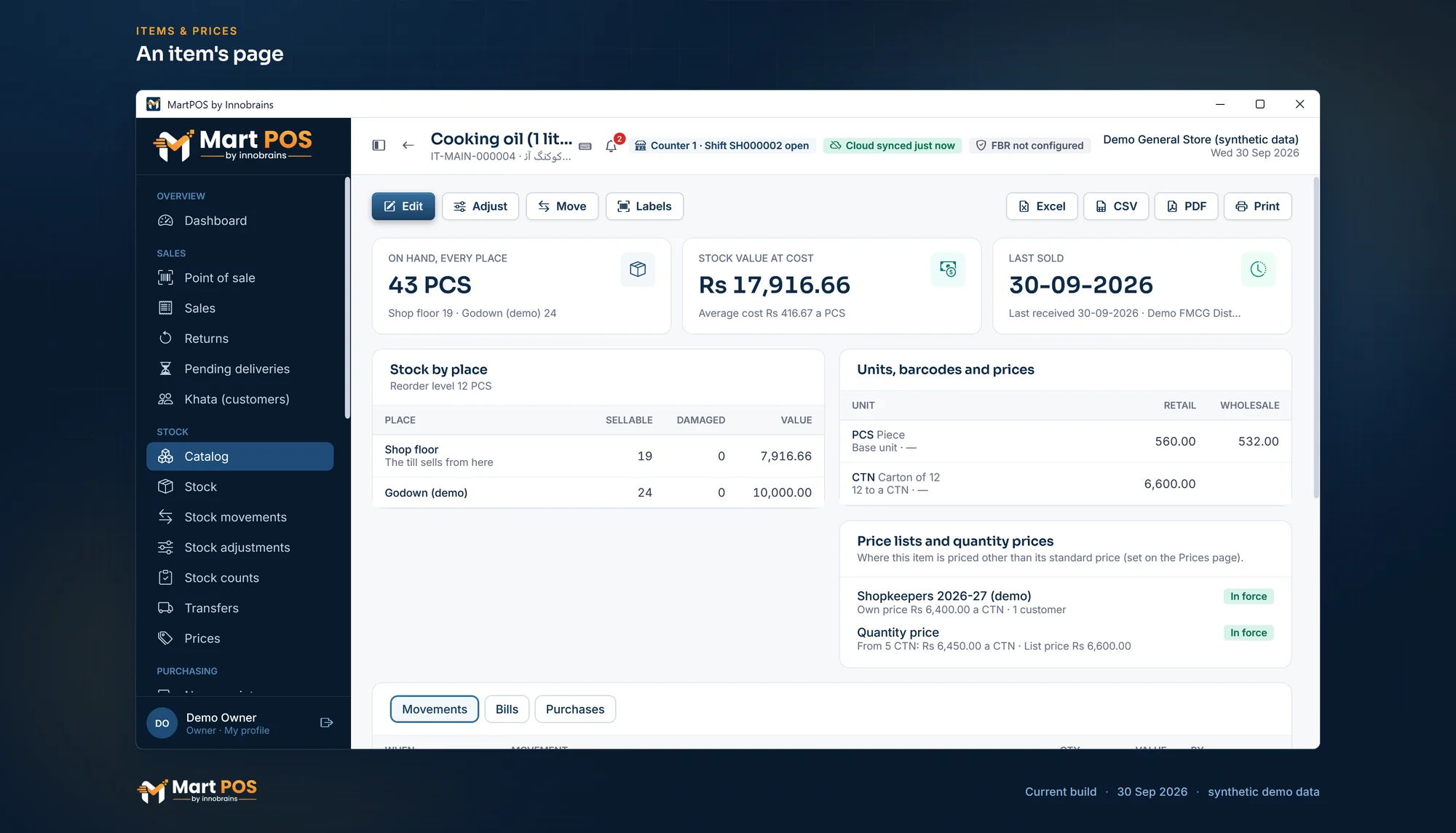
An item's page. An item's stock on the shop floor and in the godown, its units and prices, and the price lists and quantity prices that apply. Screenshot of the current build (30 Sep 2026), synthetic demo data.
Who can add and change items
Owners, managers and warehouse staff have catalogue editing. Cashiers, accountants and auditors can search the catalogue but not change it. See Staff, roles and counters.
Common questions
Should 1 kg and 5 kg packs of the same rice be one item or two?
Two. They sit on the shelf as different packs with different prices and barcodes, and you want to know how many of each are left. Give both the same Item name and brand, and put the pack size in Variant / size.
Loose rice from a sack and packed rice: one item or two?
Two: a loose item kept in kg, and a packed item counted in pieces. If you buy the loose rice in 50 kg bags, add a Bag of 50 kg unit to the loose item and tick only Bought in this unit.
Can a customer buy Rs 100 of sugar?
Yes, if sugar is sold loose. At the till, press F6 on the sugar line and type 100: the store PC works out the weight to the gram at the line's price, and the line shows it. Weigh out that weight. See Billing at the till.
An item has no barcode. What do I do?
Leave Barcodes empty. MartPOS prints a label with the item's SKU as a Code 128 barcode, which the till scans like any other. Never make up a barcode number. See Printing barcode labels.
What reorder level should I set?
Enough to last until the next delivery arrives. For tea that sells ten packets a week and comes every two weeks, 20 packets is a good start. The low-stock report shows what sold in the last 30 days to help you adjust it. The owner can give new items a starting reorder level in Settings › Products › New items, one for items counted in pieces and one for loose items; the form fills it in, and you can change or clear it.
Related guides
Last updated 05 October 2026. Still stuck? Contact us.