Local biscuits and snacks without a printed barcode, goods you pack yourself, a carton that should ring up as a carton: MartPOS prints labels the till can scan. It prints them on this PC's label printer, or makes a PDF that prints on any printer, on A4 label sheets or on a label printer's roll. The shop saves its own label layouts, and each PC keeps its own calibration. This guide covers what goes on a label, the layouts, and how to print.
What goes on a label
The layout decides which of these a label carries (the two layouts a new shop has carry all but the Urdu name):
- The item name, as it is in Catalog, with a second line for the variant or size and the brand, when the item has them, for example 1 litre pouch · Demo Foods, and the pack name on a pack's label, for example Carton of 24.
- The item's Urdu name, when the layout shows it and the item has one.
- The price, if the layout shows it and you tick Show the price: the retail price of the unit on the label (a piece, a carton, or a kg for a loose item).
- The SKU or barcode number as text under the bars.
- The barcode. With the layout's barcode on Automatic:
- a single piece whose own barcode is a valid EAN-13 (or a 12-digit UPC-A, drawn as EAN-13) gets that barcode;
- every other item gets its SKU (for example IT-MAIN-000123) as a Code 128 barcode, which the till already scans.
MartPOS never invents a barcode, and a code with a wrong check digit is never drawn as EAN-13. An item that has several barcodes is labelled with the first valid EAN-13 among them.
Label layouts
Settings › Barcode labels › Label layouts: "The labels this shop prints: their size, how many fit an A4 sheet or a roll, and what is on them. Every PC's label dialog offers these and starts from the one marked." A new shop has two: A4 sheet, 24 labels (70 × 37 mm) and Label printer roll (50 × 30 mm).
Choose Add an A4 sheet layout or Add a roll layout, or change one that is there:
- Name, and Printed on: A4 sheet of labels or Roll (one label per page).
- Width (mm) and Height (mm) of one label. For a sheet also how many Across and Down, and the Gap across and Gap down between labels. MartPOS centres the labels on the sheet and says how far they are from its edges; a grid that does not fit an A4 sheet is refused.
- On the label: Item name, Urdu name, Price, SKU or barcode number as text.
- Barcode: Automatic: EAN-13 for a valid EAN or UPC, otherwise Code 128 of the SKU, Always Code 128 of the SKU, or No barcode (a shelf label).
- Make this the default marks the layout the label dialog starts from on every PC.
Choose Save label layouts. Only an owner or manager can change the layouts; every PC uses them. If another PC saved the layouts while you were editing, MartPOS says so and nothing is overwritten. Measure your label stock with a ruler before typing the sizes: label sheets differ by maker.
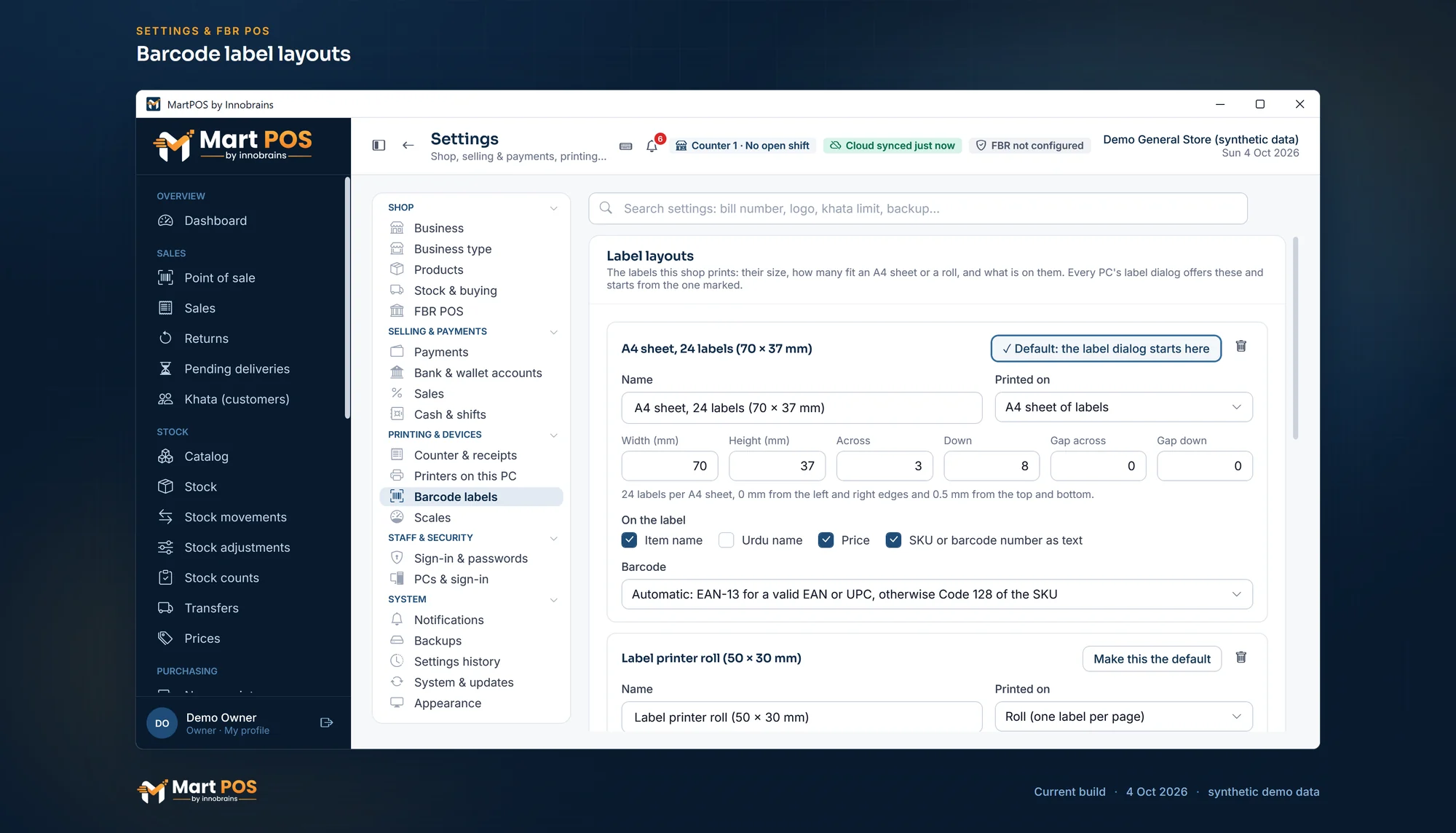
Barcode label layouts. The shop's label layouts: the size, an A4 sheet or a roll, and what goes on each label; the label dialog starts from the default. Screenshot of the current build (4 Oct 2026), synthetic demo data.
This PC's label printer and calibration
Below the layouts, Label printer on this PC (also under Settings › Printers on this PC): "Barcode labels print here through the printer's Windows driver. Without one, the label dialog makes a PDF for any printer."
- Choose the Label printer. It is this PC's own choice, kept on this PC.
- Move right (mm) and Move down (mm): "every label is moved by these (a minus moves it left or up, up to 15 mm)". Gap on a roll (mm) is the feed between two labels on a roll. "They apply to the PDF too."
- Choose the layout under Test label on and then Print test label: "The test draws each label's edge and a cross in its middle, with a sample label, using the numbers above (saved or not)." If the edges are off the labels, change the numbers and print again. MartPOS says whether the test was sent to the printer or why not.
- Choose Save this PC's label printer.
For a roll, set the label's size as the paper size in the label printer's Windows driver too.
Labels for packs
A pack (a carton, a dozen, a bag) is labelled only with its own barcode, because the SKU would ring up a single piece. A pack's valid EAN-13 is drawn as EAN-13; any other code of its own (a supplier's carton code, for example) is drawn as Code 128. If a pack has no barcode at all, MartPOS says so: "The … of … has no barcode of its own. Add one to the product, or print labels for single pieces." Add the pack's barcode in Catalog › Edit › Units, prices and barcodes. See Units, packs, prices and barcodes.
Loose goods
A loose item such as sugar or daal is labelled like any other item: its SKU as Code 128 and, if you tick Show the price, its price per kg. Scanning that label at the till puts 1 kg on the bill; the cashier then types the weight in Qty. See Billing at the till.
For goods you pack yourself in fixed sizes (1 kg bags of chana daal, for example), set up each size as its own item and label it: the label then rings up that pack at its own price, and its stock is counted in packs.
Labels to print again after a price change
A label printed with its price keeps that price, while the till always charges today's price. So MartPOS remembers every label printed with a price. When an item's price changes afterwards, the Labels window shows a notice at the top, such as 3 shelf labels show an old price: "Printed with a price that has changed since. Print them again with the price shown: that takes them off this list."
- Add all to print puts one label of each on the list, at today's price, in the unit that was printed (a piece or a carton), with Show the price ticked. Change the number of labels if a shelf needs more.
- Make the PDF and print it. Labels printed with the price take those items off the list.
The Dashboard and the bell count these labels too, and open the Labels window. See The notifications bell.
How to print labels
- Open Catalog and choose Labels ("Print barcode labels"). With an item selected in the list, it starts with that item. The Labels button on an item's own page does the same.
- Choose the layout under Labels. It starts on the shop's default layout and offers every saved one, for example:
- A4 sheet, 24 labels (70 × 37 mm): "For any office printer, on A4 sheets of 24 labels (70 × 37 mm)."
- Label printer roll (50 × 30 mm): "One 50 × 30 mm label per page, for a label printer."
- For a part-used A4 sheet, type how many labels are Already used on the sheet (0 to 23 on a sheet of 24). Printing starts after them.
- Tick Show the price if you want it on the label.
- Add each item by typing part of its name or its SKU, choose the Unit (a single piece or a pack) and how many Labels. Each line shows which code will be printed.
- If this PC has a label printer, choose Print on … with the printer's name: the labels go straight to it, and MartPOS confirms, for example, "12 label(s) sent to …". That means Windows took the job; look at the labels themselves.
- Or choose Make PDF, choose where to save the file, and save it. The PDF opens by itself, and MartPOS confirms, for example, "12 label(s) saved to labels-20260929-1030.pdf." Print the PDF at actual size (100%), not "fit to page", so the barcodes keep their width.
When this PC has a calibration, the dialog says so ("This PC's calibration is applied: …"), and it moves the labels on the printer and in the PDF alike.
You can print 1 to 500 labels per item, and up to 2,000 at a time.
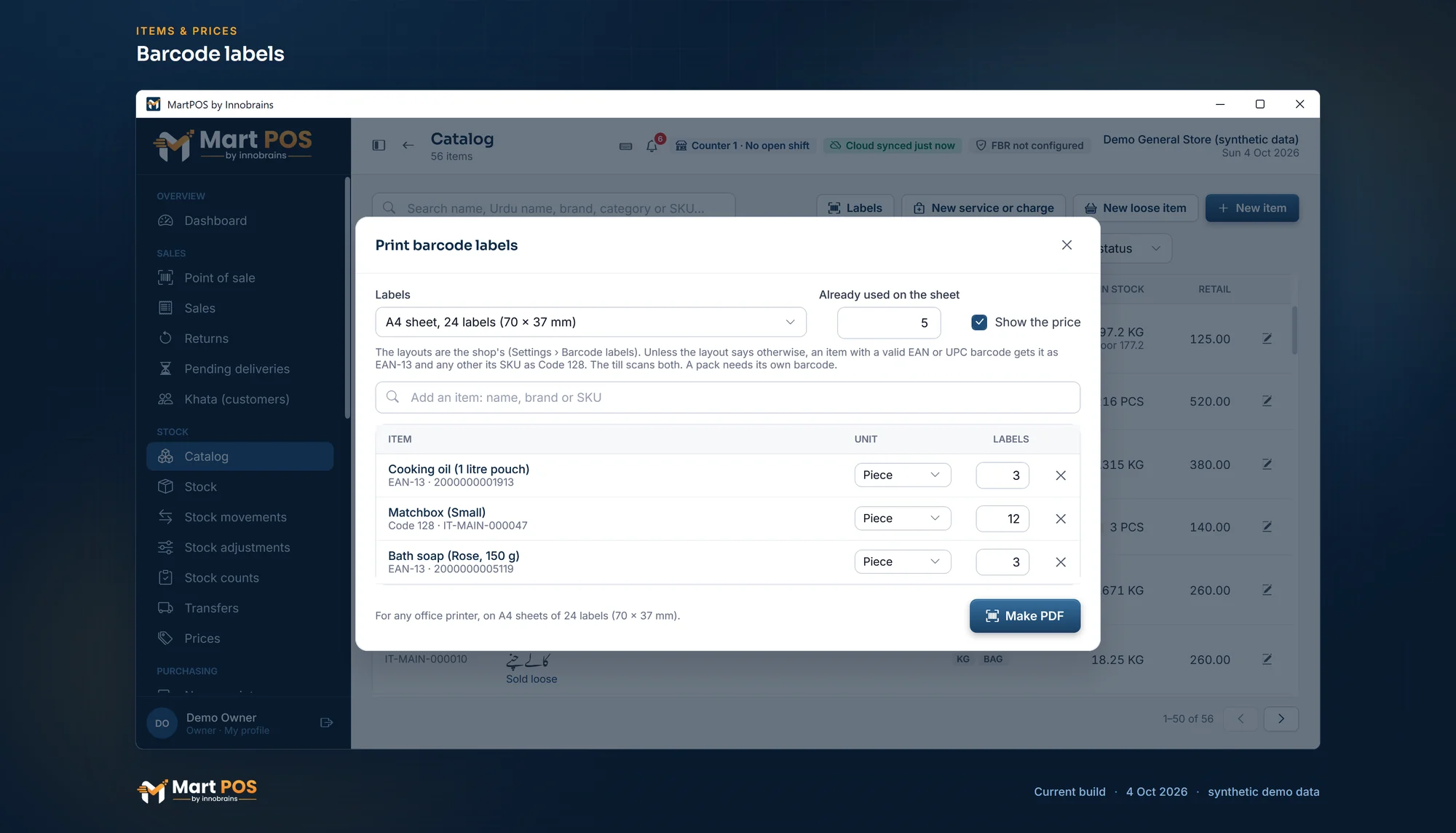
Barcode labels. Labels for an A4 sheet of 24 with used positions skipped; an item with no barcode of its own gets its SKU as a Code 128 barcode. Screenshot of the current build (4 Oct 2026), synthetic demo data.
Printing well
- On an A4 printer, use label sheets that match the layout (3 × 8 labels of 70 × 37 mm for the first layout).
- On a label printer, set the printer's paper to the label's size in Windows (50 × 30 mm for the roll layout).
- Print the test label first and set this PC's offsets, then print one real label and scan it at the till before printing hundreds.
- Stick the label on a flat part of the pack, not over a fold, a seam or the maker's own barcode.
- On a price label, print again after a price change: the label shows the price on the day it was printed, while the till always charges today's price. MartPOS lists such labels for you (above).
Who can print labels
Everyone who can see stock can make label PDFs, including cashiers.
Common questions
The item has its own barcode. Does it need a label?
No. If the barcode printed on the pack is on the item in Catalog, the till already scans it. Labels are for items without a barcode of their own, or with one the scanner cannot read.
Can I print labels with Urdu item names?
Yes: tick Urdu name in the layout (Settings › Barcode labels), and each item that has an Urdu name in Catalog prints it on its label. It is drawn in the Noto Nastaliq Urdu font that comes with MartPOS. Urdu needs room: try one on your label size first.
Can I print shelf labels or price tags without a barcode?
Yes. Add a layout with Barcode set to No barcode (a shelf label) and the name and price switched on, in the size of your shelf tag, and choose it in the label dialog.
Why does the scanner not read a label?
Check that the PDF was printed at 100% and that the printer is not low on ink or toner. On a small label, a long SKU makes narrow bars: try a larger label or the A4 layout. If it still fails, tell us the scanner and printer models through a support ticket.
The labels print a little off the stickers. What do I do?
Print the test label under Settings › Barcode labels and look at where the frame falls. Move every label with Move right (mm) and Move down (mm) (a minus moves them left or up), and on a roll set Gap on a roll (mm). These numbers are this PC's own, so another PC with another printer keeps its own.
Related guides
Last updated 05 October 2026. Still stuck? Contact us.