The owner can change an item's details, packs, barcodes and prices from MartPOS Cloud, for one branch or for every branch that has the item. The change travels to each store PC at its next sync, and the store PC applies it itself, with the same checks as its own screens. If someone changed the same item in the shop meanwhile, nothing is overwritten: the store PC holds the change as a conflict and a person chooses.
What you can change from the portal
- Item name, Size or variant (for example 1 litre pouch or Rose), Category and Status (Active or Discontinued)
- Prices per unit: Retail and Wholesale for each unit the item has (piece, kg, packet, carton, bag…)
Since 28 September 2026, for a branch whose store PC runs that MartPOS version or later, also:
- the Urdu name and the Brand (the company whose name is on the pack)
- Tax rate (%), PCT code and Reorder level (in the base unit: pieces, kg, litres…; parts of a unit are allowed for an item sold loose)
- each unit's Name, the size of a pack (Holds), whether it is Sold and Bought in that unit, and barcodes to add
- New packs: a code, a name, how many base units it holds (a carton of 24, a bag of 50 kg), its prices and barcodes
- Pricing: the item's quantity breaks, its price in each of the branch's price lists, and promotions made for it, with their first and last day
A new item is added under New item: see New items from the owner portal. For an item from an older store PC, the page offers only the first list above and says so.
Not from the portal: the item's other names (the extra words search finds, like cheeni for sugar), its shelf or rack, whether it is sold loose, the Third Schedule flag, removing a barcode or a unit (the store PC does not remove them either), promotions for everything, a brand or a category, making or renaming price lists, and stock. These are set on the store PC, in the item's form or under Prices. The portal shows whether an item is sold loose and whether it is a Third Schedule item, so you can see what the shop set.
How to change an item
- Sign in to the portal and open Items and prices (under Catalogue).
- Choose the Branch, and Search by name, Urdu name, other names, SKU or brand. The list shows each item's name and size, its SKU and brand (and loose for an item sold by weight or measure), its category, the retail and wholesale price of its base unit, its tax, its status, and when the branch Reported it.
- Choose Edit.
- Change what you need. Prices apply "from the day the store PC applies them". Barcodes are only added; a pack size already used in stock cannot change on the store PC, so add a new pack instead.
- If other branches have the same item, tick Also send to … to change it there too. "Each branch's change is based on its own version; packs are matched by their code."
- Choose Send to the store PC.
Only what differs from the item as reported is sent. Changes to this item beside the form lists every change sent for it at this branch, newest first, and its outcome.
"This is each store PC's own catalogue as it last synced. An edit here is sent to that PC and applied at its next sync, on top of the version shown."
A barcode you add is checked before it is sent. An EAN-13, UPC or EAN-8 code must have the right check digit ("…looks like an EAN-13 barcode, but its check digit is wrong. Copy it again from the pack."). Any other code, such as a distributor's own code or an old shop label, is kept as it is. A code that is already on another item at that branch is refused with that item's SKU and name: that item is probably the one you meant, so change it instead. MartPOS never makes up a barcode.
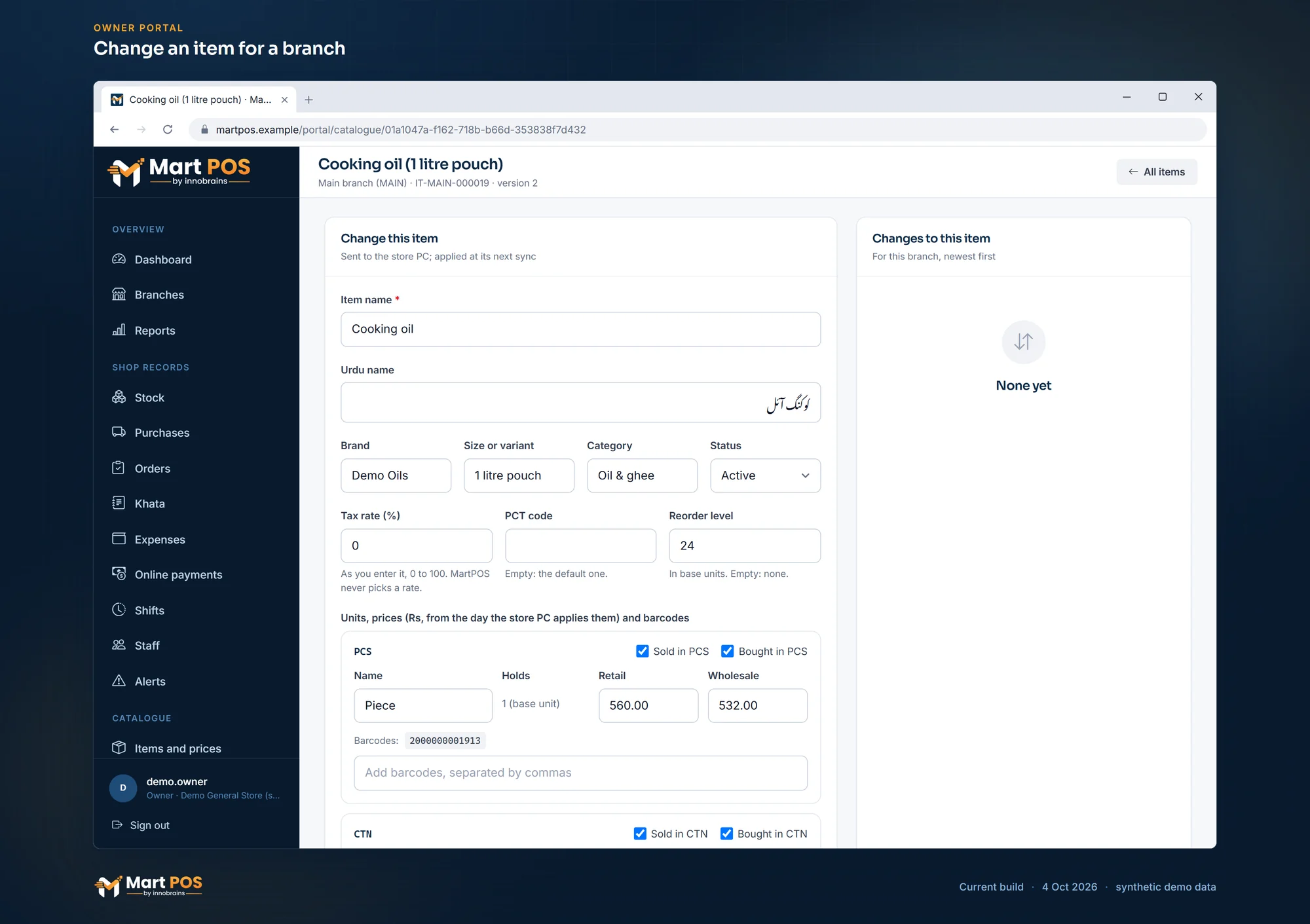
Change an item for a branch. An item's name, Urdu name, prices and barcodes changed in the portal are sent to that branch's store PC and applied at its next sync. Screenshot of the current build (4 Oct 2026), synthetic demo data.
Pricing: quantity breaks, price lists and promotions
The Pricing panel under the item shows, as the branch's store PC last reported them:
- Quantity breaks: a lower price per unit from a quantity on one bill line, for example a lower price per packet of biscuits from 12 packets. Change a row, add one, or clear a row's quantity and price to remove it. A break starts above 1 and has a price above zero; without a start date it starts the day the store PC applies it.
- Price lists: the item's own price in each of the branch's lists (shopkeepers, wholesale), per unit. Empty means not in the list, so the list's brand or category discount applies, if any. The lists themselves are made on the store PC.
- Promotions for this item: change a running or coming promotion's name, discount or days, End it early with a reason, or make A new promotion for this item, such as a Ramazan offer on dates or cooking oil. A promotion that also covers other items says so: a change applies to all of them.
Choose Send pricing to …. The change goes to that branch alone, since each branch has its own price lists. The till keeps its rules: the lowest of the price, a break and one promotion wins, and nothing stacks.
What the store PC does
At its next sync the store PC collects the change and:
- applies it if the item is still at the version the change was made on (for pricing: if the breaks, list prices and promotions are still what the portal showed). It is saved as the owner who made it, through the same checks as the store PC's own screens; the new prices start from that day, and bills already made never change. The result goes back up, so the portal shows it.
- holds it as a conflict if someone changed the item, or its pricing, on the store PC since. Nothing is applied.
- refuses it if one of its checks fails, with the reason: for example the item or unit no longer exists there, a barcode is already on another item there, or a pack size is already used in stock.
Following your changes
Changes sent (under Catalogue) lists every change: when it was Sent, the Branch, the Item or settings, What changed and the Outcome:
| Outcome | Meaning |
|---|---|
| Waiting for the store PC to sync | The store PC has not collected it yet (it may be offline). |
| Delivered, no answer yet | Collected; the store PC has not reported back yet. |
| Received, waiting for the shop | On the store PC, waiting. |
| Applied | Done. |
| Conflict: waiting for the shop | The item was changed in the shop too; someone there must choose. |
| Applied after a conflict | The shop chose the cloud's change. |
| Shop kept its own version | The shop kept its own change; yours was dropped. |
| Refused by the store PC | It could not be applied; the reason is shown. |
Settling a conflict on the store PC
- On the store PC, open Sync & FBR and find Changes from MartPOS Cloud.
- Each conflict shows the cloud's values and this PC's, side by side.
- Choose Use the cloud's change (it is applied on top of this PC's edit) or Keep this PC's (the cloud's change is dropped).
"…: the cloud's change is applied on top of this PC's." The choice is reported to the portal. Settling item conflicts needs catalogue editing on the store PC (owners, managers or warehouse staff); settling a pricing conflict needs price management (owners and managers).
Common questions
The shop is offline. When does my price change reach it?
At its next successful sync. Until then the shop keeps selling at its own prices, and the portal shows the change as waiting.
Why did my change become a conflict?
Someone changed the same item on the store PC after the version you edited. MartPOS never lets the last change win silently; the shop decides which to keep.
Can I change a price for all branches at once?
Yes, for branches that have the same item: tick Also send to … before sending. Each branch gets its own change, based on its own version, with prices matched to its units by unit code.
Can I add a new item from the portal?
Yes, under Items and prices › New item, for branches whose store PC runs the MartPOS version of 28 September 2026 or later. See New items from the owner portal. On the store PC you can still add items or import them: see Adding items.
Can I make an item sold loose from the portal?
Not for an item that already exists. Whether an item is sold loose, by weight or measure, is changed on the store PC in the item's form. For a new item made in the portal you can tick Sold loose before you send it.
Can I remove a wrong barcode from the portal?
No. Barcodes are only added, from the portal and on the store PC alike. On the store PC a code on two items makes the till ask which one is in the customer's hand; the portal refuses a code that another item at that branch already has.
Related guides
Last updated 04 October 2026. Still stuck? Contact us.