A kiryana shop, a general store and a mini mart sell in different ways. A kiryana weighs most of what it sells and rarely needs promotions; a mini mart has a godown, several counters and offers every month. MartPOS is the same program for all three, but the business type you choose sets sensible defaults and keeps the screens you do not need out of the menus. This guide explains what it changes, what it never changes, and how to change it later.
What the business type does
- What new items start with. For a kiryana, a new item in Catalog starts as Sold loose, by weight or measure, kept by the kg. For a general store or a mini mart, it starts as sold by the piece. Either way you can tick or untick it on each item.
- Suggested categories. The item form suggests categories that suit the kind of shop, after the ones your items already use. Categories stay free text: type any other.
- Which screens the menus show. Selling, stock, khata, purchases, returns, expenses, shifts, reports and settings always show. Some back-office screens and tabs are kept out of the menus until you want them.
The three business types
| Business type | New items start | Suggested categories | Kept out of the menus |
|---|---|---|---|
| Kiryana | Sold loose, by the kg | Atta, rice & daal; Sugar, salt & spices; Oil & ghee; Tea & milk; Biscuits & snacks; Soap & detergent; Household | The godown and other places, stock counts, purchase orders, price lists, promotions, sending stock between branches |
| General store | By the piece | Grocery; Beverages; Snacks & confectionery; Personal care; Household & cleaning; Baby care; Dairy & eggs | The godown and other places, sending stock between branches |
| Mini mart | By the piece | Fresh & dairy; Frozen; Bakery; Grocery; Beverages; Snacks & confectionery; Personal care; Household & cleaning; Baby care | Nothing: every screen shows |
Each one also has a short description on screen. The kiryana's reads: "Loose goods by the kg, bags broken into kg, khata for regular customers, and simple daily cash. Fewer screens."
Choosing it when you set up the store
On the store PC's first start, Set up this store asks What kind of shop is it? and shows the three types as cards. General store is chosen to start with. Choose the one closest to your shop: "It sets what new items start with and which screens the menus show. You can change it later in Settings; changing it never deletes anything." See Installing MartPOS and setting up the store.
If you are not sure, choose the smaller one. It is easier to show a screen later than to learn one you never use.
Changing it later
- Sign in as the owner or a manager and open Settings › Business type.
- The top line says what the shop has now, for example Now: Kiryana.
- Choose another type. The page shows at once which screens the menus would show, which they would keep out, and what new items would start with.
- Tick Show every feature if you want every screen in the menus whatever the type.
- Choose Save business type. "Business type saved: General store." and "The menus changed; no item, bill or record was added, removed or changed." The menus follow at once.
If someone else changed the business type while you had the page open, your save is refused, the page shows what they chose, and you can choose again. Nothing is overwritten unseen.
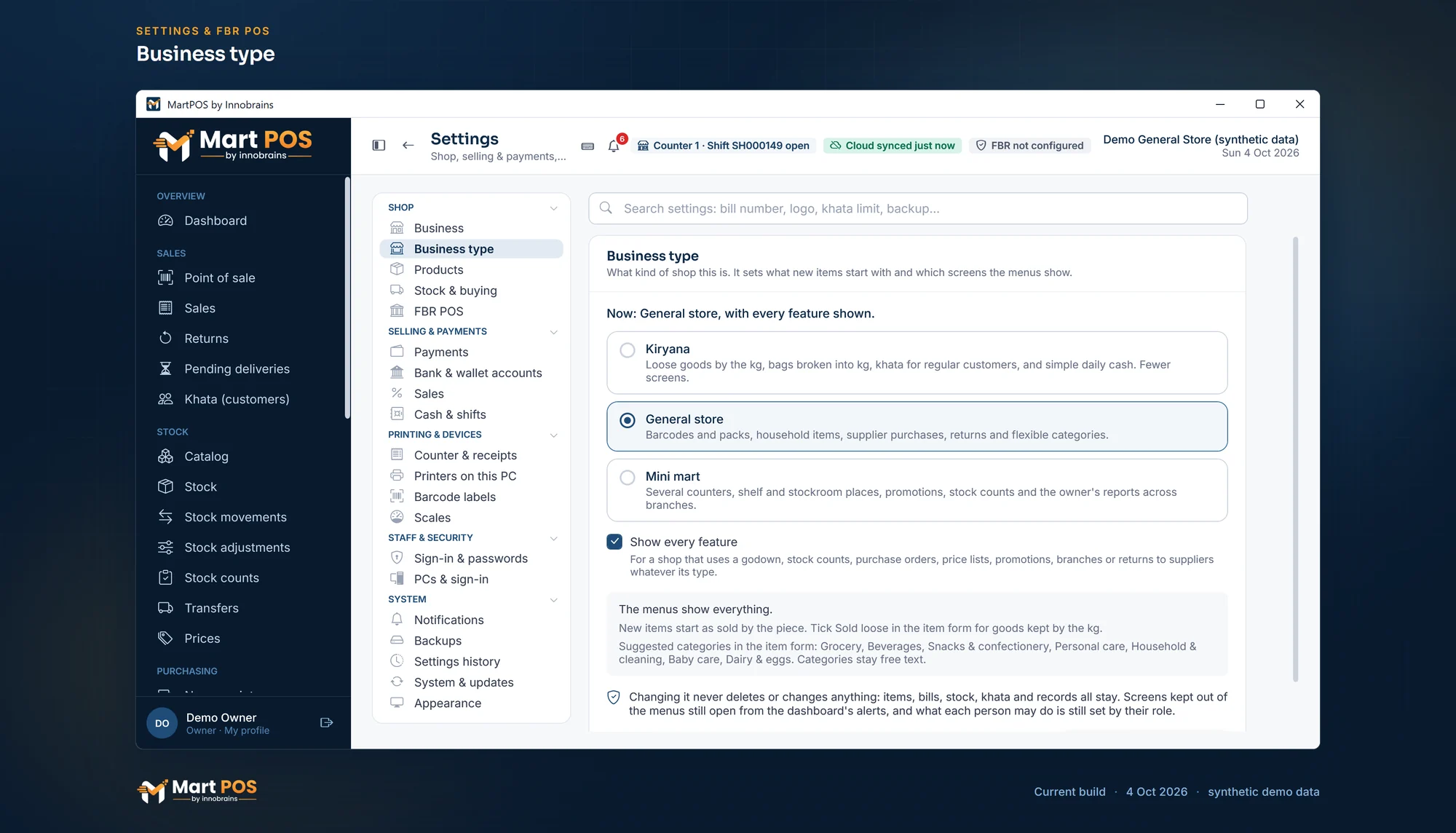
Business type. Kiryana, general store or mini mart sets what new items start as and which screens the menus show; changing it never deletes anything. Screenshot of the current build (4 Oct 2026), synthetic demo data.
What it never does
- It never deletes or changes a record. Items, bills, stock, khata, purchases and settings stay exactly as they were. Switching from mini mart to kiryana takes the Price lists tab out of Prices; the price lists themselves stay, and still apply at the till.
- It never changes who may do what. Roles and permissions stay as they are. A cashier still cannot open what their role cannot open. See Staff, roles and counters.
- A hidden screen is still there. If the dashboard or the bell points to something on a screen the menus keep out, the link still opens it.
- It does not change existing items. Only new items start with the type's default. An item already kept by the piece stays so.
Stores set up before business types
A store that was set up before business types existed keeps every screen: Show every feature is on for it, so an update hides nothing. Choose a type and untick Show every feature if you want fewer screens.
Branches
Each branch has its own business type, kept on its own store PC. A mini mart's second branch can be set up as a kiryana if that is how it sells. The owner portal does not change the business type; change it on each branch's store PC.
Common questions
Will changing the business type delete my price lists or stock counts?
No. Nothing is deleted or changed. Their screens only leave the menus, and come back when you choose a larger type or tick Show every feature.
Why do new items start as sold loose?
Your business type is Kiryana. Untick Sold loose, by weight or measure on packed goods, or choose General store in Settings › Business type if most of what you sell is packed.
Where are stock counts? I cannot find them.
A kiryana keeps stock counts out of the menus. Choose General store or Mini mart, or tick Show every feature, in Settings › Business type. See Stock counts while the shop stays open.
Who can change the business type?
Whoever may change the store's settings: owners and managers. The change is recorded in the audit log.
Related guides
Last updated 04 October 2026. Still stuck? Contact us.