A stock count compares what MartPOS says is on the shelf with what is really there, and corrects the differences in one step. A kiryana or general store rarely gets a day with the shutter down, so MartPOS counts while the shop stays open: sales made after a line was counted never look like losses. This guide covers the Stock counts page, making a count sheet, counting, printing a sheet to count on paper, and posting.
Cannot find Stock counts? A shop set up as a Kiryana keeps it out of the menus. Choose another business type, or tick Show every feature, under Settings › Business type; nothing is deleted either way. See Choosing your business type. Services and charges, such as home delivery, have no stock and never appear on a count sheet.
Before you start
- Choose the scope. A shelf or rack (Rack R5), a category (Spices, Soap and detergents), an item, or the whole shop. Smaller sheets are easier to finish and check.
- Choose the place. The shop floor, or a godown or back store you added under Move stock. Each sheet counts one place.
- Split the work. One person reads the items from the shelf, another types, or print the sheet and write on it.
- Keep sizes and variants apart. The 500 ml and the 1 litre bottle of the same oil are different items, and so are two flavours of the same biscuit. Count each on its own line.
- Weigh loose goods. Sugar, rice, daal and other loose items are counted by weight, with decimals: an open sack weighed at 12.35 kg is typed as 12.35.
The Stock counts page
Open Stock counts in the menu under Stock (the Count button on the Stock page opens it too). It lists every count sheet, newest first, with:
- its name, number (MAIN-SC000002) and place;
- its status: Counting, Posted or Cancelled;
- when it was started and by whom;
- how many lines are counted (2 of 7);
- the result: the differences so far, or, once posted, how many lines differed and the value found and missing.
Choose Every sheet, Still counting, Posted or Cancelled to narrow the list. Excel, CSV, PDF and Print export the list. Choose a sheet to open it on its own page.
How to make a count sheet
- On Stock counts, choose New count sheet.
- Type a Name, for example Rack R5 or Spices.
- In Items to count, type a shelf, a category, an item's name or an SKU to count only the items that match. Leave it empty to count everything.
- Choose the Place: the shop floor (the till sells from here) or another place such as the godown.
- Choose Create sheet. The sheet opens on its own page.
The sheet lists every matching item, in shelf order, with what the books show now for sellable stock at that place. Items marked discontinued are left out. A sheet can hold up to 3,000 items; if more match, MartPOS asks you to count by shelf or category instead. The shelf matches what is typed in Shelf / rack on each item, so fill that in when you add items and counting by shelf becomes easy.
How to count
- On the sheet's page, use Find on this sheet to jump to an item, and the list next to it to show Every line, Not counted yet, Counted or Differences.
- Type what you find in Counted, in the item's base unit: pieces for packed goods, kg (or litres) for loose goods. Five cartons of 24 are 120. A loose item takes up to three decimals, such as 12.35 kg; for packed goods type whole pieces.
- Leave a line empty if you did not count it. It is not changed.
- Type 0 for an item that is not on the shelf at all.
- Choose Save counts as you go. The page says how many counts are not saved yet. A count can run over several days; what you saved is kept.
When a count is saved, MartPOS records the books' quantity at that moment in At count. The Difference is what you counted minus that figure. A packet sold ten minutes later changes the current figure beside it, but not the difference, so it is not taken for a loss.
Counting by lot. An item that tracks expiry dates shows its lots under its name (2 lots on record) and a layers button beside Counted. It opens Count … by lot: each lot at the counted place (its expiry date, batch and what the records hold) with a box for what is on the shelf, and Add a lot found on the shelf for a date the records do not have. A lot left blank counts as none found. The line's count becomes the lots added up, and posting puts each lot right by its own difference, so a short March lot and an extra June lot are both corrected even when the total matches. Typing a total by hand instead counts the item as a whole: a difference then comes off the earliest lots first, and stock found goes into the item's earliest lot. See Expiry dates and the near-expiry report.
If two people type on the same sheet at once, the second save is refused: "Someone else entered counts on this sheet meanwhile. Reload it and enter yours again."
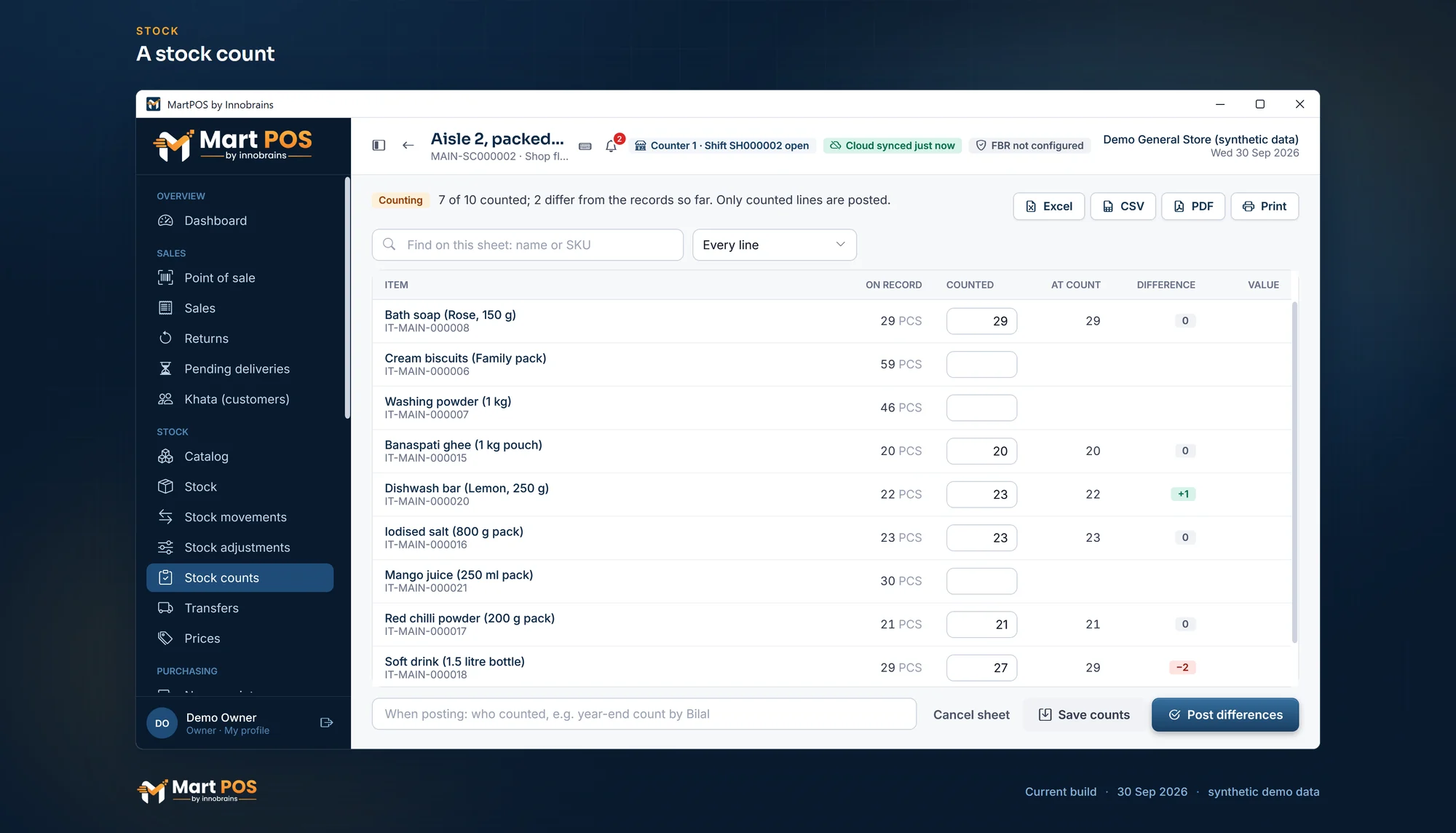
A stock count. A count sheet for one aisle while the shop stays open: each counted line keeps the quantity on record at that moment, and only real differences are posted. Screenshot of the current build (30 Sep 2026), synthetic demo data.
Counting on paper
While a sheet is still being counted, Print (or PDF) gives a list to count on paper: each item with its SKU, unit and what the books show now, and an empty Counted column. It prints the lines the page shows, so choose Not counted yet first to print only what is left. Type the figures in afterwards and save. Excel saves the same list as a workbook.
How to post the count
- Check the lines with a difference (choose Differences). Recount anything that looks wrong, such as a whole carton missing.
- Type who counted in When posting: who counted, for example month-end count by Bilal and Sana. Posting needs it.
- Choose Post differences. Anything typed but not saved is saved first. "… posted: only the differences were adjusted."
MartPOS then:
- adds or takes out only the real differences, at the average cost, to the Stock adjustments account (so they show in profit and loss);
- changes stock only at the sheet's place;
- leaves uncounted lines untouched;
- records the count's number on every movement it made, with who posted it.
If an item sold down after it was counted so that less is left than the shortfall, only what is left is taken out: stock never goes below zero. Found goods come in at the item's average cost at that place. An item with no stock there to take an average from comes in at no value, so for a new item it is better to leave its line empty and post Found stock with its cost under Adjust.
Cancel sheet abandons a count without changing any stock; MartPOS asks first.
Who can count
Anyone who can see stock can open the Stock counts page and read the sheets. Creating, entering, posting and cancelling counts needs the stock-adjustment permission: owners, managers and warehouse staff.
Common questions
Do I have to close the shop to count?
No. That is the point of the snapshot per line: keep selling while you count.
Can I count the godown?
Yes. Choose the godown as the Place when you make the sheet. The sheet shows the godown's stock, and posting changes only the godown's stock. Damaged goods are not on a sheet.
I counted a line wrong and saved. Can I change it?
Yes, until the sheet is posted: type the right figure and Save counts again.
How do I count a sack of sugar that is half used?
Weigh what is left and type the weight in kg, with decimals: 23.6 kg is typed as 23.6. Loose items are counted in their base unit, so do not count them in bags.
What if an item is found that is not on the sheet?
Make a new sheet with its name, or use Found stock under Adjust. See Stock adjustments.
Where do I see what a count changed later?
On the item's own page (open it from Catalog or Stock), under Movements, or on Stock movements with the kind Stock counts. Each movement shows the sheet's number and who posted it.
Related guides
Last updated 05 October 2026. Still stuck? Contact us.