Adding a till on a second PC in the shop
Let a second computer bill against the same stock: allow tills on the shop network, create a one-time code on the store PC, and connect the new till. Also how to remove one, and what happens when the store PC is off.
On a busy evening, or in the last days of Ramazan, one counter is not enough. MartPOS lets another PC in the shop bill as an extra till against the same stock. The second PC does not keep its own copy of anything: it asks the store PC for every price and every sale, so two counters can never both sell the last packet of the same biscuit.
What you need
- The store PC (the one that runs the MartPOS store server) and the new PC on the same shop network, by cable or Wi-Fi.
- MartPOS on the new PC, installed as an Extra till. While the Download page has no installer, we install it with you.
- The owner's sign-in on the store PC.
1. Let the store PC accept tills
The store PC's shop-network listener is off until you switch it on, and Windows Firewall must allow it, on a private network only. The installer does both when you tick "Extra tills on the shop network will connect to this PC" on the store PC. While there is no public installer, we switch it on with you.
2. Create a one-time code on the store PC
- Sign in as the owner and open Staff & counters.
- Under Tills on other PCs, choose Add a till.
- MartPOS shows the store PC address and a code. The code works once, for a limited time. Below it is the store PC's certificate fingerprint.
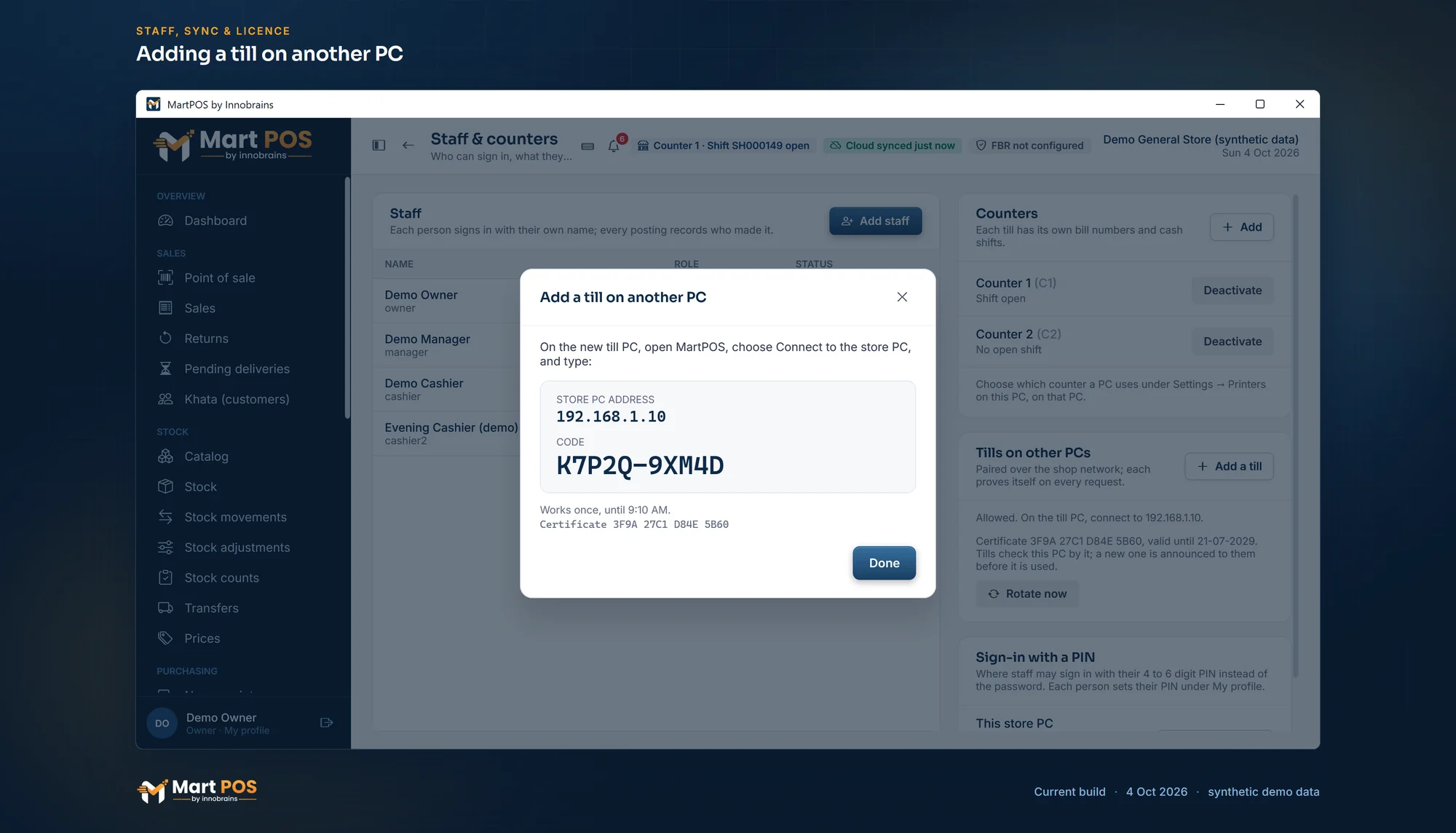
Adding a till on another PC. The owner makes a one-time code on the store PC and types it on the new till with the store PC's address; it works once, for 15 minutes. The address, code and certificate shown are samples. Screenshot of the current build (4 Oct 2026), synthetic demo data.
3. Connect the new PC
- On the new PC, open MartPOS and choose Connect to the store PC.
- Type the address and the code exactly as shown.
- The till checks that it is talking to your store PC (the code itself never travels over the network; both sides prove they know it) and remembers its certificate. From then on, every request is encrypted and carries the till's own device token.
- Sign in with your own name and password, as on the store PC.
Each counter has its own bill numbers and its own cash shift. Choose which counter a PC uses under Settings on that PC. If you need another counter, add it under Counters on Staff & counters.
Keeping the tills on the same version
When the store PC is updated to a new version of MartPOS, each extra till takes that same version from the store PC over the shop network, checks it, and installs it. A till does not need its own download for this. If a till cannot update this way, it says why.
Removing a till
On the store PC, Staff & counters lists the tills with the time each was last seen. Remove locks that PC out at once; it shows a message explaining how to connect again. Use it when a PC is replaced, sold or lost, or when a cashier's laptop leaves the shop for good.
If something goes wrong
- The store PC is off or the network is down: the extra till cannot bill until it is back. Its open bill is kept, and a sale retried after an unclear answer cannot be posted twice. The till on the store PC itself keeps working.
- The code does not work: it may have expired or already been used. Create a new one.
- The address does not answer: check that both PCs are on the same network, and that the store PC's network is set as private in Windows, not public.
A few practical points
- Put the store PC where it stays on. It is the shop's record, so it should not be the laptop that goes home at night. A small UPS in front of it saves a lot of trouble during load-shedding.
- Use a cable if you can. Wi-Fi works, but a cable between the store PC and the router is one less thing to go wrong on a busy day.
- One cashier, one sign-in. Give each person their own name and password, so every bill says who made it and each shift closes to the right person.
Common questions
Does the second PC need the internet?
No. It needs the shop network and the store PC. The internet matters only for the store PC's sync with MartPOS Cloud, and billing never waits for it.
Can the two tills sell the last packet twice?
No. A till never keeps its own stock; every sale is posted by the store PC, which refuses a sale that would take stock below zero.
What if the store PC is switched off?
The other tills cannot bill until it is back, and their open bills are kept. MartPOS deliberately does not let a second PC take over, because two PCs selling the same stock separately could both sell the last packet. More in offline and cloud.
Is the connection between the PCs secure?
Yes. It is encrypted, the till pins the store PC's certificate, and every request carries the till's own device token. The one-time code never travels over the network.
How many tills can a shop have?
The store PC is itself a till, and other PCs join it one by one. How many counters a branch may have depends on its plan; see pricing. For larger floors, see MartPOS for mini marts.
Step by step, with every message you may see, is in the help centre.
Founder & CEO, Innobrains Technologies
Arshad Ali is the founder and CEO of Innobrains Technologies, the company that is building MartPOS: point-of-sale, stock and khata software for kiryana stores, general stores and mini marts in Pakistan.
Run your shop on MartPOS
Barcode billing, loose goods and packs, khata and advances, on the shop's own PC without internet. We set it up on your shop PC with you.
Related guides
Urdu on your shop's receipts: the words, the item names and what to check first
Many customers read Urdu more easily than English, and the names they ask for are Urdu names. What a receipt can show in Urdu, how a thermal printer prints Nastaliq, how to choose between Urdu, English or both, and what to test before relying on it.
04 Oct 2026 · 6 minRegister se computer par: dukaan ka hisaab POS software mein kaise layein
Kiryana ya general store ka hisaab barson se register, khata copy aur Excel mein chal raha ho to software par aana mushkil lagta hai. Saat qadam mein poora tareeqa, Roman Urdu mein, aur har qadam par MartPOS ki screen ka naam.
30 Sep 2026 · 6 minMoving your item list into MartPOS from Excel
Bring in items with their packs, Urdu names and opening stock, customers with what they owe and suppliers with what you owe them, from a CSV file, with every row checked before anything is saved.
29 Sep 2026 · 6 min